New Seller Central 2026: Where Every Tool Moved
What actually changed in the new Seller Central
The six workspaces, and the one extra tab Amazon's own page mentions
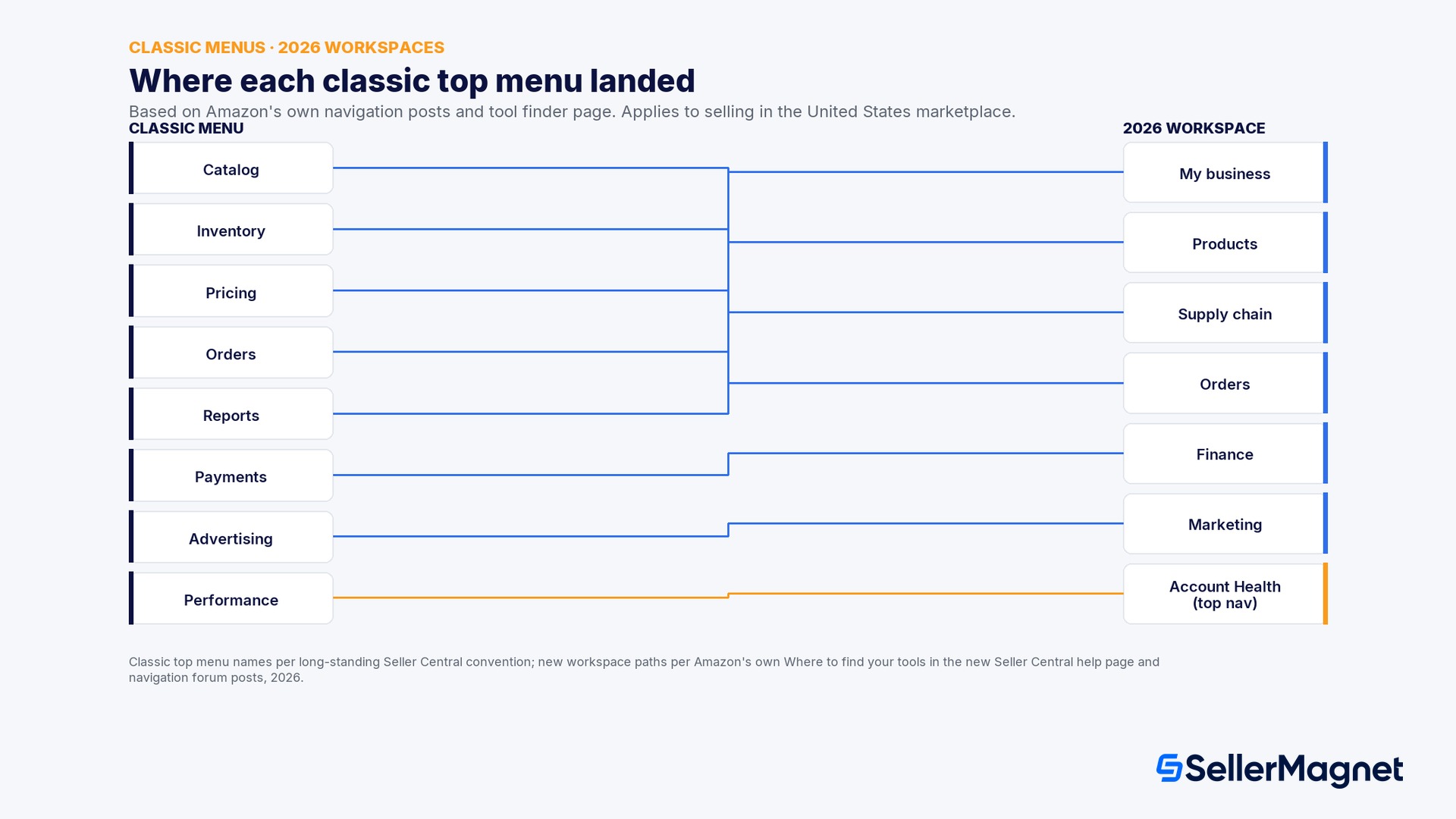
- My business. Your central hub: sales, orders and advertising widgets, the latest seller news, and the entry point to All reports, Custom Analytics, B2B reports and Seller Forums.
- Products. Your whole catalog: add products, manage listings, pricing (including Automate Pricing), A+ Content, images, video, experiments, reviews and feedback, plus product research and selling globally.
- Supply chain. FBA and seller-fulfilled inventory: inventory performance, shipments, aged inventory, storage utilization, capacity, defects and reimbursements, plus sending inventory to Amazon or AWD.
- Orders. Order and return management end to end: manage orders, manage returns, resolve A-to-z and SAFE-T claims, and shipping performance.
- Finance. Profitability and payments: payment reports, manage payments, manage taxes, lending, Seller Wallet and currency conversion.
- Marketing. Promotions and visibility: manage promotions, deals and coupons, Brand Analytics, the Ads Console and Manage Stores.
- Account Health and Settings (top nav, not a workspace). Reachable from any page, with no need to open a workspace first: Account Health, Performance Notifications, User Permissions and every settings page (returns, shipping, tax, FBA, apps, certifications).
The old menu to new menu mapping table
| Classic menu (general) | Tool | New workspace | New path (2026, per Amazon) |
|---|---|---|---|
| Pricing | Automate Pricing | Products | Manage products, then the Manage pricing tab, then the Automate pricing tab |
| Pricing | Manage Pricing / price health | Products | Click the arrow next to Manage products, then select Manage pricing |
| Pricing | Negotiated Pricing (B2B) | Products | Manage products, Manage pricing tab, then the Negotiated pricing tab |
| Catalog | Add a Product | Products | Add products, at the top of the Products workspace |
| Catalog | Add a Variation | Products | Add products, then the Add variations tab |
| Catalog | Manage Inventory (listings) | Products | Manage products, at the top of the Products workspace |
| Catalog | Manage A+ Content | Products | Manage products, then the Manage A+ content tab |
| Catalog | Manage Images / Manage Videos | Products | Manage products, then the Manage images or Manage videos tab |
| Catalog | Manage Experiments | Products | Manage products, then the Manage experiments tab |
| Customer Reviews | Vine / Voice of the Customer | Products | Analyze reviews, then the Vine or Voice of the Customer tab |
| Customer Reviews | Manage Feedback | Products | Analyze reviews, then the Manage feedback tab |
| Inventory | Manage FBA Inventory | Supply chain | Manage Amazon inventory, at the top of the Supply chain workspace |
| Inventory | Inventory Performance Dashboard | Supply chain | Manage Amazon inventory, Capacity Monitor, Inventory, then Inventory Performance |
| Inventory | Send to Amazon / Create Shipment | Supply chain | Send inventory, then Create shipment |
| Inventory | Manage Shipments | Supply chain | Send inventory, then Manage shipments |
| Orders | Manage Orders | Orders | Manage orders, at the top of the Orders workspace |
| Orders | Manage Returns / Returns Insights | Orders | Manage returns, then the Returns insights tab |
| Orders | A-to-z and SAFE-T claims | Orders | Resolve claims, then the Manage Safe T claims tab |
| Reports | Business Reports / All reports | My business | All reports, top right corner of the My business workspace |
| Payments | Manage Payments | Finance | Manage payments, at the top of the Finance workspace |
| Payments | Manage Taxes / Tax Document Library | Finance | Manage Taxes, then the Tax document library tab |
| Advertising | Ads Console | Marketing | Ads console, at the top of the Marketing workspace |
| Advertising | Brand Analytics | Marketing | Brand analytics, at the top of the Marketing workspace |
| Advertising | Promotions, Deals, Coupons | Marketing | Manage promotions and deals, then the matching tab |
| Performance | Account Health | Top nav (not a workspace) | Click Account Health directly in the top navigation bar |
| Settings (gear icon) | User Permissions, FBA, Tax, Shipping Settings | Top nav (not a workspace) | Click the gear icon, then Settings, then the matching settings page |
Three official ways to find a tool that moved
- Click a workspace tab. Go directly to My business, Products, Supply chain, Orders, Finance or Marketing at the top of the homepage, then look for the tool among that workspace's top-of-page buttons and tabs.
- Open the navigation menu. The redesigned drop-down menu in the top left corner of any page lists the tools inside each workspace, and also links to the full site map.
- Use the search bar. Type the name of any tool into the search bar at the top of the site and click the matching result; this is the fastest path once you know the tool's name but not its new home.
How to find Automate Pricing in the new Seller Central, step by step
Find Automate Pricing without using the search bar
- Open the Products workspace - From the homepage, click the Products tab at the top, one of the six main workspaces.
- Open Manage products - Click the arrow next to Manage products, not the Manage products button itself, so the drop-down list of related tabs appears.
- Select Manage pricing - Choose Manage pricing from that drop-down; this lands on the pricing health view for your catalog.
- Click the Automate pricing tab - Automate Pricing is a tab inside Manage pricing, not a separate top-level item; the rules you already created are unchanged.
- Bookmark it - If you check this tool daily, use the bookmark option Amazon added (from the navigation menu, next to any menu item, or from the upper left corner of the page) so you do not repeat these four clicks every time.
Rollout timeline: when you will see the new Seller Central
What sellers are reporting during the switch (seller-reported, not Amazon-confirmed)
- Seller-reported: more clicks for some order and store-country workflows. One seller described needing a long chain of clicks (changing store country, then filtering by fulfillment channel) to reach a view that used to be a single click in classic Seller Central, specifically for cross-marketplace FBM order lookups.
- Seller-reported: specific business reports harder to locate. Multiple sellers reported not being able to find year-over-year comparison reports or parent and child sales breakdowns in the same place they remembered from classic Seller Central's Reports menu.
- Seller-reported: dashboard comparison and date range limits. Some sellers reported that the new homepage's sales widgets do not let them pick a custom comparison period the way the classic dashboard did.
- Seller-reported: slower page response on some devices. A seller using Android described a noticeable lag before a page could be zoomed in to read clearly; this is a single device report, not a documented Amazon performance statistic.
- Amazon-confirmed, in progress: CTRL+Click and right-click to open a link in a new tab was reported broken across the menu and workspaces; Amazon's own forum post confirms this has been implemented across the menu and workspaces and is rolling out to the remaining areas as of that post.
- Amazon-shipped fixes you can rely on today: the site map, breadcrumbs, tooltips connecting old tool names to new locations, and bookmarking are all things Amazon states it has already shipped in direct response to this feedback, per the same forum post.
Common mistakes when moving to the new Seller Central
- Assuming a tool is gone instead of moved. Amazon's own help page states directly that core features and functionality remain the same; before concluding a tool was removed, check the search bar, the site map and the mapping table above.
- Looking under the old top level menu name. 'Catalog' and 'Inventory' are not menu names in the new Seller Central; per Amazon's own forum post, Catalog tools now live under Products and Inventory tools now live under Supply chain.
- Not using the search bar first. The fastest way to confirm whether a specific tool exists and where it sits is typing its name into the search bar at the top of any page, before clicking through workspace tabs by trial and error.
- Treating Account Health as part of a workspace. Account Health and Settings sit on the top navigation bar, reachable from any page; you do not need to open My business, Products or any other workspace first.
- Forgetting that third party tools are unaffected. Amazon's help page confirms SP-API integrations and third party tools continue to work as before; a navigation change inside Seller Central's own screens does not touch how SellerMagnet or any other connected tool reads your data.
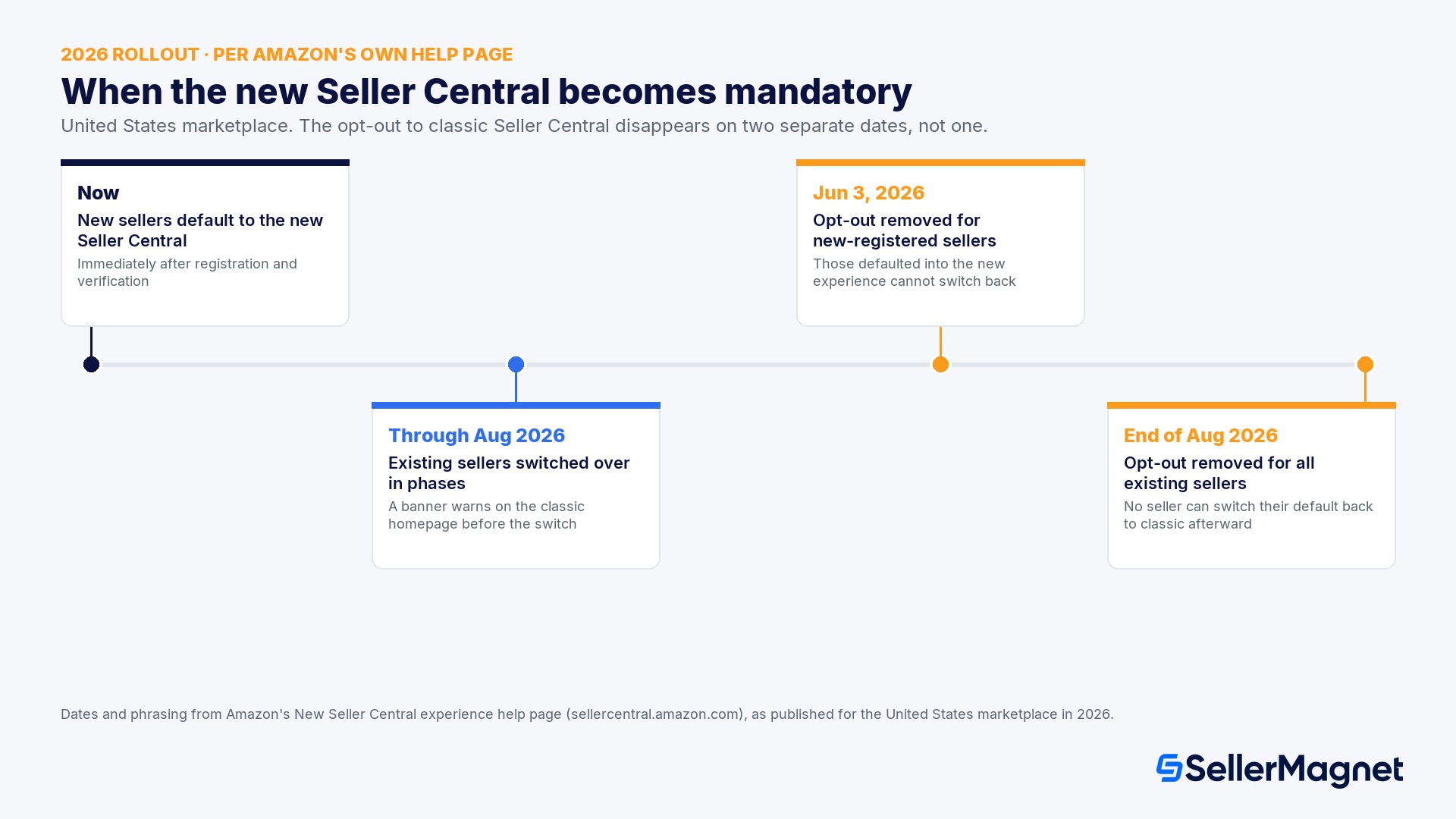
- Waiting until the opt-out deadline to get familiar with it. With the opt-out removed for new sellers since June 3, 2026, and for all existing sellers by the end of August 2026, treating the new Seller Central as temporary costs more time than learning the handful of tools you use daily now.
Migration checklist: get comfortable with the new navigation in under an hour
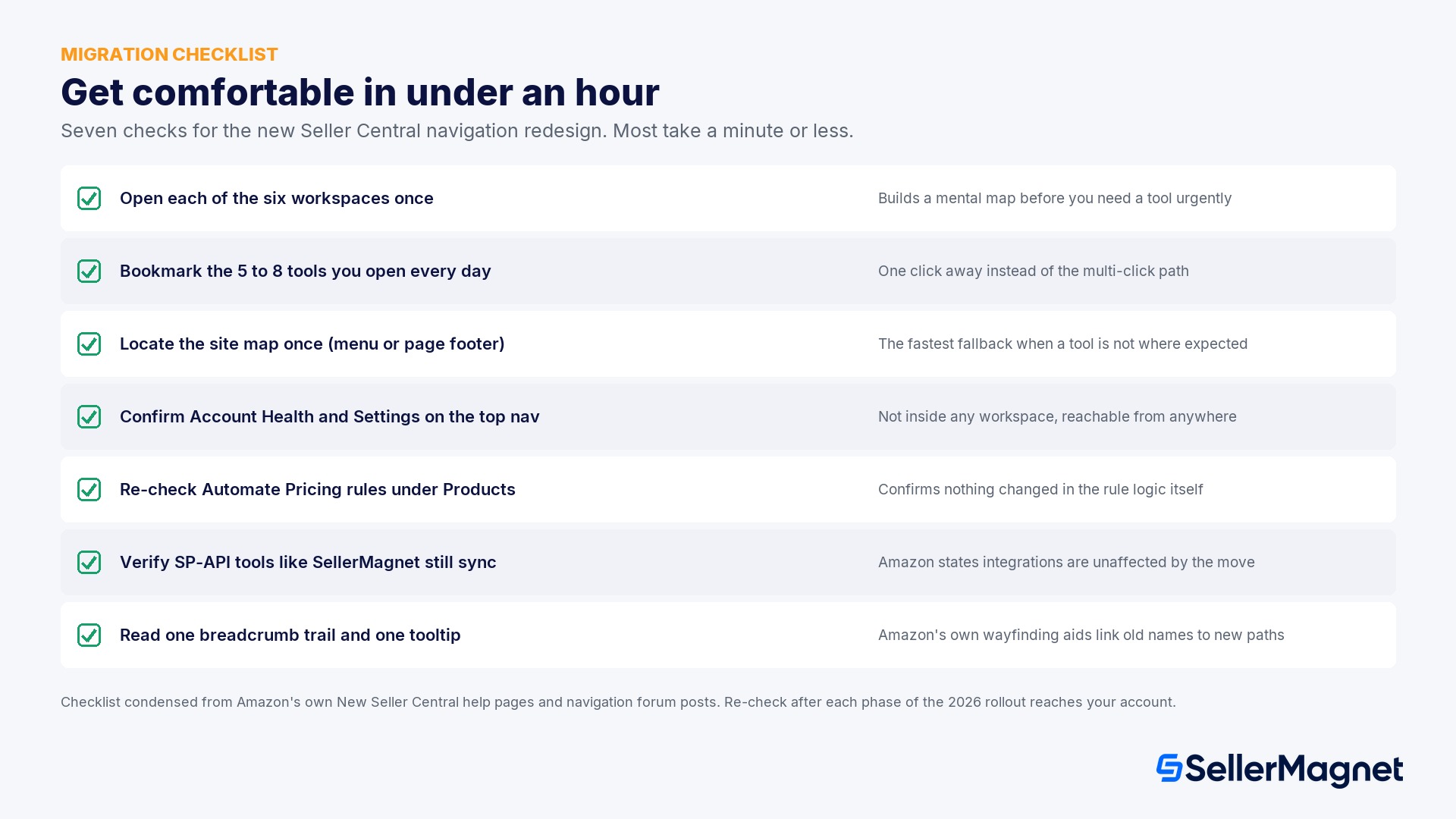
| Check | Why it matters |
|---|---|
| Open each of the six workspaces once (My business, Products, Supply chain, Orders, Finance, Marketing) | Builds a mental map of which tasks live where before you need a tool urgently |
| Bookmark the 5 to 8 tools you open every day | Amazon's bookmark feature puts them one click away, replacing the multi-click path you used the first time |
| Locate the site map once, in the navigation menu or the page footer | The fastest fallback when a specific tool is not where you expect, without guesswork |
| Confirm Account Health and Settings from the top navigation bar | They are not inside any workspace, so you never need to hunt through My business or Products for them |
| Re-check your Automate Pricing rules and their min/max values under Products, Manage products, Manage pricing | Confirms nothing changed in the rule logic itself during the navigation move |
| Verify SP-API connected tools (SellerMagnet, any other third party app) still sync normally | Amazon states integrations are unaffected, but a quick check costs a minute and confirms it for your own account |
| Read one breadcrumb trail and one tooltip the first time you get lost | Amazon's own wayfinding aids are built specifically to connect a familiar tool name to its new path |
Does the new navigation change how a connected tool like SellerMagnet works?
Did Amazon remove any tools in the new Seller Central?
How do I switch back to classic Seller Central?
Where did Automate Pricing go in the new Seller Central?
What are the six workspaces in the new Seller Central?
How do I find a tool I cannot locate in the new layout?
Will the new Seller Central navigation affect my SellerMagnet connection?
When does every seller lose the option to use classic Seller Central?
Is this the same guide as 'what is Amazon Seller Central'?
Stop Juggling Tools. SellerMagnet Combines Everything You Need.
Join a smarter way to manage your Amazon store.

Recommended Articles

Amazon Keyword Indexing 2026: Why Listings Go Unsearchable
Why an active Amazon listing can still be unsearchable, Amazon's own 5 documented causes, and a manual way to check indexing without a third-party tool.
Amazon Bundle Policy 2027: What Changes on January 11 and How to Stay Compliant
From 11 Jan 2027 most hard kit bundles outside Consumables must be manufacturer-packaged unless they have a letter of authorization, sit in an exempt category, or become virtual bundles.
Amazon Listing Variations 2026: Parent-Child Errors
What an Amazon parent and child ASIN variation actually is, the 5 causes that break a family, and a worked example of when to split or merge listings.

Manual Product Research vs Data-Driven Sourcing (2026)
Where manual Amazon product research and a data-driven sourcing workflow land on different answers for the same product, with a worked example of the landed-cost and sell-through gap.
Amazon Return Fraud: Patterns, SAFE-T and the Real Tradeoff
Amazon return abuse patterns, the SAFE-T claim vs restocking fee tradeoff, and the evidence and Report Abuse workflow that gets a repeat offender reviewed.
Amazon Order Defect Rate 2026: ODR vs Contact Metrics
What counts against Order Defect Rate, how Contact Rate, Response Time and Dissatisfaction Rate work, and why refund timing decides an A-to-z claim's ODR impact.