Amazon Seller Central User Permissions 2026: Add Your Team Safely
R
RenéFreelance Amazon Editor
|
15 min read
At some point almost every growing Amazon business stops being a one-person operation. A virtual assistant takes over customer messages, an agency runs the advertising campaigns, a part-time hire reconciles inventory, and suddenly the account that used to have one login needs several. The easy shortcut is to hand out the owner's email and password. Seller Central has a built-in alternative that most sellers never open: User Permissions, a page that lets you add named employees and authorized partners with exactly the access each of them needs, and remove that access in one click the day they stop working for you. Below is what the page actually controls, the roles worth setting up for a small team, and the mistake that quietly puts the whole account at risk.
Seller Central's User Permissions page, under Settings, lets a Professional-plan account add employees by email invitation and grant each one only the pages they need, instead of sharing the owner's login. The primary user (the account administrator) invites secondary users (employees) under Manage Employees, and authorizes external agencies or developers separately under Manage Services as authorized partners. An employee becomes an administrator only if given explicit View and edit rights on that page.
The 3 kinds of user Seller Central actually recognises
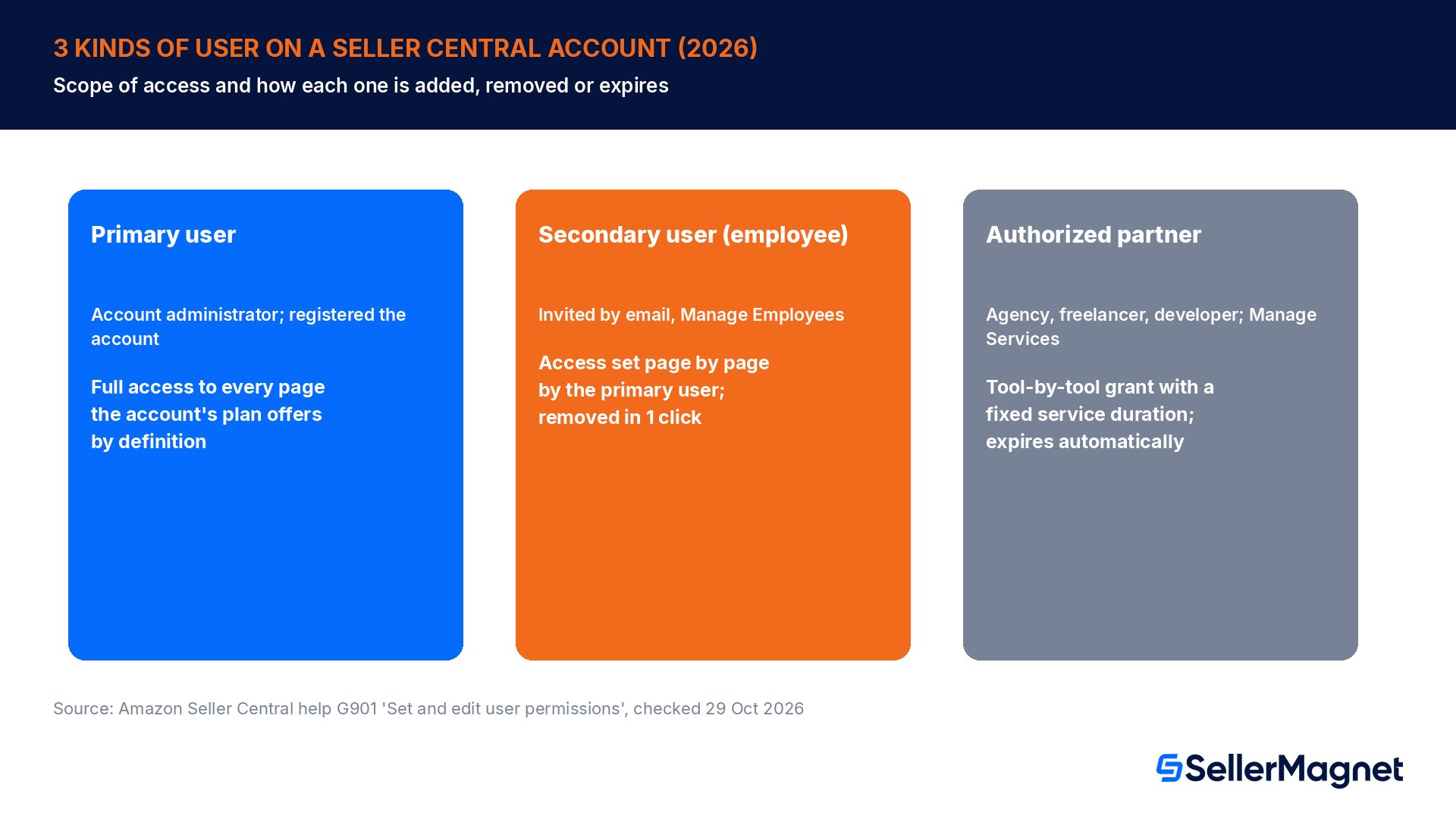
Amazon's User Permissions help page defines exactly 3 roles, and the difference between them is the single most important thing to get right before you add anyone to your account. Confusing a contractor with an employee, or an employee with the primary user, is the root cause of most of the access mistakes sellers make.
User type
Who they are
How they get access
Can they manage other users?
Primary user
The person who registered the Seller Central account; the account administrator
Created the account itself
Yes, full control by default
Secondary user (employee)
Staff, co-owners or in-house team members who work inside your business
Invited by email from Manage Employees
Only if the primary user grants View and edit on the permissions page
Authorized partner (service provider)
External agencies, freelancers and developers who are not part of your company
Authorized through an authorization link or the Service Provider Network, under Manage Services
No, access is limited to the tools confirmed and expires at the end of the service duration
The primary user has access to every page and feature the account's plan offers, by definition; there is no narrower version of that role. Everyone else's access is something the primary user (or an administrator the primary user created) chooses, page by page. The practical rule Amazon's own forum guidance repeats is simple: don't add external contractors or companies as employees, and don't add your own staff as authorized partners. Each path exists for a reason, and mixing them up either over-exposes the account or quietly breaks the agency's access when the service duration you picked runs out.
Why sharing one login is the expensive shortcut, not the convenient one
Setting up individual users takes a few minutes longer than typing a password into a group chat, which is exactly why sharing one login is still the default on so many small Amazon accounts. The cost shows up later, not on day one, and it shows up in 3 specific ways that User Permissions was built to prevent.
No accountability. Amazon's warning on the permissions page is explicit: by granting access, you allow other users to complete tasks such as managing inventory or handling shipping confirmations, and you are responsible for the actions of any user you add, including any misuse. With one shared login, every action in the account, a price change, a listing edit, a message sent to a customer, is attributed to the same credential and cannot be traced back to the person who actually did it.
No partial access. A password is all-or-nothing. The person who only needs to answer customer messages ends up able to see payout totals, change prices and edit live listings, because there is no way to hand over only the inbox with a shared login.
No clean offboarding. The only way to fully revoke a shared login is to change the password itself, and that locks out everyone who still legitimately needs access at the same moment, not just the person who left.
Account credentials are not meant to be shared
Amazon's own guidance on the User Permissions page states it directly: account credentials are unique, and confidential information should not be shared with anyone. Granting access through the permissions page, rather than handing out the login itself, is the supported way to let someone else work in the account.
How the invitation model works, step by step
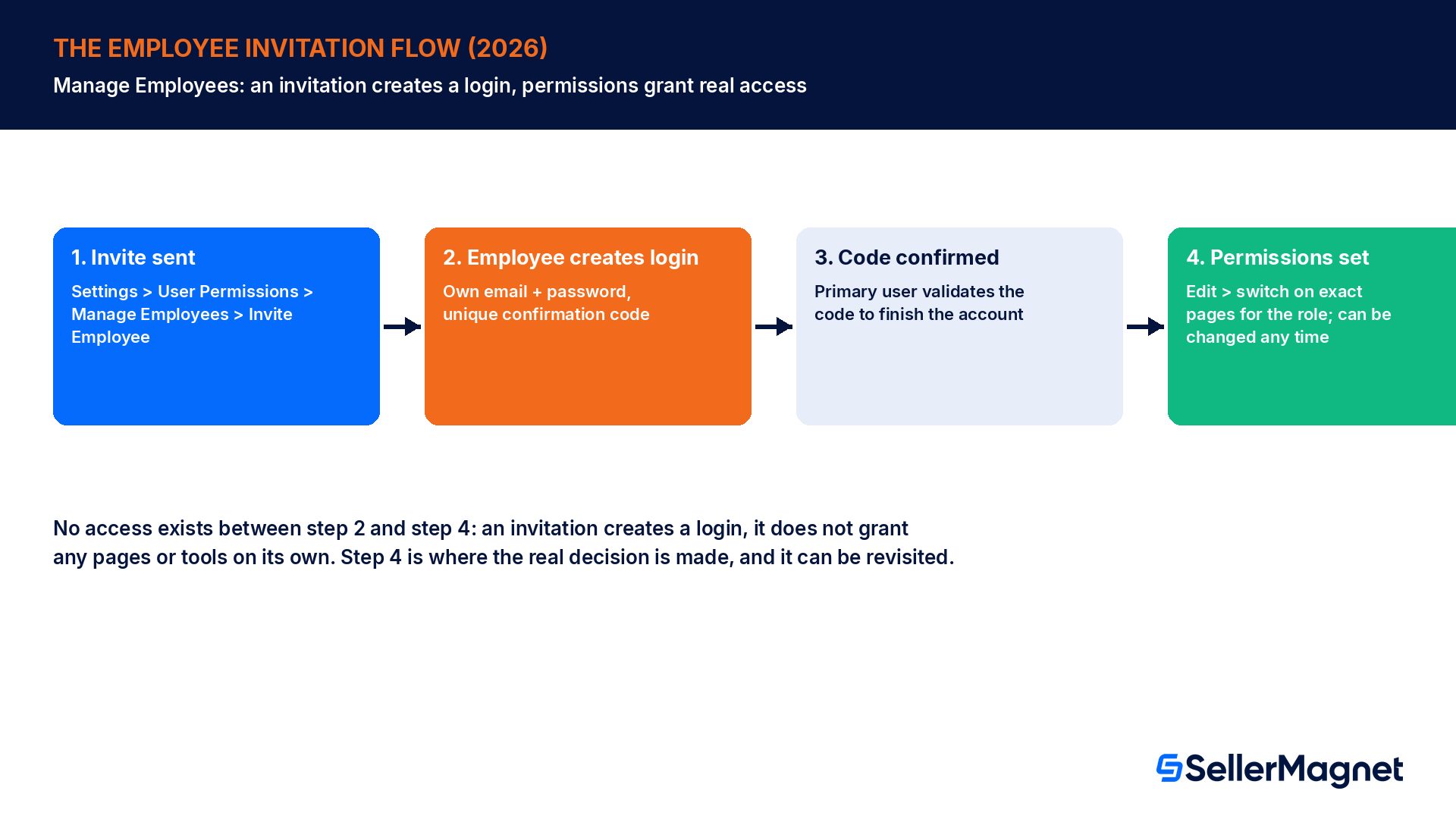
Seller Central uses what Amazon calls an invitation model: the primary user sends an invitation, the invited person creates their own account, and only then does the primary user configure what that account can see and do. The process keeps every login unique to the person using it, which is the part a shared password removes entirely.
From the Settings drop-down menu, select User Permissions, then go to Manage Employees and click Invite Employee.
Enter the new employee's details and click Send invitation. Amazon emails them a link to Seller Central.
The new employee follows the instructions in that email, provides their own email address and password, and reaches a page with a unique confirmation code.
The employee sends you that confirmation code, and you (the primary user or an administrator) validate it against the matching code shown in Seller Central to finish establishing the account.
Open Manage Employees, find the new account, click Edit, and switch on exactly the pages and tools that person needs for their role. Save the changes.
Repeat the invitation for every additional employee; each one gets their own unique login, so a username and password pair is never shared between 2 people.
One detail catches sellers who have not opened this page before: the new employee will not automatically be able to see or edit anything until you (or another administrator) actively grants permissions on the Manage Employees screen. An invitation by itself does not hand over access; it only creates the account. The permissions step is where the actual decisions are made, and it can be revisited at any time without sending a new invitation.
Who becomes an administrator, and why that matters
Not every employee should be able to add or remove other users. Amazon keeps this deliberately narrow: an employee cannot access the Manage Permissions page at all unless the primary user has made them an administrator, and that only happens when the primary user (or an existing administrator) grants that specific employee 'View and edit' rights through the permissions page itself. Until that happens, the employee can work inside whichever pages you switched on for them, but has no visibility into, and no ability to change, anyone else's access.
This creates a clean separation worth using deliberately rather than by accident: keep the administrator role for yourself and, at most, one trusted co-owner or operations lead. Every other employee, no matter how senior their day-to-day job is, should be able to do their work without being able to touch the User Permissions page itself. That single restriction is what stops a compromised or careless account from cascading into every other user on the business.
4 roles worth setting up for a small Amazon team
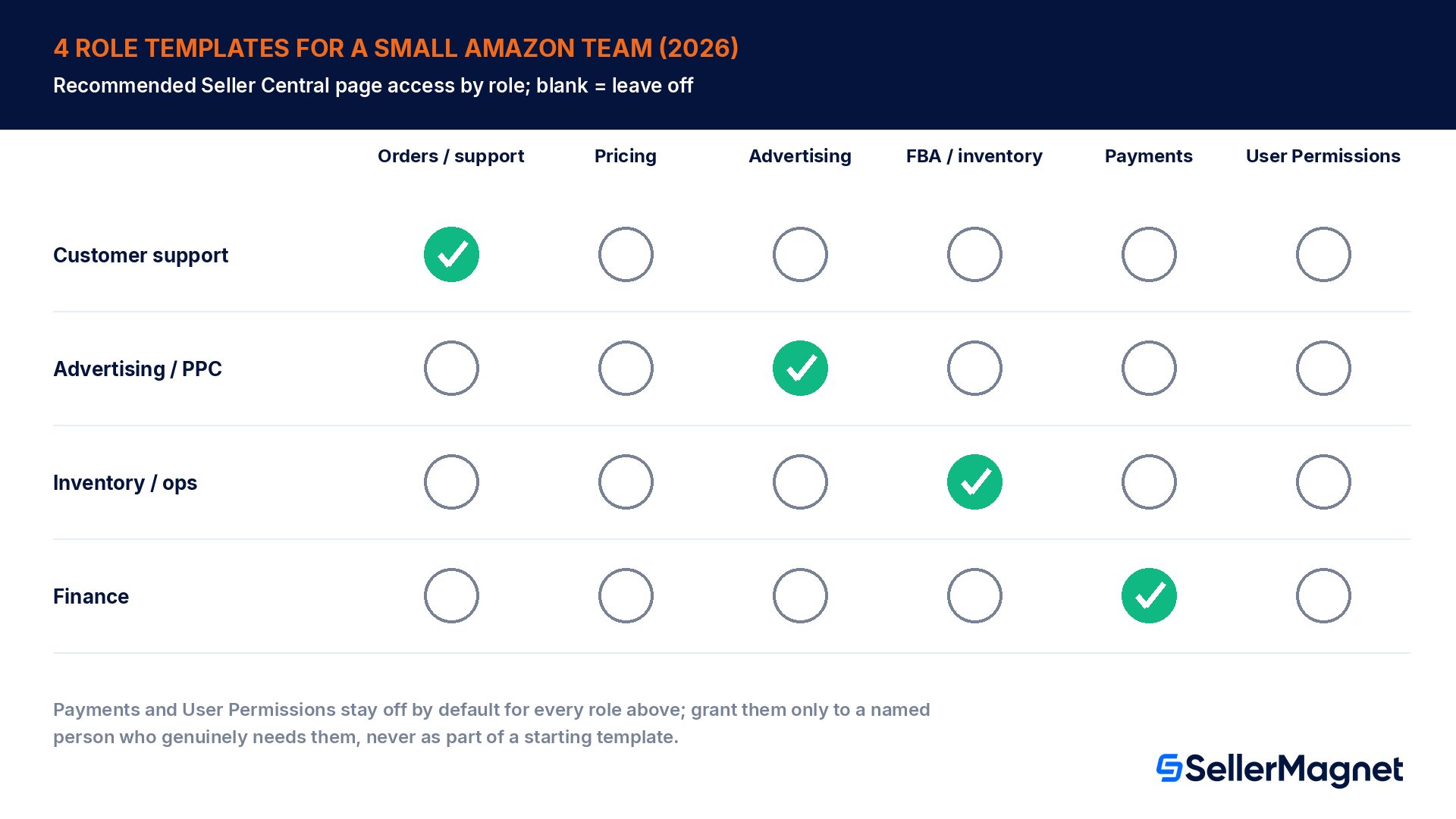
Seller Central's permission toggles are granular, page by page, which can feel like a lot of individual decisions for a first-time setup. In practice, most small teams only need 4 recurring role patterns, and starting from these is faster than building each employee's access from a blank page.
Role
Core pages to grant
Pages to leave off
Customer support
Manage orders, buyer messages, returns and refunds
Listing edits, pricing changes, advertising, user permissions
Two pages belong on almost nobody's list by default: Payments, because it exposes your full transaction and payout history, and User Permissions itself, for the administrator reason above. If a role genuinely needs one of those, grant it to that specific person rather than copying it into every role's starting template. Review the list again whenever someone's job changes; Amazon's own tip on the permissions page is to grant the minimum access required for the current job and edit it, rather than leaving an old, broader grant in place because revisiting it feels like extra work.
Agencies, freelancers and developers: authorized partners, not employees
A PPC agency, a freelance listing designer or a software developer is not part of your company, and Seller Central has a separate path for exactly that relationship: Authorized Partners, managed from Manage Services on the same User Permissions page. The process is different in 3 important ways from adding an employee.
Confirmation, not an open invitation. If you already know the provider, you ask them to generate an authorization link through the Solution Provider Portal; opening that link and confirming each tool they need is how access is granted. If you are looking for a provider, the Service Provider Network lists vetted options you can authorize the same way.
A tool-by-tool grant, confirmed by you. Rather than toggling individual Seller Central pages, you confirm the specific tools the provider's authorization link requests, and nothing outside that list.
A time limit, not an indefinite grant. Every authorization has a service duration you select. When it expires, Amazon automatically revokes the provider's access; you get reminders before that happens so you can renew it or let it lapse on purpose.
Do not add contractors as employees
Amazon's own seller forum guidance is direct about this: all external contractors or companies that are not part of your company must be added as authorized partners, never as secondary account users. Adding an outside agency as an employee gives them an open-ended grant with no automatic expiry, which is the opposite of what the authorized-partner path is designed to prevent.
The automatic expiry is the detail most sellers only discover the hard way, usually when a provider's dashboard suddenly loses access mid-project because nobody renewed the service duration. Treat an upcoming expiry reminder the same way you would treat a subscription renewal: a quick decision each time, not a surprise.
Worked example: revoking access when someone leaves
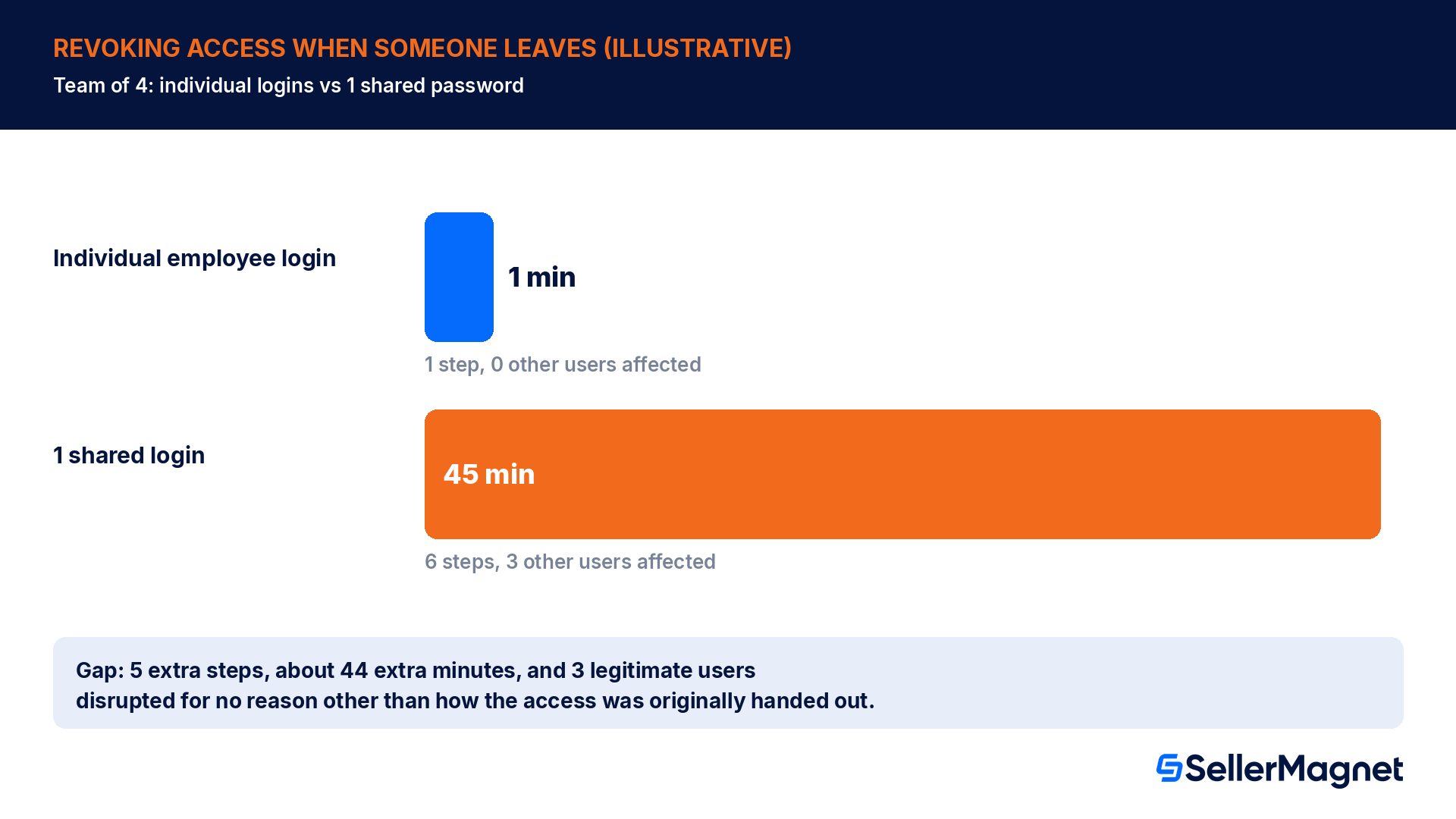
To see why the user-type choice matters in practice, compare 2 identical teams of 4 people, where one manages their departures through individual permissions and the other has been sharing one login. This is an illustrative scenario built to show the mechanics, not a published Amazon figure; your own numbers will depend on how many tools and devices are connected to the account.
Team A, individual permissions: the departing person's access lives entirely under their own employee login. The administrator opens Manage Employees, selects that user's dropdown, clicks Remove user, and the access is gone. That is 1 step, done in about 1 minute, and it changes nothing for the other 3 people still using the account.
Team B, one shared login: the only way to lock the departing person out is to change the password itself. That means: (1) choose and set a new password, (2) update it on every device the remaining team members use, (3) re-authenticate any connected tool or browser session tied to that login, (4) notify each of the 3 remaining legitimate users of the new password, (5) confirm nobody wrote the old password down somewhere it can still be found, and (6) hope the person who left never saved it anywhere outside your control. That is 6 steps, roughly 45 minutes of real coordination, and it disrupts all 3 remaining users at once, whether they were ready for a password change or not.
The gap is 5 extra steps and about 44 extra minutes in this scenario, and the real risk is not the minutes, it is the gap between the day someone leaves and the day every device and saved password has actually been rotated. An individual employee login closes that gap in one click, with the account administrator fully in control of exactly when.
Reviewing permissions on a schedule, not just when someone joins
Most sellers only think about User Permissions when they add someone new. Amazon's own tip on the page frames it as an ongoing habit instead: regularly review the permissions granted to your users, because users with account access who no longer work with your business can pose a risk to the private information in the account, even after they have moved on to something else.
Open Settings > User Permissions > Manage Employees and list every active employee account on the page.
For each one, confirm the person is still working with your business today, not 6 months ago.
Check that their granted pages still match their current job; edit down anything broader than the role needs now.
Open Manage Services and check every authorized partner's remaining service duration; renew or let the ones you no longer use expire on purpose instead of by accident.
Remove any account you cannot immediately explain the purpose of. If it is still needed, it will be easy to re-invite; if it is not, you have just closed a gap.
Common permission mistakes that put the whole account at risk
Sharing the primary login with employees or contractors instead of inviting them. This is the single mistake every other one on this list follows from.
Adding an external agency, freelancer or developer as an employee instead of an authorized partner, which gives them an open-ended grant with no automatic expiry.
Granting 'View and edit' administrator rights by habit, to make onboarding faster, instead of reserving it for the 1 or 2 people who actually need to manage other users.
Granting every new employee the same broad permission template regardless of their actual role, instead of the 4-role pattern above.
Never revisiting old grants after someone's role changes or they stop working with the business, so access quietly outlives the job it was meant for.
Forgetting that only Professional-plan sellers can set and manage permissions at all; an Individual seller who wants to add staff has to upgrade the plan first.
Treating an authorized partner's expiring access as a system error rather than the expected end of the service duration you originally selected.
The 10-minute setup checklist
Confirm your account is on a Professional selling plan; User Permissions is not available on an Individual plan.
List everyone who currently has, or should have, access to your Seller Central account by name.
Sort that list into employees (people who work inside your business) and authorized partners (outside agencies, freelancers and developers).
Send an email invitation from Manage Employees for each employee; never hand out the account's own password.
Authorize each outside provider under Manage Services with a specific service duration, not an indefinite grant.
Set each employee's permissions to one of the 4 role patterns above, and leave Payments and User Permissions off unless that exact person needs them.
Grant administrator ('View and edit' on this page) to yourself and at most one trusted co-owner.
Put a recurring monthly reminder on your calendar to review every employee's access and every partner's expiry.
Where SellerMagnet fits
Role-based access controls who can change what inside Seller Central itself. The other half of running a team safely is making sure the right person actually sees the alert when something changes, whether that is a price drop, a listing suppression or a new buyer message. Amazon Alerts routes those notifications to the specific team member responsible, instead of a single inbox everyone shares, so the person who manages pricing hears about a Buy Box loss and the person who handles support hears about a negative review, without either of them needing broader account access than their own role already grants. Check the current features on the website before you set it up.
Who can set up User Permissions on a Seller Central account?
Only the primary user, the person who registered the account, or an employee that primary user has explicitly made an administrator. The feature itself is only available to sellers on a Professional selling plan; Individual sellers do not have the option to set or manage permissions at all until they upgrade.
What is the difference between an employee and an authorized partner?
An employee is someone who works inside your own business and is invited by email under Manage Employees, with permissions you set page by page. An authorized partner is an external agency, freelancer or developer, authorized under Manage Services for a specific set of tools and a fixed service duration that expires on its own unless you renew it.
Does inviting an employee automatically give them access?
No. The invitation only creates the employee's own Seller Central login and confirmation code. The primary user or an administrator still has to open Manage Employees, click Edit on that account, and switch on the specific pages the employee should see before real access exists. Until then, the new login can sign in but cannot touch anything useful.
Can an employee manage other users' permissions?
Only if the primary user grants that specific employee 'View and edit' rights on the User Permissions page itself, which makes them an administrator. Without that explicit grant, an employee cannot even open the Manage Permissions page, regardless of how much other access they have elsewhere in the account, including inventory or advertising tools.
Is it safe to just share the account password instead?
Amazon's own guidance says no: account credentials are unique, and confidential information should not be shared with anyone. A shared password removes accountability for individual actions, forces all-or-nothing access on everyone who holds it, and turns offboarding into a password change that disrupts every remaining legitimate user at the same time, not just the one who left.
How do I remove an employee's access when they leave?
Go to Settings > User Permissions > Manage Employees, find the account, open its dropdown and select Remove user. It takes effect immediately and does not require changing anything about any other employee's own login, permissions or password, which is the main practical advantage over a shared credential that everyone relies on.
What happens when an authorized partner's service duration expires?
Amazon automatically revokes that provider's access once the service duration you selected ends; you receive reminders before the expiry so you can renew it or let it lapse on purpose. This is expected behaviour, not an error, and it is exactly the mechanism that keeps outside agency or developer access from running on indefinitely without a review.
Should I add my advertising agency as an employee for simplicity?
No. Amazon's own seller forum guidance says external contractors and companies that are not part of your business must be added as authorized partners under Manage Services, never as secondary account users. Adding an agency as an employee gives them an open-ended grant with no automatic expiry and skips the tool-by-tool confirmation step that protects you.
Stop Juggling Tools. SellerMagnet Combines Everything You Need.