Amazon Request for Quote (RFQ): How Manage Quotes Works for Sellers
R
RenéFreelance Amazon Editor
|
15 min read
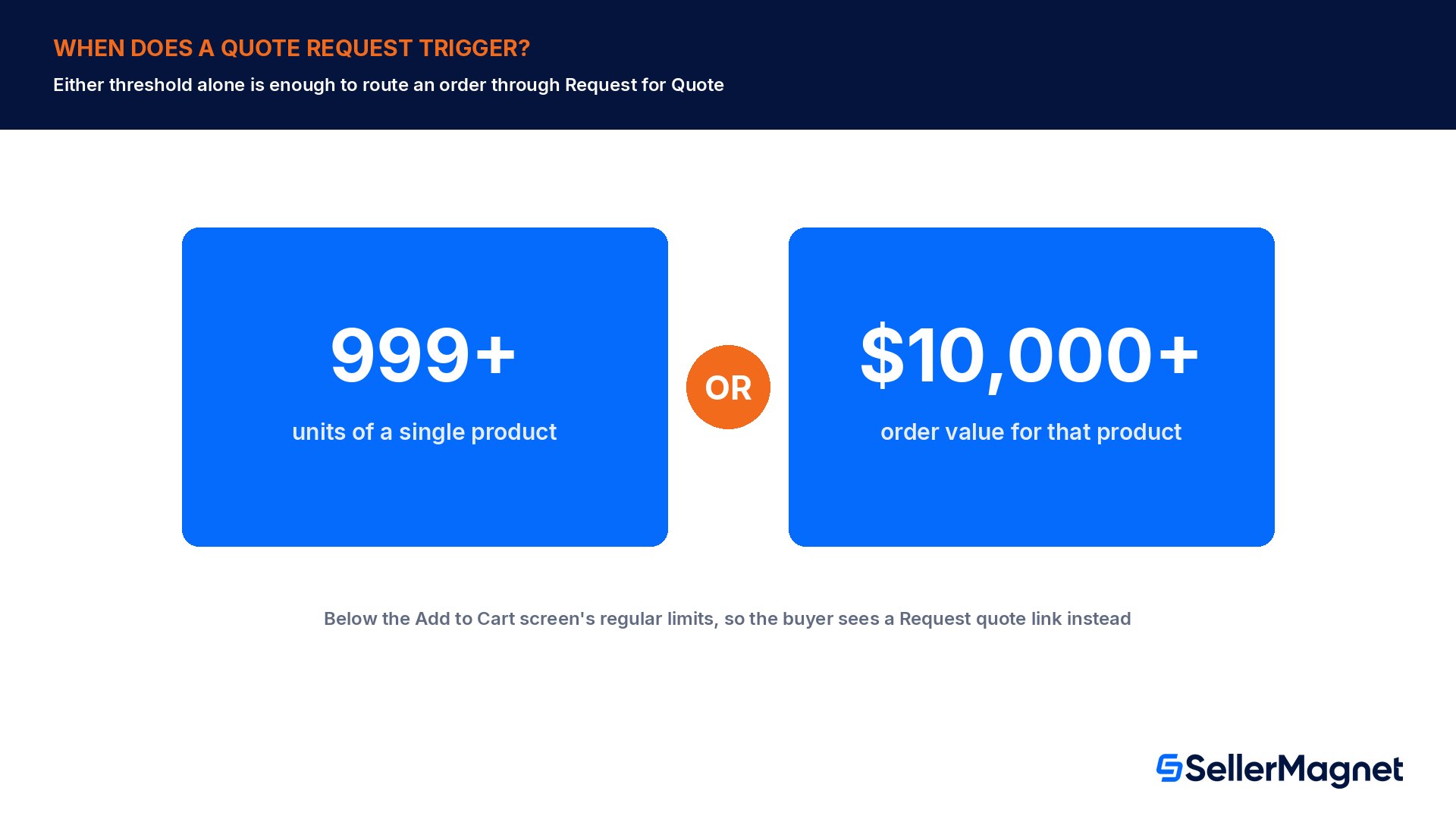
When an Amazon Business customer wants to buy more than 999 units, or spend over $10,000, on a single product, the regular Add to Cart button is not how that order happens. Amazon routes it through Request for Quote: the buyer clicks a "Request quote for 1,000+" link on the product page, and the request lands in the seller's Manage Quotes page, where it has to be answered with a price, quantity, and shipping commitment before the buyer can purchase anything. This page explains how to find and respond to a quote request, what happens to the temporary SKU Amazon creates, the one case-pack trick for requests over the 999-unit limit, and the separate bulk order referral fee discount that can make a large quote meaningfully more profitable than the same units sold one cart at a time.
Amazon Request for Quote (RFQ) is how Amazon Business buyers negotiate price and quantity on large orders, defined as over 999 units or $10,000, directly with sellers. The buyer requests a quote from the product page, and the seller responds from Manage Quotes with a price, quantity, offer expiration date, and handling time. Only one offer is allowed per request, and if the request exceeds 999 units, the seller must respond with a case pack rather than a single-unit offer. Accepted quotes get a temporary SKU, and a separate bulk order referral fee discount can lower the seller's fee on the portion of the order value above $1,000.
What is Amazon Request for Quote, and who sees it?
Request for Quote is a negotiation tool built into Amazon Business, not into the regular Amazon.com storefront. Amazon's own help page defines the trigger plainly: it "allows Amazon Business customers to negotiate pricing and quantity with a trusted network of suppliers to pursue more favorable deals on large orders, which are defined as greater than 999 units or $10,000." A business buyer sees a "Request quote for XXX+" link on an eligible product detail page instead of (or alongside) the normal Buy Box, clicks it, and specifies the quantity and any other requirements. The request then goes out to sellers Amazon has enrolled in the program; access is not something a seller turns on themselves, it is a feature eligibility Amazon grants.
A seller who is eligible is signed up automatically for email notifications: Amazon sends an email the moment a business customer requests a quote for a product the seller carries, and the Seller Central home page also shows a notification banner whenever there is at least one active request waiting on the Requests for items I sell (also labeled Custom quote requests on some accounts) tab. A buyer can request the same product more than once, so duplicate-looking requests from the same customer are expected, not a bug.
Where do I respond to a quote request in Seller Central?
Manage Quotes sits under the Orders drop-down menu (or the Account for Business / B2B menu, depending on account version) and splits incoming demand into two very different tabs. The first, requests matched to a seller's own catalog, is the one that drives the email notifications above. The second, a wider feed of requests that do not exactly match anything in the seller's inventory, is open to browsing: a seller can still respond by selecting "Offer a different ASIN" if something close enough exists. Amazon also marks a small subset of requests with a Priority Quote flag, described as highlighting "opportunities with stronger conversion potential" based on historical trends and signals, which is a recommendation only, not a guarantee.
Tab
What it shows
How to act on it
Requests for items I sell
Quote requests Amazon matched to a product already in the seller's catalog
Click View details to respond, or ignore if not interested
All quote requests (marketplace feed)
Requests from the wider Amazon Business store that do not exactly match the seller's inventory
Click View details, then Offer a different ASIN if a close substitute exists
My quotes / My offered quotes
Every quote the seller has already responded to and its outcome
Track status; see the win/loss reason once Amazon reports it
Sellers can also export the marketplace feed as a CSV through Bulk Download: apply filters on the All quote requests tab, click Download, and the report generates in the background (an email notification fires when it is ready). Bulk Download supports up to 10,000 rows per export, runs on desktop only, and the generated report stays available for 24 hours before it expires.
How to submit a quote response
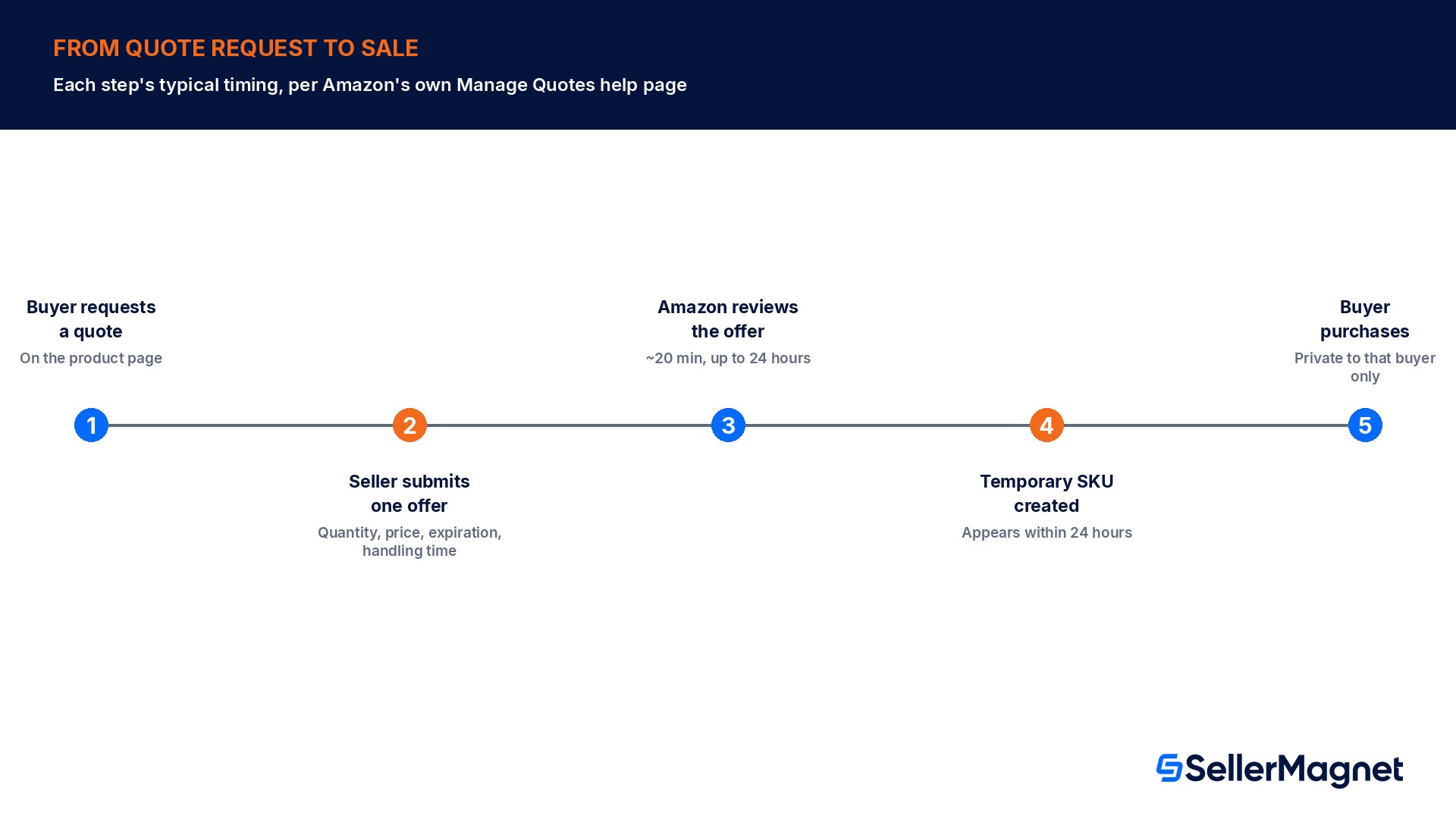
Responding to a quote request is a three-field decision, not a negotiation back and forth: Amazon's own instructions are to click View details, enter the quantity, price, offer expiration date, and handling time (the number of business days until the goods are ready to ship), then click Submit quote. There is no counter-offer mechanic and no way to see what a competing seller has quoted; the only guidance Amazon gives is to "keep your price lower than store pricing and submit the quote by the Offer by date listed in the request" to improve the odds of winning.
Only one offer is allowed per quote request; there is no resubmission once an offer is placed, other than canceling and starting over (and only once the status allows it).
A quote offer is private to the buyer who requested it. Quoting the same price to five different buyers' requests on the same ASIN is fine, but none of those buyers sees any of the others' offers.
A response can be edited only by canceling it first, and cancellation is only possible once the status has moved from Under Amazon review to Offered, a step that takes up to 24 hours (typically about 20 minutes).
Choosing how to fulfill the quote
Every quote response also carries a fulfillment choice, and the three options map directly onto a seller's existing operation rather than requiring anything new to be built.
Fulfillment option
What it requires
Best for
Existing FBA SKU
FBA inventory above the offered quantity on an existing SKU
High-volume buyers who need fast, Amazon-handled delivery
Existing FBM SKU
FBM inventory above the offered quantity on a SKU already in the catalog
Sellers who manage their own fulfillment and want to keep doing so
Private SKU
A brand-new SKU created only for this one request
A product or bundle not currently listed for sale on Amazon at all
An FBA fulfillment choice has to be checked against real, available units before the offer goes out; see our Amazon FBA restock limits guide if a large quote would push a SKU close to its own inbound limits.
How to respond to an Amazon Request for Quote
Open the request - Go to Manage Quotes (Orders or Account for Business menu), check Requests for items I sell first, then All quote requests, and click View details on the request to answer.
Decide fulfillment - Pick an existing FBA SKU, an existing FBM SKU, or a new Private SKU, based on which inventory can actually cover the requested quantity.
Price it below store pricing - Enter a price lower than the current B2C price; Amazon states this directly improves the odds of winning the quote.
Set quantity, expiration, and handling time - For a quantity over 999 units, size a case pack first (see below); set the offer expiration before the Offer by date and a handling time you can genuinely meet.
Submit the quote - Click Submit quote. The response moves to My quotes and is visible only to the buyer who requested it; only one offer per request is allowed.
Leave the temporary SKU alone - If accepted, do not touch the resulting temporary SKU anywhere except Manage Quotes.
What if the quote request is over the 999-unit cart limit?
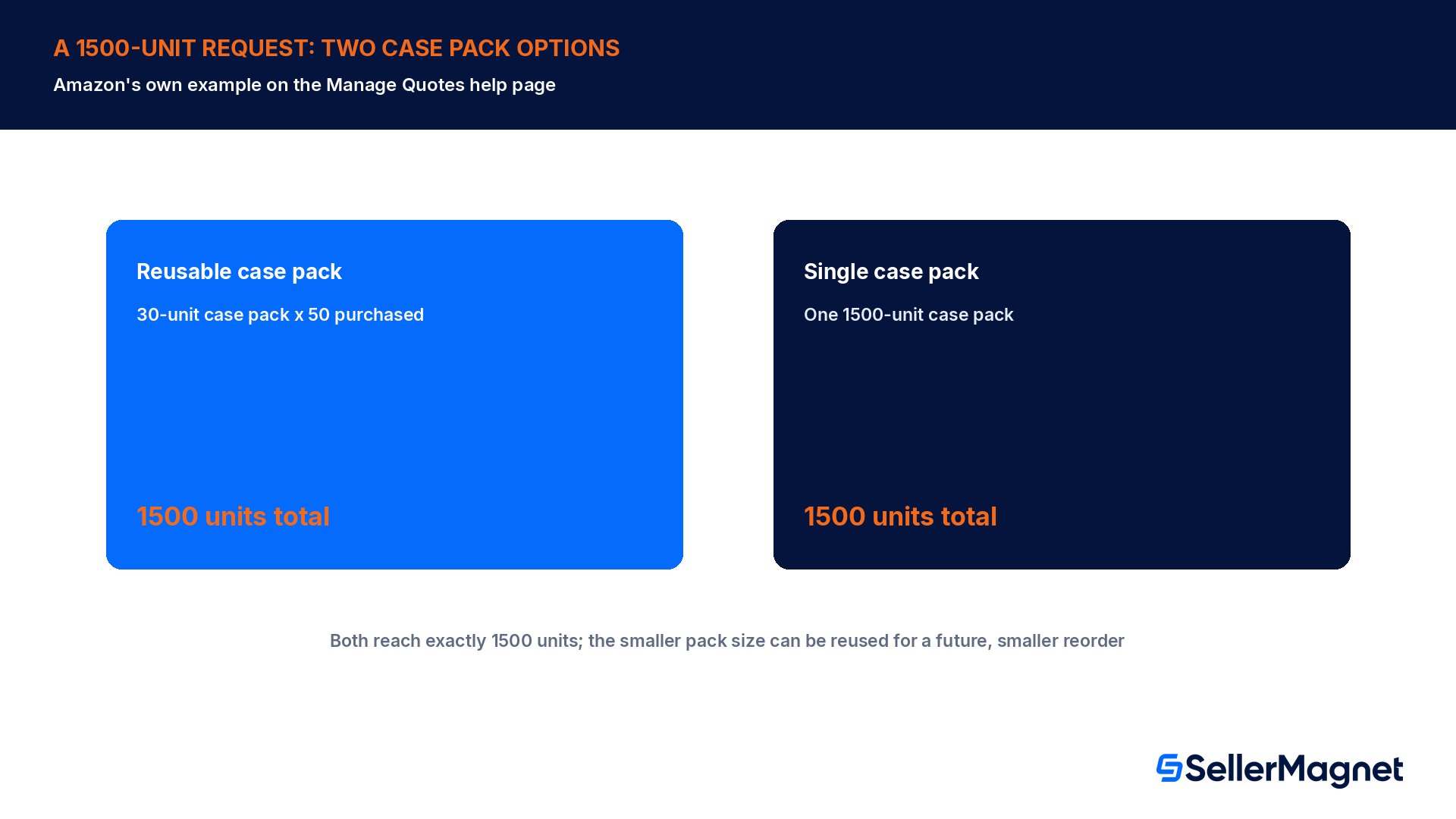
A standard Amazon cart tops out at 999 units of one item, so a quote response for a larger quantity cannot be offered as a single-unit SKU at all; Amazon's own field definitions describe exactly two ways around it. The seller can create a case pack sized at some fraction of the requested quantity and let the buyer purchase enough packs to reach the total, or create one case pack sized to the entire requested quantity in a single "unit." Amazon's own example, used verbatim on the Manage Quotes help page, is a request for 1500 widgets: a seller could create a case pack of 30 units, of which the buyer purchases 50, or create one case pack of exactly 1500 units.
Pick the case pack size the buyer will actually need again
The smaller case pack size (30 units in Amazon's own example) is reusable for a future, smaller reorder from the same or a different buyer without creating a new SKU; a single giant case pack sized to one specific request is simpler to set up once but has to be rebuilt for the next large order at a different quantity.
The same help page adds one shipping rule tied to this workflow: build an additional shipping template that includes a free shipping option for Request for Quote orders, and do not enable Two-Day Shipping on that template, since a large freight-sized order is not a realistic two-day fulfillment commitment.
What happens to the temporary SKU after a buyer accepts?
Once a quote response is submitted and clears Amazon's review (described above, usually about 20 minutes but budgeted at up to 24 hours), Amazon creates a brand-new temporary SKU reserved for that specific buyer; it can take up to 24 hours to appear on the Manage Inventory page. From that point, the rule is strict: the seller cannot make any changes to the temporary SKU through Manage Inventory or any third-party repricing or listing tool. Doing so risks the buyer being unable to claim the offer at all, or the quoted price becoming visible to every other customer instead of staying private to the one buyer who requested it. Any update, including a cancellation, has to go through Manage Quotes itself, and inventory management systems or external tools should be configured to leave that SKU alone. For the same reason repricers should never touch a quoted ASIN's live price either, see our Amazon repricer min/max price rules guide.
A confirmed order cannot be canceled
Once the buyer actually confirms the order on a temporary SKU, the seller cannot cancel it. Amazon's own FAQ warns that canceling an order after a customer purchase may lead to suspension from the Request for Quote program and can hurt the seller's cancellation rate, so a quote should only be offered at a price, quantity, and handling time the seller can genuinely fulfill.
A seller does get a result either way: within 24 hours of the event, each submitted quote response gets a plain-language label on the My Quotes tab showing whether it won, or, if it lost, one of four stated reasons: a more competitive price, faster delivery, a full-quantity offer (instead of a partial one), or a closer product match. No competing price values are ever disclosed, only the category of reason, which at least tells a seller which lever to adjust on the next request rather than guessing.
The bulk order referral fee discount tied to large B2B orders
A separate Amazon program, the Amazon Business bulk order fee discount, can lower the referral fee a seller pays on the exact kind of large order an accepted RFQ quote produces. It is open to any seller on a Professional selling plan whose offer meets the eligibility rules, and it applies only to purchases made by Amazon Business customers where the order value for a single product (item price multiplied by quantity) is over $1,000. To qualify, the seller has to provide at least a 3% discount off the standard price, met through a Business Price discount, a quantity discount, or a combination of the two that reaches 3% for the quantity actually ordered.
When an order qualifies, Amazon does not discount the whole referral fee uniformly. The standard referral fee rate still applies to the first $1,000 of the order value; only the portion above $1,000 gets the lower, tiered rate, and that tiered rate itself depends on which of three category groups the product's fee category falls into (a general group covering most categories like Home and Kitchen, Office Products, and Toys; a mid group covering Automotive, Industrial and Scientific Supplies, and Tires; and a group for Computers, Consumer Electronics, and large appliances, which gets the steepest discount).
Portion of product order value
General category group
Automotive/Industrial group
Computers/Electronics group
Up to $1,000
Standard fee category rate
Standard fee category rate
Standard fee category rate
$1,000.01 to $5,000
12%
10%
7%
$5,000.01 to $10,000
10%
8%
6%
$10,000.01 to $50,000
7%
7%
5%
$50,000.01 to $100,000
6%
6%
5%
$100,000.01 and above
5%
5%
5%
Worked example: a 1,500-unit quote and its fee discount
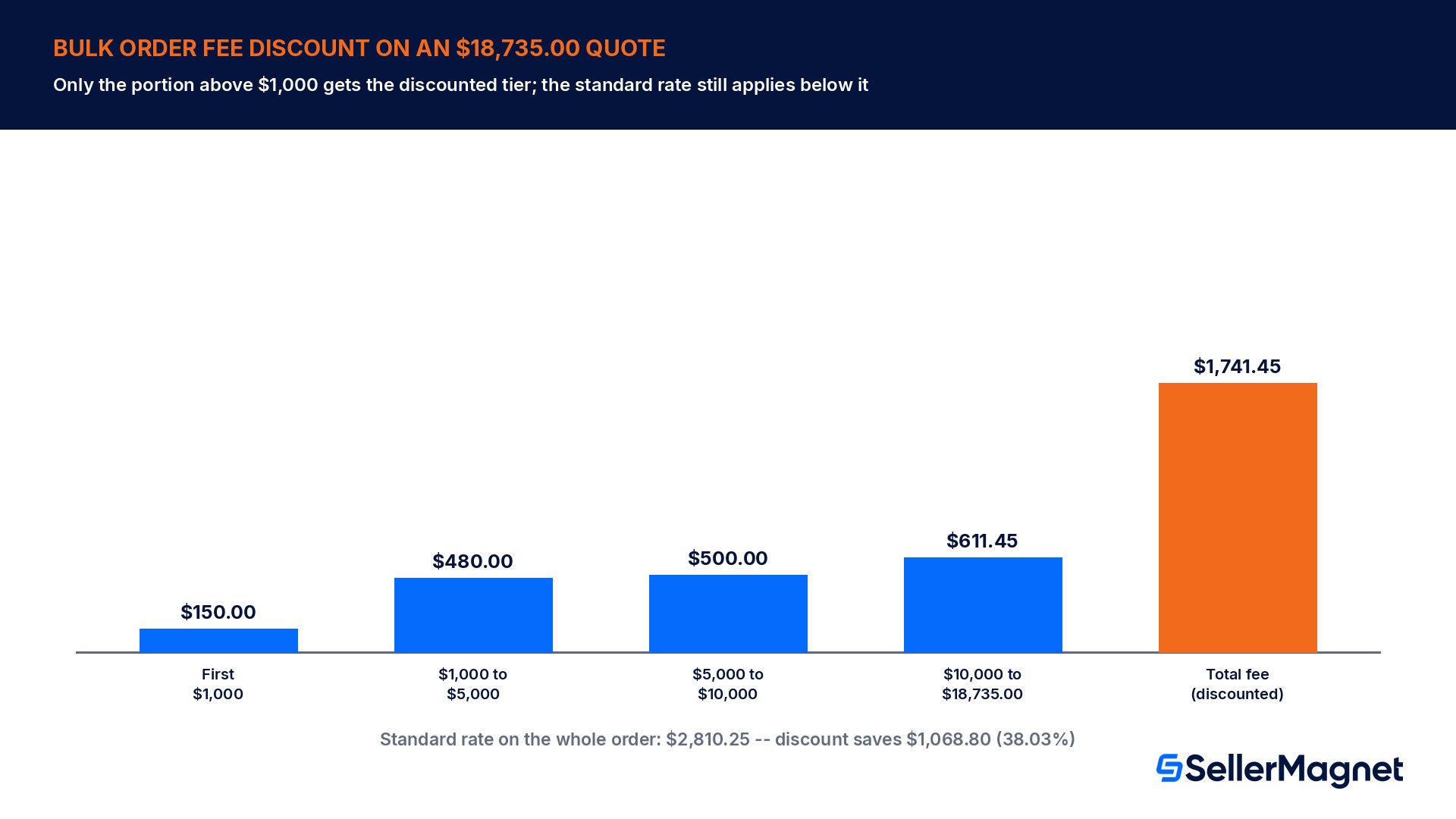
Take a seller in the Home and Kitchen category (general group, standard referral fee rate 15%) who receives an RFQ for 1500 units, over the 999-unit cart limit. Their regular B2C price is $14.99; they quote $12.49 per unit, a 16.68% discount, comfortably above the 3% minimum, and well under the cart limit's case pack rule described above. The order value is 1500 units times $12.49 = $18,735.00.
Portion of the order value
Rate applied
Fee on this portion
First $1,000
15% (standard rate, not discounted)
$150.00
$1,000.01 to $5,000 ($4000)
12%
$480.00
$5,000.01 to $10,000 ($5000)
10%
$500.00
$10,000.01 to $18,735.00 ($8,735.00)
7%
$611.45
Adding the four tiers gives a total referral fee of $1,741.45. Without the bulk order discount, Amazon would charge the full 15% standard rate on the entire order value: $18,735.00 times 15% = $2,810.25. The discount saves $1,068.80 on this single quote, a 38.03% cut in the referral fee the seller would otherwise pay, on top of whatever margin the 16.68% quote price already gave up to win the order.
The two programs stack automatically
Nothing about Request for Quote requires a seller to separately apply for the bulk order fee discount; it is evaluated per order against the eligibility rules above. A quote priced at a 3% or greater discount off standard, on an order value over $1,000, qualifies on its own. The seller's only real lever is making sure the quoted discount clears that 3% bar; everything past that is Amazon's own fee math, not a program a seller opts into separately.
To see the discount actually applied, the fee has to be checked after the sale, not assumed from the table above: open Reports, then Payments, then Transaction View, and click the number in the Total column for the order. The discount appears as its own line, "Discount on referral fee" (and, where relevant, "Discount on shipping commission" or "Discount on gift wrap commission"), with a breakdown available by clicking the discount value itself. For the underlying referral fee mechanics this discount sits on top of, see our Amazon referral fees by category guide.
Common mistakes sellers make with Request for Quote
Quoting a price above the current B2C store price, which Amazon explicitly warns hurts the odds of winning the request.
Editing or relisting the temporary SKU through Manage Inventory or a third-party repricer after a quote is accepted, which can break the buyer's ability to claim it or expose the private price to other customers.
Trying to offer a single-unit SKU for a request over 999 units instead of creating a case pack, which Amazon's cart system will not accept.
Submitting a quote response the seller cannot actually fulfill at the stated handling time, then having no way to cancel once the buyer confirms the order.
Assuming a quoted discount automatically triggers the bulk order fee discount without checking the 3%-off and $1,000-order-value thresholds separately.
Ignoring the marketplace-wide All quote requests tab entirely and only watching requests already matched to the catalog, missing winnable business from a close-substitute product.
Request for Quote response checklist
Confirm the account shows Request for Quote eligibility; it is an Amazon-granted feature, not a setting a seller enables.
Check both Manage Quotes tabs daily: requests matched to the catalog, and the wider marketplace feed for close-substitute opportunities.
Quote below the current B2C store price and submit before the listed Offer by date.
For any request over 999 units, build a case pack (either a reusable smaller size or one pack sized to the full quantity) before responding.
Pick the fulfillment option (existing FBA SKU, existing FBM SKU, or a new private SKU) that matches real, available inventory.
Lock a separate shipping template with free shipping for RFQ orders, and leave Two-Day Shipping off it.
Never edit a temporary SKU through Manage Inventory or an external tool once a quote is accepted; use Manage Quotes only.
After the sale, check Reports > Payments > Transaction View for the actual referral fee discount applied, instead of assuming the published rate table.
How do I get access to Amazon's Request for Quote feature?
Request for Quote eligibility is granted by Amazon to sellers it selects for the program; there is no self-service toggle to turn it on in Seller Central. Sellers who are eligible see Manage Quotes under their Orders (or Account for Business) menu and are automatically enrolled in email notifications for new requests.
What counts as a large enough order to trigger a quote request?
Amazon defines it as more than 999 units of a single product, or an order value over $10,000, whichever threshold the buyer's intended purchase crosses first.
Can I negotiate back and forth on a quote request?
No. A seller submits one quantity, price, offer expiration date, and handling time per quote request, and only one offer is allowed per request. There is no counter-offer step; if the terms need to change, the response has to be canceled first (only once its status allows it) and resubmitted.
What do I do if a quote request is for more units than my cart can hold?
Amazon's cart tops out at 999 units of a single SKU, so a request above that has to be answered with a case pack: either several packs of a smaller size that add up to the requested quantity, or one case pack sized to the entire request.
Can I edit the temporary SKU Amazon creates after a quote is accepted?
No. Once the temporary SKU appears (within about 24 hours of acceptance), it must not be touched through Manage Inventory or any third-party tool; any change has to go through Manage Quotes, or the buyer may be unable to claim the offer.
Does the bulk order fee discount apply automatically to every RFQ sale?
Only when the order clears two thresholds: order value over $1,000, and at least a 3% discount off standard through a Business Price, a quantity discount, or both. Clear both and the discounted tier applies automatically; miss either and the standard rate stays.
Why did I lose a quote request even though my price was competitive?
Amazon reports one of four reasons within 24 hours: a more competitive price, faster delivery, a full-quantity offer versus a partial one, or a closer product match. No competing price figures are shown, only the category of reason, so price alone is not always the deciding factor.
Stop Juggling Tools. SellerMagnet Combines Everything You Need.