You click a product on Amazon, see a "Price history" link next to the price, and want to know whether the current price is actually a good one or just a markdown on an inflated "was" price. Sellers ask the same question from the other side: is this ASIN's price stable enough to source, and when did the last Buy Box price actually move? Amazon ships three narrow, native price-history tools, two for shoppers (the product-page link and Alexa for Shopping) and one for sellers inside Automate Pricing, and none of the three answers the sourcing question. This guide covers exactly what each native tool shows, where it stops, and the workflow sellers use to get real price and Buy Box history across many products at once.
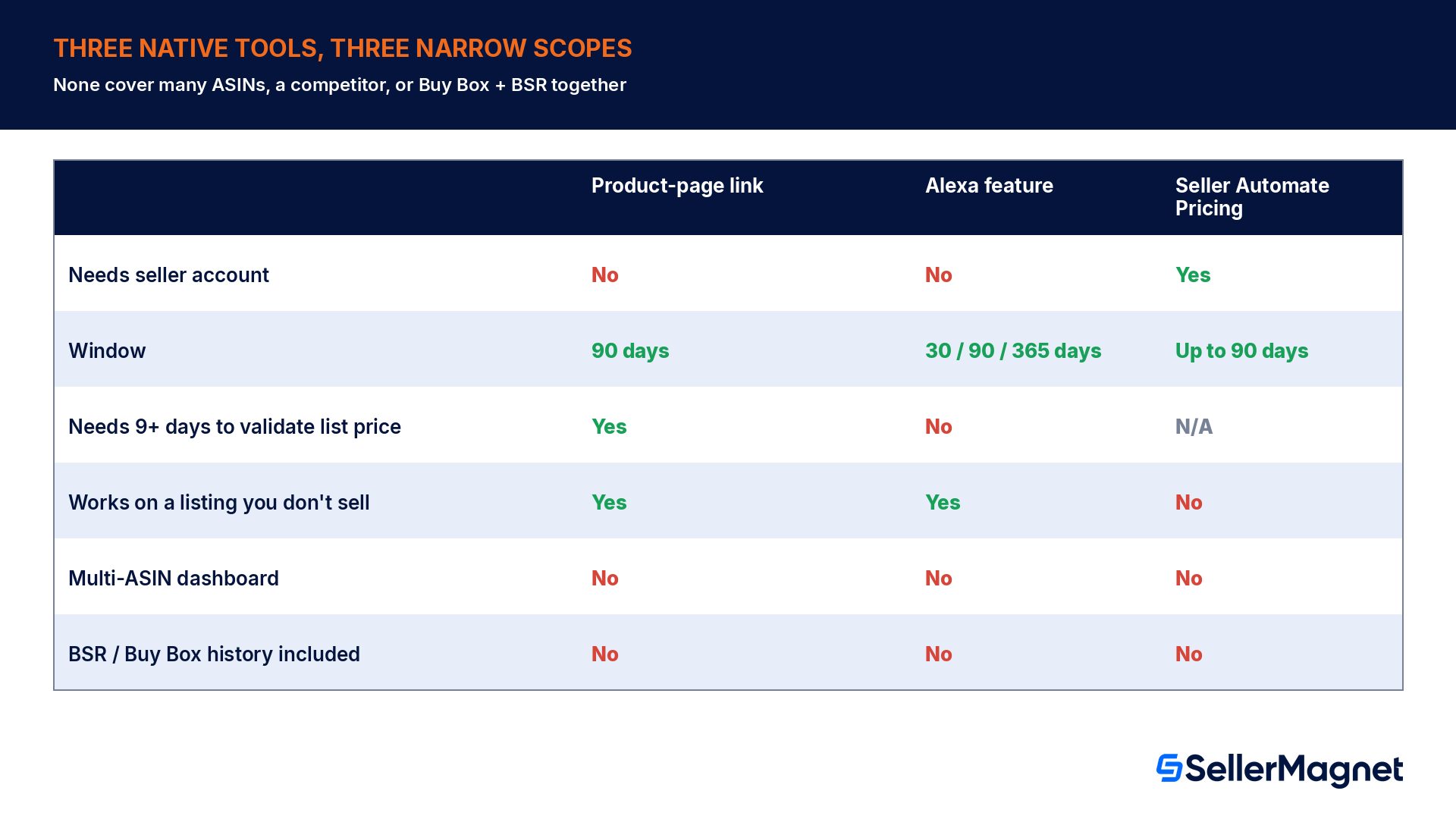
Amazon has three native price-history tools, not two. On the product detail page, shoppers can click a "Price history" link next to the price; it mainly exists to show whether a stated list price is valid, and Amazon requires at least 9 days of Featured Offer data inside a 90-day window before that list price can qualify for validation through Amazon's own sales history. On the US store, Alexa for Shopping separately shows the lowest Featured Offer price per day or week for the last 30, 90 or 365 days; other stores differ, and Germany has no equivalent feature. Sellers get a third, different view inside Seller Central: a Price History page under Automate Pricing, but only for their own SKUs running a Sales-Based pricing rule. None of the three gives a seller one chart of price and Buy Box history across many ASINs at once; for that, sellers use a dedicated product-research tool instead.
Where is Amazon's price history link on the product page?
The link most people mean when they search "amazon price history checker" sits on the product detail page, next to the current offer price, wherever Amazon is showing a list price (a "was" price) that it validated through its own sales data. Amazon's own list price help page explains why the link is there in the first place: a list price only qualifies as validated "if customers looking at price history" would actually see that price reflected for a meaningful stretch of recent days, not just once.
Rule
What Amazon states
Where it is
Go to the product detail page and select the Price history link displayed by the offer price.
Lookback window
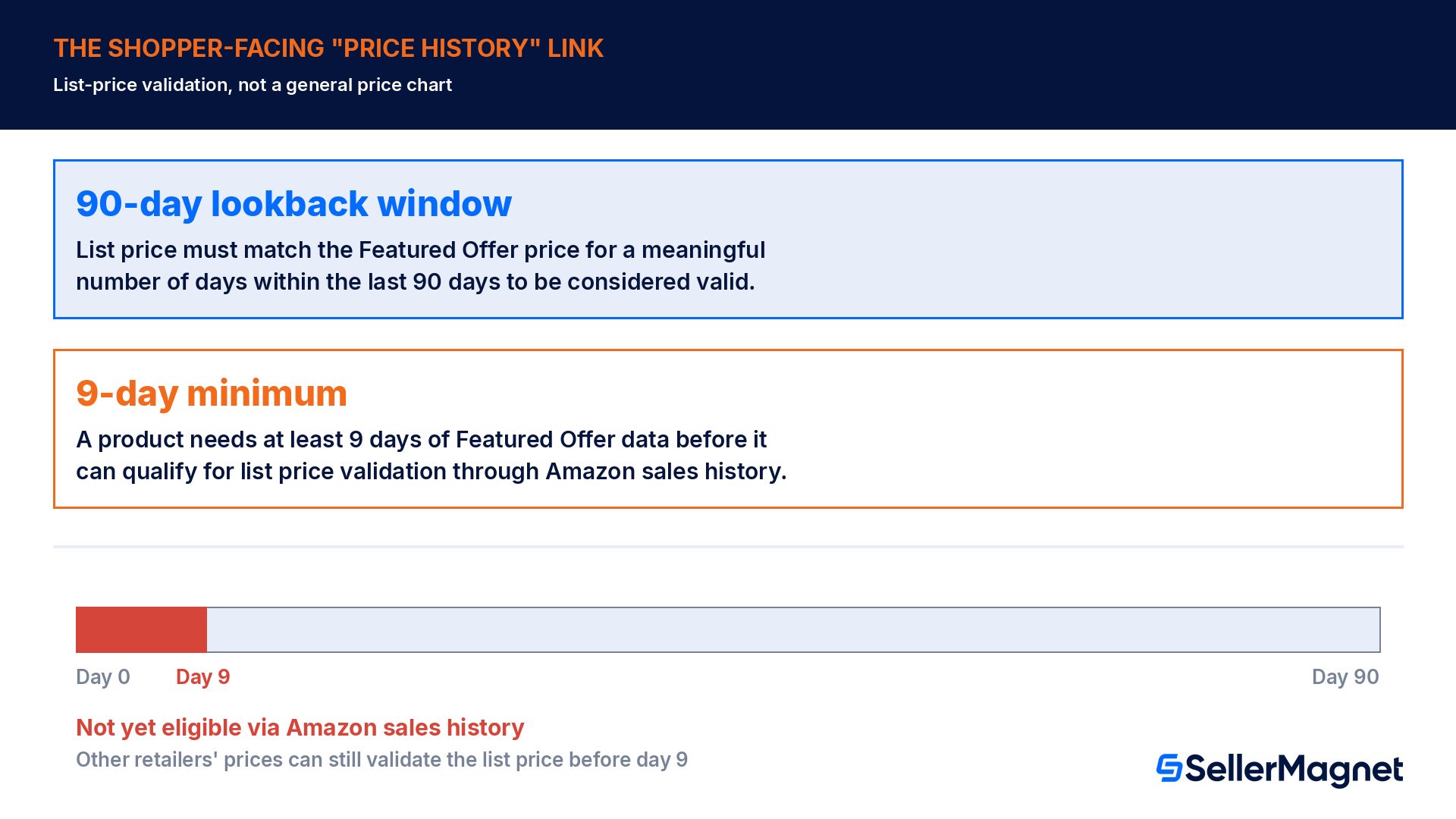
90 days ("the recent past" for list price validation is defined as the last 90 days).
Minimum data to qualify
A product needs at least 9 days of Featured Offer data before it can qualify for list price validation through Amazon sales history.
What "validated" means
The list price must match the Featured Offer price for a meaningful number of days in the last 90 days, and a sale must have happened at that price.
Alternate validation path
A list price can also be validated through other retailers' prices instead of Amazon's own sales history, including before a listing clears the 9-day minimum.
This link is about list-price validation, not a general price chart
The shopper Price History link was built to answer one question: does the "was" price on this listing reflect a real recent Amazon price, or an inflated reference price? It is not designed, and does not claim, to be a general-purpose historical price chart for research.
How does the 9-day minimum affect a brand-new listing?
The 9-day minimum has a direct, checkable consequence for list-price validation: a listing younger than 9 days has not banked enough Featured Offer data to qualify for validation through Amazon's own sales history yet, regardless of how many times the price has actually changed. A product launched 5 days ago sits below the 9-day minimum, so Amazon cannot yet validate that product's list price from its own sales data, even if the seller already ran two promotions on it; Amazon's help page notes the list price can still be validated through other retailers' prices in the meantime. The 9-day figure is a data floor, not a stability threshold: Amazon validates a list price once it has matched the Featured Offer price for "a meaningful number of days" within the 90-day window, together with a sale at that price, and Amazon does not publish an exact percentage for "meaningful."
Listing age
Clears the 9-day minimum?
List-price validation status
5 days
No (5 < 9)
Not yet eligible via Amazon sales history
9 days
Yes, exactly at the floor
Eligible if the price also matches for a meaningful stretch
90 days
Yes, full lookback window available
Full 90-day window available to evaluate
Tool 2: Alexa's price-history feature (US store, a different number and source)
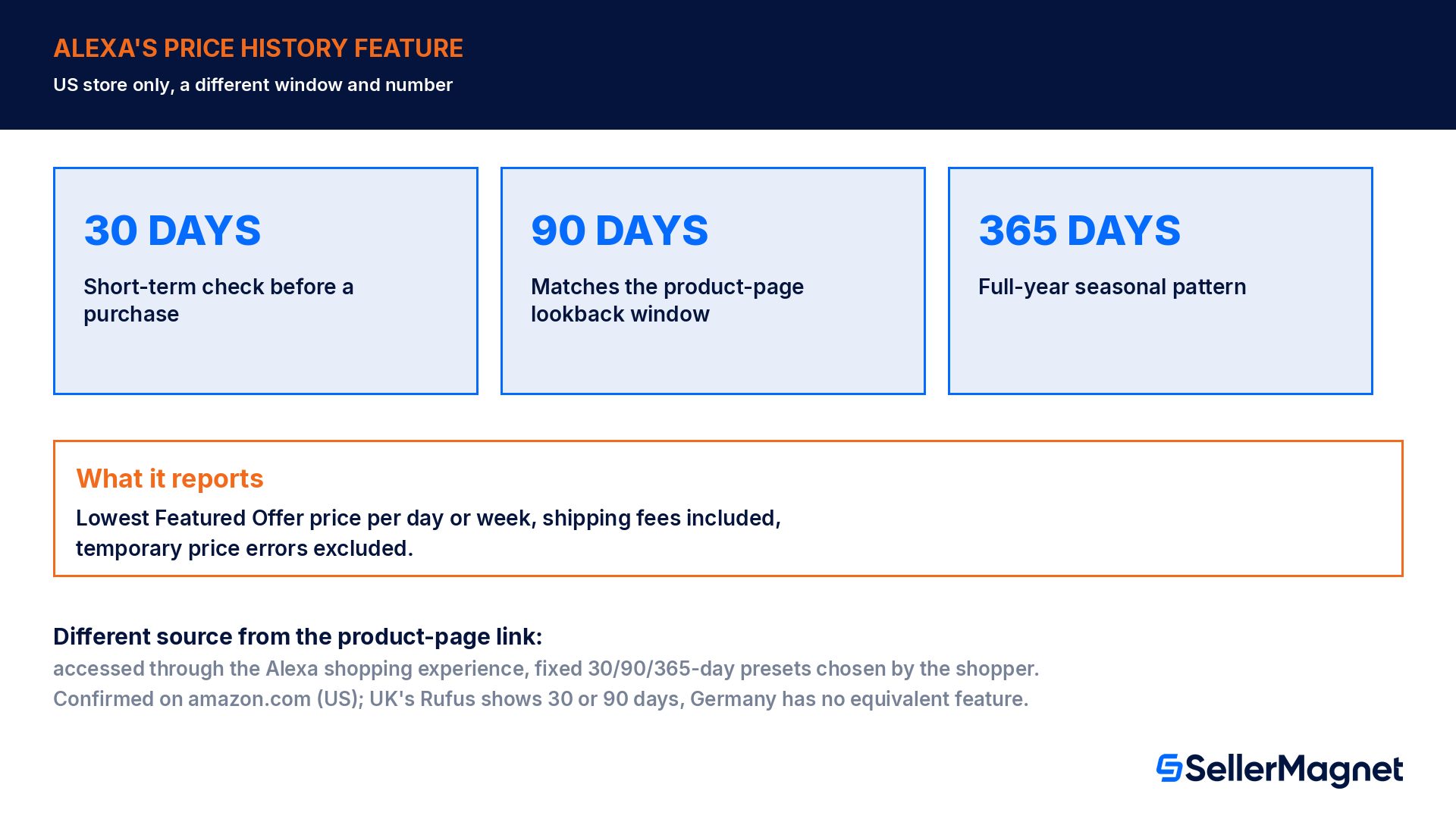
Separately from the product-page link, Amazon's Alexa for Shopping experience has its own price-history feature. It is built for shoppers who ask a voice assistant for the "historical pricing" of an item, and it reports a different statistic than the product-page tool: the lowest Featured Offer price for each day or week, including any seller shipping fees, over a 30-day, 90-day or 365-day window, while excluding temporary price errors. This feature is confirmed on the US store (amazon.com); other marketplaces differ, for example the UK help pages describe a Rufus-powered 30-day or 90-day version, and the German help pages show no equivalent price-history feature at all.
Feature
Window
What it reports
Alexa price history (US store)
30 / 90 / 365 days (customer's choice)
Lowest Featured Offer price per day or week, shipping included, price errors excluded
Product-page Price History
90 days (fixed)
Whether the list price itself was a genuine recent Featured Offer price
Source: Alexa for shopping, an official Amazon Seller Central help page.
Tool 3: the seller-side Price History page inside Automate Pricing
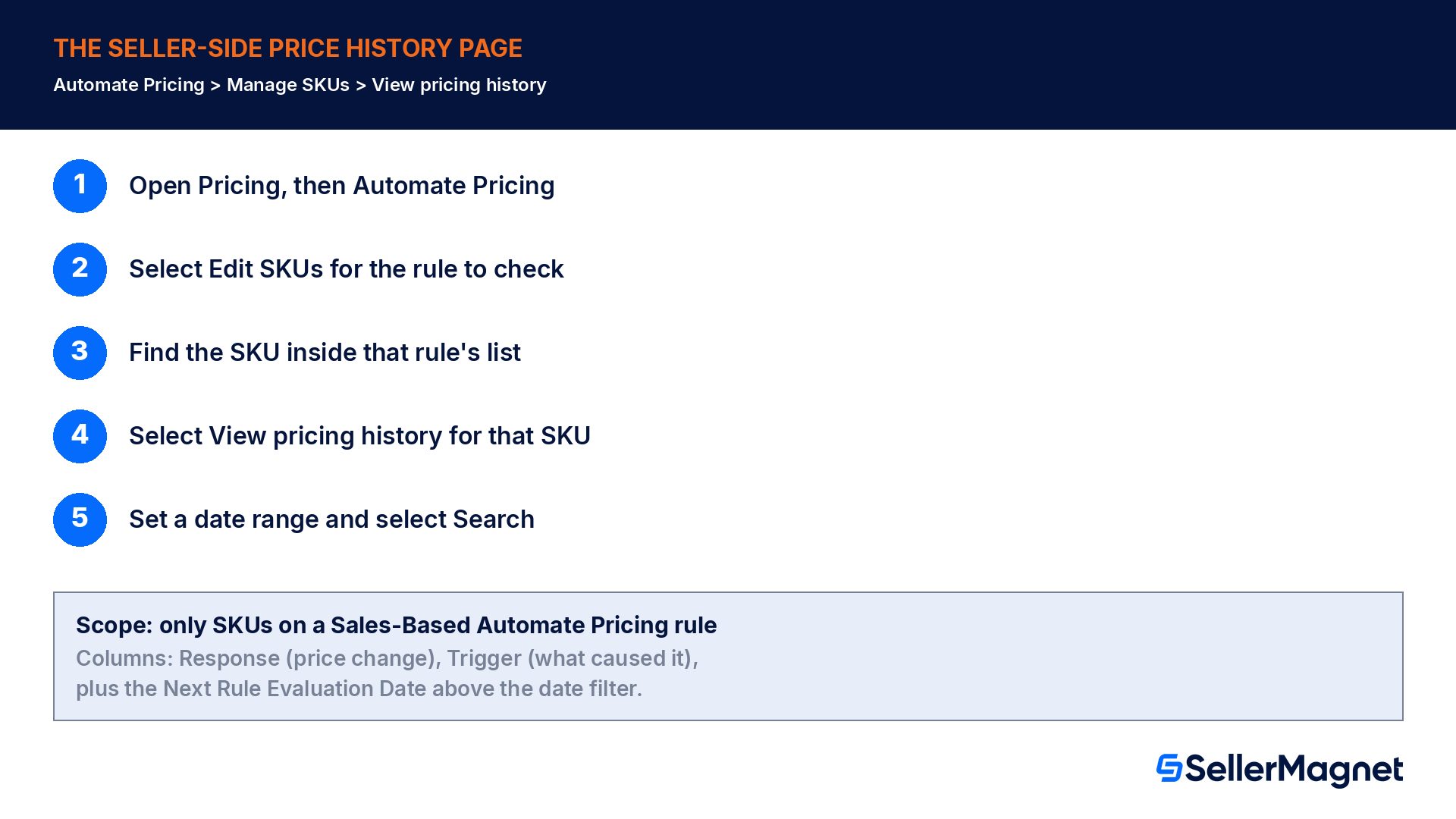
Sellers running Automate Pricing get a third view, and it answers a different question again: not "was this a fair list price" but "why did my own price change." Amazon's help page is specific about the scope: it covers SKUs with a Sales-Based Automate Pricing rule, for up to 90 days, and it is reached through Manage SKUs, not the product detail page.
Check your own SKU's price history in Seller Central
Open Automate Pricing - In Seller Central, go to Pricing, then Automate Pricing.
Edit SKUs - Select Edit SKUs in the Action column for the rule you want to check.
Find the SKU - Locate the specific SKU inside that rule's SKU list.
Open View pricing history - Select View pricing history in the Action column for that SKU.
Set a date range and read the columns - Pick a start and end date and select Search; the Response column shows each price change and the Trigger column shows what caused it, with the Next Rule Evaluation Date shown above the filter.
Source: Review price history for SKUs with a sales-based pricing rule and Compare prices off Amazon, official Amazon Seller Central help pages. The second page is where Amazon points sellers who want to see competitive price triggers, and it links to the same Price History page, confirming this is a single seller-side tool rather than a separate competitor-price feature.
This tool will not show a competitor's own price responses
The seller Price History page is scoped to SKUs you manage under a Sales-Based Automate Pricing rule. It shows your own price responses and the triggers behind them, not a chart of a competing offer's price over time, even when Amazon's own "Compare prices off Amazon" page is what leads you there. The shopper-facing Price history link and Alexa for Shopping, by contrast, both work on any product page, including a competitor's listing you do not sell. For ongoing competitor price and Buy Box monitoring instead of a one-time history check, see Offer Watch.
What can't Amazon's native price-history tools do?
Combine price, BSR and Buy Box history in one dashboard across many ASINs at once; each native tool covers one product or one SKU at a time.
Show Buy Box history (who held the Buy Box and when it changed hands) alongside the price.
Show BSR (sales rank) history next to price, which is usually the point of checking price history while sourcing: did a price drop correlate with a rank improvement.
Let the seller-side Automate Pricing page show a competitor's own price responses; it only covers SKUs that seller runs under a Sales-Based Automate Pricing rule.
Validate a brand-new listing's list price through Amazon's own sales history before day 9, or run the seller-side Price History for a SKU not enrolled in a Sales-Based Automate Pricing rule.
Worked example: checking 5 sourcing candidates the native way
Say a seller has a shortlist of 5 ASINs pulled from a sourcing sheet and wants to know which ones have a stable enough price and rank to be worth a purchase order. Doing this with only Amazon's native tools means opening each product page, clicking Price History where it exists, then separately checking Alexa for Shopping (a different number) for the same ASIN, and there is still no BSR or Buy Box column anywhere in either view.
Step
Native-tools path
Time per ASIN
1. Open product page
Navigate to each of the 5 product detail pages
about 20 sec
2. Check Price History link
Click it if shown; a very new listing (under 9 days) may not have a validated list price yet, so this step can be a dead end
about 15 sec, or a dead end
3. Cross-check Alexa
Switch to the Alexa for Shopping flow for the same ASIN to see the 30/90/365-day low (US store)
about 30 sec
4. Estimate rank movement
No native tool shows BSR history, so this step is skipped entirely or guessed from current rank alone
not available
5. Check Buy Box ownership
No native tool shows who has held the Buy Box over time for a listing the seller does not own
not available
Across 5 ASINs that is roughly a minute of clicking per product for 2 of the 5 real signals (price validation and a rough Alexa low), with BSR and Buy Box history unavailable through any native screen. A single Product Sourcer lookup per ASIN returns price history, BSR history and Buy Box ownership together, so the same 5-ASIN shortlist is a 5-lookup pass instead of up to 15 separate native-tool checks that still leave 2 of the 5 signals missing.
Common mistakes when reading Amazon's price history
Assuming a missing Price History link means the price never changed. It usually means there is currently no list price Amazon has validated to show, for example because the listing has under 9 days of Featured Offer data for Amazon-sales-history validation, not that the price has been flat.
Treating the Alexa number and the product-page number as the same statistic. The product-page link checks whether a list price was genuine; Alexa reports the lowest Featured Offer price, shipping included, over a window the shopper picks on the US store. Quoting one as if it were the other misreads both.
Expecting the seller-side Price History page to show a competitor's price. It only covers SKUs the seller runs under a Sales-Based Automate Pricing rule; it will never show a listing the seller does not control, though the shopper-facing tools can still be checked on that listing directly.
Reading the 90-day window as a guarantee of 90 days of visible history. The window is the maximum lookback, not a promise; a list price only qualifies for validation through Amazon's own sales history once the listing has at least 9 days of Featured Offer data inside that window.
Sourcing a product on price alone from a single snapshot, without checking whether a recent price drop coincided with a BSR improvement or a Buy Box change, since none of Amazon's native views line those three signals up together.
Quick checklist before sourcing on price history
If you need the list price validated through Amazon's own sales history, confirm the listing is at least 9 days old; a younger listing can still have its list price validated through other retailers' prices instead.
Check the product-page Price History link for list-price validation, and separately check Alexa's 30/90/365-day low on the US store if a longer window matters.
For a SKU already sold, pull the seller-side Price History inside Automate Pricing to see the Response and Trigger columns, not just the current price.
Look up BSR history and Buy Box ownership alongside price with a product-research tool, since no native Amazon screen shows either.
Re-check all of the above across the full sourcing shortlist in one pass, rather than one ASIN at a time across three separate native tools.
How do you check price, BSR and Buy Box history across many ASINs at once?
For the question Amazon's native tools don't answer (is this product's price and rank stable enough to source, and who has been winning the Buy Box), Product Sourcer looks up any ASIN, UPC, EAN or ISBN and returns fees, profit, ROI, BSR history, price history, competing offers and who has held the Buy Box, in one lookup, without needing an Amazon seller account. The Chrome extension shows the same verdict (BUY, MARGINAL or PASS against your own criteria) directly on Amazon product and search pages, so checking price history across a sourcing list does not mean opening Seller Central's two separate tools once per ASIN.
The distinction worth keeping straight: Amazon's two consumer-facing tools exist to validate or display one listing's own price integrity (is the "was" price real, what has the lowest recent Featured Offer price been), and the seller tool exists to audit your own Automate Pricing rule. A sourcing or competitor-research question (how has this specific product's price and rank moved, across however many candidates are on this week's list) sits outside all three, which is why it needs a separate lookup built for exactly that comparison. Checking one ASIN at a time still does not scale to a real sourcing list; Bulk Sourcer runs a whole supplier list or exported CSV through the same BUY, MARGINAL or PASS verdict at once.
Where is the Amazon price history link on a product page?
Go to the product detail page and select the Price history link that Amazon displays next to the offer price, when a list price (a "was" price) is shown. The link mainly exists to validate that list price against Amazon's own sales history, so it only appears next to a stated list price, not every offer price.
Why does a product show no price history on Amazon?
The most common reason is a listing younger than 9 days: Amazon requires at least 9 days of Featured Offer data inside the 90-day lookback window before a list price can qualify for validation through Amazon sales history. Until then there is simply no validated list price for the link to display, though the current offer price still shows normally.
Does Amazon show a product's price history to anyone, or only Prime members?
The product-page Price History link is a standard listing feature tied to list-price validation, not a Prime-exclusive benefit. Customers do not need a Prime membership to use Alexa's separate price-history feature either, which is accessed through the Alexa shopping experience on the US store rather than the product page itself.
Can I see a competitor's price history as a seller?
Not through Amazon's own seller-side Price History page: it is scoped to your own SKUs running a Sales-Based Automate Pricing rule, showing your price responses and triggers, not a competing listing's price over time. The shopper-facing Price history link and Alexa for Shopping do work on any product page, including a competitor's, so you can still check those there.
What does the Amazon price history chart actually measure?
The product-page version checks whether the stated list price matched the Featured Offer price for a meaningful number of days in the last 90 days. Alexa's version is different: the lowest Featured Offer price (shipping included, price errors excluded) per day or week over a 30, 90 or 365-day window a shopper picks, confirmed on the US store.
How do I check price, BSR and Buy Box history together for a product I'm sourcing?
Amazon's native tools don't combine the three in one dashboard. A product-research lookup such as Product Sourcer returns price history, BSR history and who has held the Buy Box for any ASIN, UPC, EAN or ISBN in one result, which is the workflow sellers use when evaluating products to source rather than auditing a listing they already own.
Does checking price history require a seller account?
The shopper-facing Price History link and Alexa's feature need no seller account at all; they are shopper-facing and work on any product page. The seller-side Price History page inside Automate Pricing does require a Seller Central login, since it is scoped to your own SKUs running a Sales-Based pricing rule.
Stop Juggling Tools. SellerMagnet Combines Everything You Need.