Amazon Listing Not Showing in Search: 5 Causes and Fixes
R
RenéFreelance Amazon Editor
|
14 min read
A listing that cannot be found is not a ranking problem, it is a searchability problem, and Amazon treats the two very differently. Its own US help page for sellers names five specific, checkable reasons an ASIN can be unsearchable, from a missing browse node to a search-suppressed listing, and a separate search optimization guide adds the keyword rules that keep a listing out of trouble in the first place. This guide walks through both Amazon pages for the US store: the five causes and their fixes, the hidden 250-byte budget on backend search terms, the reindexing window after you fix something, the difference between being searchable and ranking well, and a step-by-step way to diagnose a listing that has gone quiet.
A listing is not showing in Amazon search for one of five reasons on Amazon's own US help page: it is a parent ASIN (which is never searchable), it has no browse node assigned, it has no buyable offer, its launch date is still in the future, or it is search suppressed for a listing quality issue. Fix the specific cause, then allow up to 72 hours for the change to reflect in search results. Amazon's Seller Central help also has a built-in tool, "Determine why an ASIN is not searchable," that diagnoses this for a specific ASIN and search URL.
Why is my Amazon listing not showing up in search?
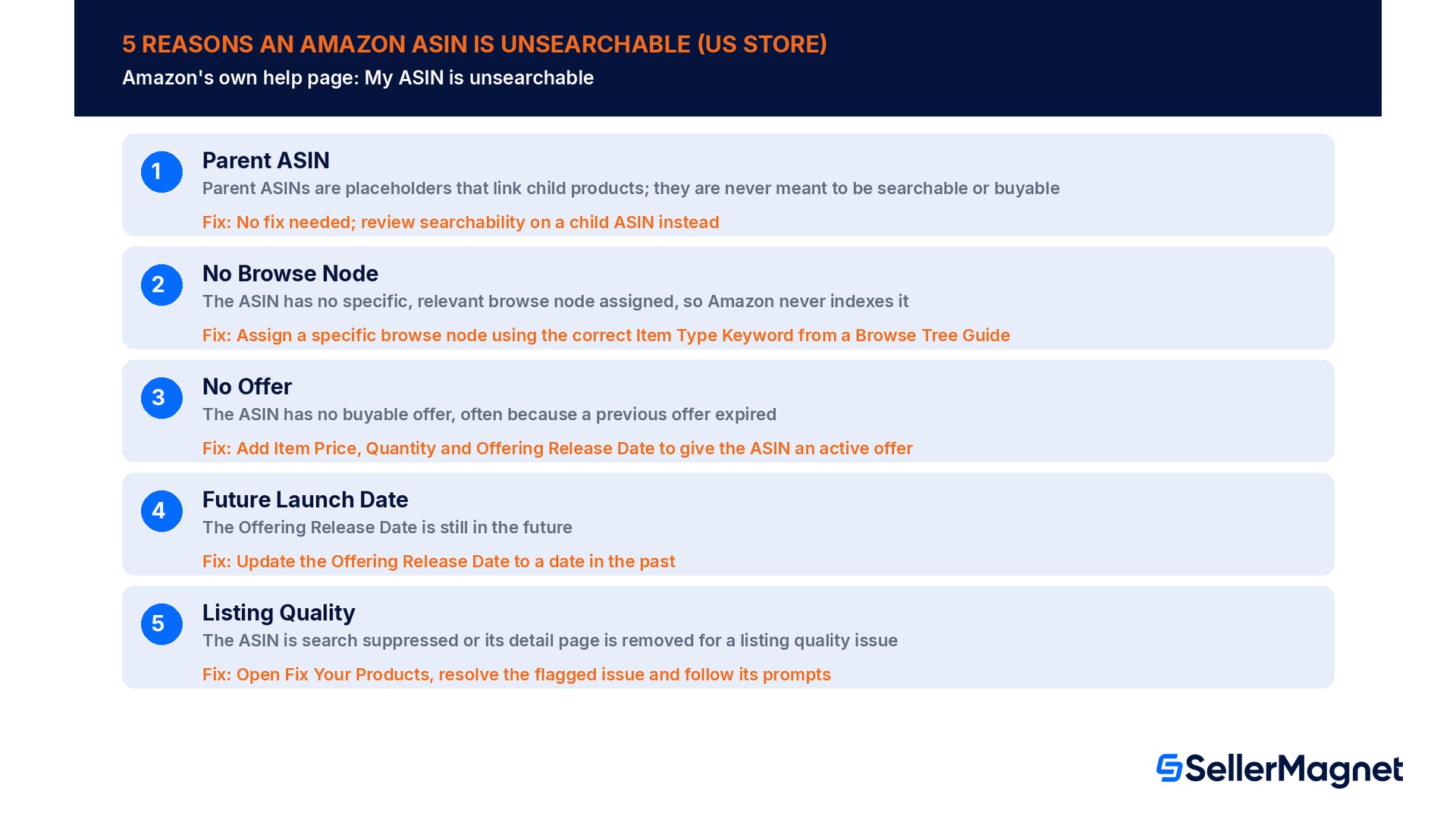
Amazon's help page is specific about this: "Five common reasons for an ASIN being unsearchable are: Parent ASIN, No Browse Node, No Offer, Future Launch Date, Listing Quality." Each has its own check and its own fix, and none of them is about SEO wording or keyword density.
Cause
What it means
How to fix it
Parent ASIN
Parent ASINs are placeholders that link child products; they are never meant to be searchable or buyable
No fix needed; review searchability on a child ASIN instead
No Browse Node
The ASIN has no specific, relevant browse node assigned, so Amazon never indexes it
Assign a specific browse node using the correct Item Type Keyword from a Browse Tree Guide
No Offer
The ASIN has no buyable offer, often because a previous offer expired
Add Item Price, Quantity and Offering Release Date to give the ASIN an active offer
Future Launch Date
The Offering Release Date is still in the future
Update the Offering Release Date to a date in the past
Listing Quality
The ASIN is search suppressed or its detail page is removed for a listing quality issue
Open Fix Your Products, resolve the flagged issue and follow its prompts
Source: My ASIN is unsearchable, Amazon Seller Central help for the US store. The page adds a sixth, narrower cause in its companion search-optimization guide: an ASIN classified as an adult product is restricted from All Department search results by design, which is expected behavior and not a defect to fix.
Always test on a child ASIN
Parent ASINs are placeholders that exist only to group child products; Amazon says plainly that they "are not searchable or buyable by design." If a parent ASIN looks unsearchable, that is normal. Run every searchability check on a specific child or non-parent ASIN instead.
The five causes are worth treating as a routine check, not an emergency-only list, because a new listing can hit any of them without an obvious warning. A listing can carry a complete title, bullets and images, pass every manual proofreading pass, and still sit invisible for weeks if it was never assigned a browse node, or if the launch date field was left at a default that falls in the future. None of these five produces an error message in the normal sense; the listing simply does not appear, which is why most sellers only notice after a sales report looks unusually quiet. Running through the five causes whenever a new ASIN goes live, and again whenever an established ASIN's sales drop without a clear reason, catches the problem at the source instead of after days of lost visibility.
What should I check first when a listing stops showing up?
Of the five, a missing browse node is the easiest to overlook because the listing can look complete everywhere else. Amazon's page explains the mechanism directly: "ASINs that don't have a browse node assigned are not indexed by Amazon," and compares a browse node to "a shelf in a supermarket: your product needs to be on a 'shelf' in order to be found." Browse assignments roll up through the category tree, so a bath product on the right shelf can surface under several parent categories, not just the narrowest one.
Check it on the product detail page: no visible browse path means no browse node is assigned.
Fix it with a Browse Tree Guide (BTG) or the Product Classifier, picking the most specific node that matches the product, not a broad category.
An ASIN can be searchable in All Departments but still miss a specific department's results if it is not assigned to that department's own browse node.
Source: My ASIN is unsearchable. The companion Search optimization page frames this the same way for the wider catalog: "Accurate product classification optimizes discoverability, making it easier for Amazon to help customers find what they're looking for through browsing and searching."
What is Amazon's backend keyword byte limit?
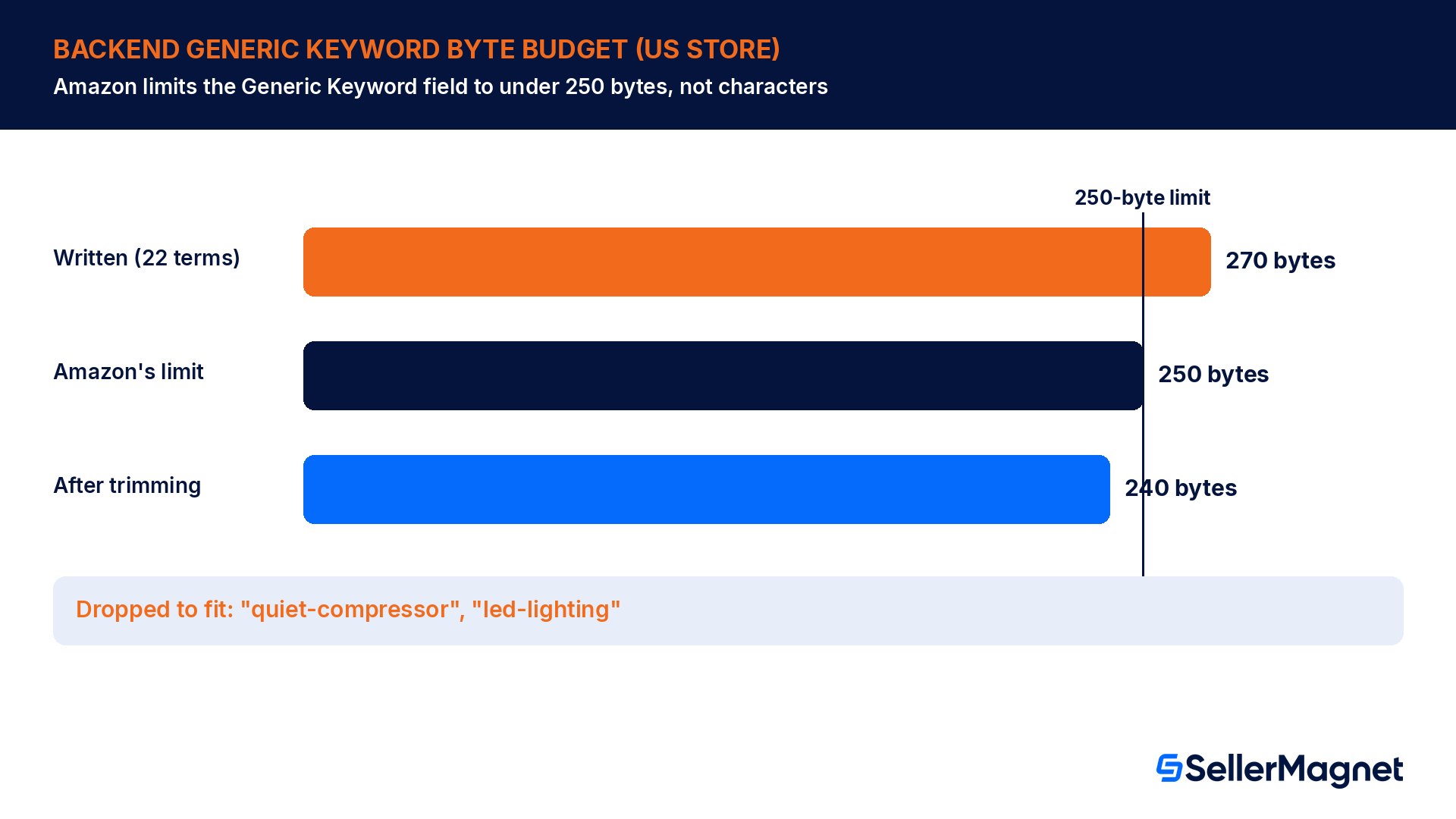
Amazon's search optimization page states a hard limit on the field most sellers call backend search terms: "We limit the length of the Generic Keyword attribute to less than 250 bytes. Search terms can be eliminated if prohibited search terms such as brand names, ASINs, or offensive language are supplied as generic keywords." Bytes are not the same as characters once a listing uses accented letters or certain punctuation, which is one more reason to measure rather than estimate.
Worked example: trimming a keyword string to fit the byte budget
A seller writes 22 generic keyword terms for a refrigerator listing, separated by single spaces as Amazon's style guide asks. Measured in bytes, the string comes to 270 bytes, which is 20 bytes over the 250-byte limit. Removing the last two terms, "quiet-compressor", "led-lighting", brings it down to 20 terms and 240 bytes, inside the budget with room to spare.
Check
Value
Terms written
22
String length in bytes
270 bytes
Amazon's limit
under 250 bytes
Bytes over budget
20 bytes
Terms dropped to fit
"quiet-compressor", "led-lighting"
Terms kept / bytes after trimming
20 terms / 240 bytes
Source: Search optimization. The same page's own best-practices list, used word for word below, is worth checking a listing against before publishing new keywords:
Maintain the text length limit of search terms.
Make use of synonyms and avoid repeating keywords.
Use spelling variations, and avoid common misspellings.
Include abbreviations.
Use all lowercase letters.
Separate words with spaces, and avoid using punctuation marks such as semicolons, colons, and dashes.
Use either singular or plural words, do not use both singular and plural forms of the same keyword.
Do not use brand names, ASINs, profanity, or offensive terms.
Avoid using articles, prepositions, and other short words like "a", "and", "or", "the", or "with".
Do not use temporary statements like "new" or "on sale now", or subjective claims like "best" or "cheapest".
Breaking these rules risks more than one search term
Amazon's own warning on this page is direct: "Violating these rules may result in your ASIN being suppressed and may put the health of your selling account at risk." A crowded or rule-breaking keyword field is not a free extra chance at ranking; it is a route to the Listing Quality cause above.
Searchable is not the same as ranking well
Fixing the five causes above only answers whether an ASIN can appear in search at all. Amazon's search optimization page is careful to separate that from where it appears and how reliably. Classification still matters even once an ASIN is searchable: Amazon's own example contrasts a listing classified "Shoes" or "Athletic shoes", which it calls too broad, with "Women's road running shoes", which it calls correct, because the item type keyword has to match the exact wording in the category's Browse Tree Guide.
Classification approach
Amazon's verdict
"Shoes" or "Athletic shoes"
Too broad
"Women's road running shoes"
Correct
Three more mechanics on the same page explain why a searchable ASIN can still seem to move around or disappear from a specific results page. A search query can trigger an automatic spelling correction, shown to the shopper as a "Showing Results" message with a "Search instead for [original query]" link; an ASIN that only matches the original spelling can look briefly unsearchable under the corrected query. Amazon also states plainly that it "does not guarantee a specific placement for an ASIN within search results" and that position "can fluctuate" by device, login state and location. Finally, Amazon limits how many ASINs it shows per search and how many pages of results it returns, so an ASIN that is fully searchable can still sit past the point a shopper's query will ever reach, which a narrower, more specific query or filter can fix from the shopper's side but a seller cannot force from the listing alone.
Do not chase a page-two ASIN with the wrong fix
A searchable ASIN that ranks poorly for a broad query is not one of the five unsearchable causes, and none of their fixes will move it. Position fluctuation, result-page limits and classification specificity are a separate, ongoing optimization job, not a defect to diagnose once and close. Treat the five causes above as a pass/fail gate, and treat ranking as a continuous effort that keeps running long after the gate is passed.
No Offer and Future Launch Date: the two causes that are easy to fix fast
Two of the five causes are usually a quick fix once spotted. "In order to be searchable, an ASIN needs a buyable offer. If an ASIN's offer expires, this causes it to become unsearchable," Amazon's page states; the fix is supplying Item Price, Quantity and an Offering Release Date to restore an active offer. The other is a date problem in the other direction: "To be searchable, an ASIN's launch date/offering release date must be in the past." An Offering Release Date that is still in the future keeps a finished listing invisible until that date arrives, so check it is not left at a placeholder date from setup.
How long a fix takes to show up in search
Fixing the cause is not the end of the timeline. Amazon's page is explicit: "Any changes to an ASIN's offer, browse node, launch date can take up to 72 hours to reflect in shopping results." The companion search-optimization page repeats the same window for offer, browse node and launch date changes, so it is consistent across both pages, not a one-off note.
Worked example: what sits idle during the reindex window
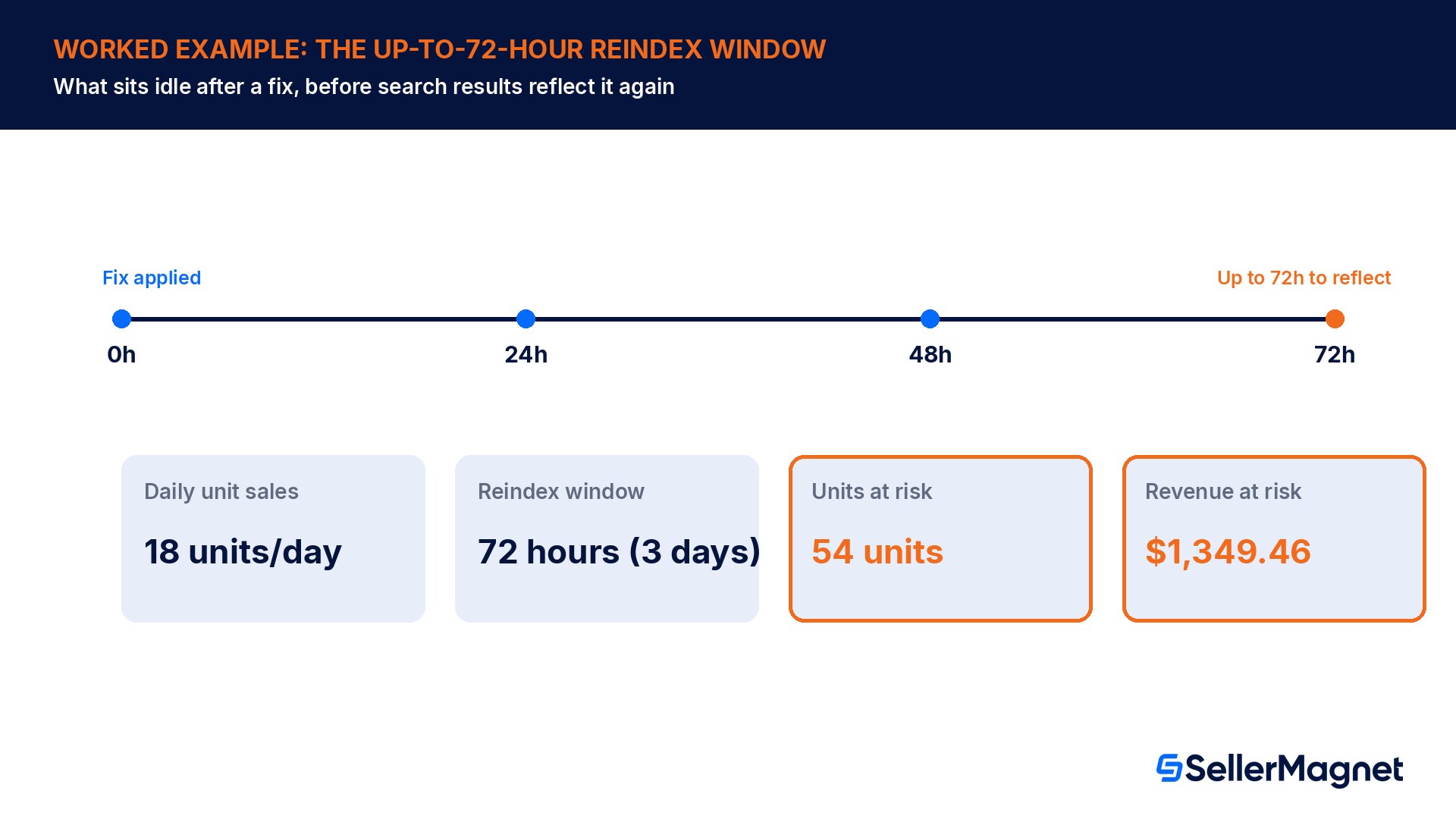
An ASIN that normally sells 18 units a day at $24.99 loses its offer, sits unsearchable, and the seller fixes it the same day. Even with the fix applied immediately, the up-to-72-hour reindex window is 3.0 days. At the ASIN's normal pace that is 54 units, or $1,349.46 at full price, that the listing cannot sell through search while it waits to reflect again.
Input
Value
Normal daily unit sales
18 units/day
Reindex window
72 hours (3.0 days)
Units at risk
54 units
Revenue at risk (full price)
$1,349.46
Source: My ASIN is unsearchable and Search optimization. This is a reason to catch the cause early rather than wait for a sales report to fall quiet: a listing quality or Buy Box issue is visible well before 72 hours of lost search visibility stacks up, the same way an inventory shortfall is easier to catch before it turns into a stockout.
Listing Quality: the cause tied to search suppression
The fifth cause reaches furthest, because it covers two different outcomes Amazon lists together: "ASINs with search suppressed or detail page removed status are not searchable due to listing quality issues." The check and the fix both run through the same place: "Check if it has a listing quality issue by reviewing Fix Your Products... follow the prompts provided in the issue description section to fix listing issues." The wider Search optimization page states the general rule behind it too: "Any products that don't comply with our guidelines may be suppressed from search until the quality issues are resolved."
Catch a listing quality or search-suppression issue before it costs 72 hours. The SellerMagnet Listing Optimizer scores every listing against 37 checks, 25 on the title and 12 on the bullet points, and either fixes flagged wording by hand or with AI; nothing changes on Amazon until you approve and push it. Offer Watch checks your connected catalogue automatically, including suppressed listings, so a quality flag does not sit unseen until a sales report goes quiet.
How to diagnose an ASIN that stopped showing in search
Amazon built a tool for exactly this question. Its page explains: "Access this tool by searching for 'asin is unsearchable' within the Seller Central help. Input the Search URL, ASIN (child/non-parent ASIN), and the tool will diagnose why the ASIN is not searchable." Run the manual checks first; the tool is the fallback when they do not explain it.
Diagnose and fix a listing that is not showing in search
Confirm it is a child ASIN - Check Manage Inventory for Variations; a parent ASIN is never searchable by design, so re-test on a child ASIN.
Check the browse node - Open the product detail page; no visible browse path means no browse node is assigned, so classify it with a Browse Tree Guide.
Check for an active offer - Confirm Item Price, Quantity and Offering Release Date are all set in Manage Inventory; a lapsed offer makes the ASIN unsearchable.
Check the launch date - Confirm the Offering Release Date is in the past, not a future placeholder from setup.
Check Fix Your Products - Look for a search suppressed or detail page removed status and resolve the specific issue it names.
Run the diagnostic tool - Search 'asin is unsearchable' in Seller Central help, then enter the search URL and the child ASIN for a direct diagnosis.
Common mistakes that keep a listing unsearchable longer than it should be
Testing searchability on the parent ASIN and concluding the whole listing is broken.
Assigning a broad category browse node instead of the most specific one a Browse Tree Guide offers.
Writing backend keywords past the 250-byte Generic Keyword limit and assuming they all count.
Stuffing backend keywords with brand names, ASINs or superlatives such as "best" or "cheapest", which Amazon can eliminate or treat as a violation.
Checking search results again minutes after a fix, before the up-to-72-hour reindex window has passed.
Leaving a future Offering Release Date in place after the product is already in stock and ready to sell.
Pre-publish checklist: keep a new listing searchable
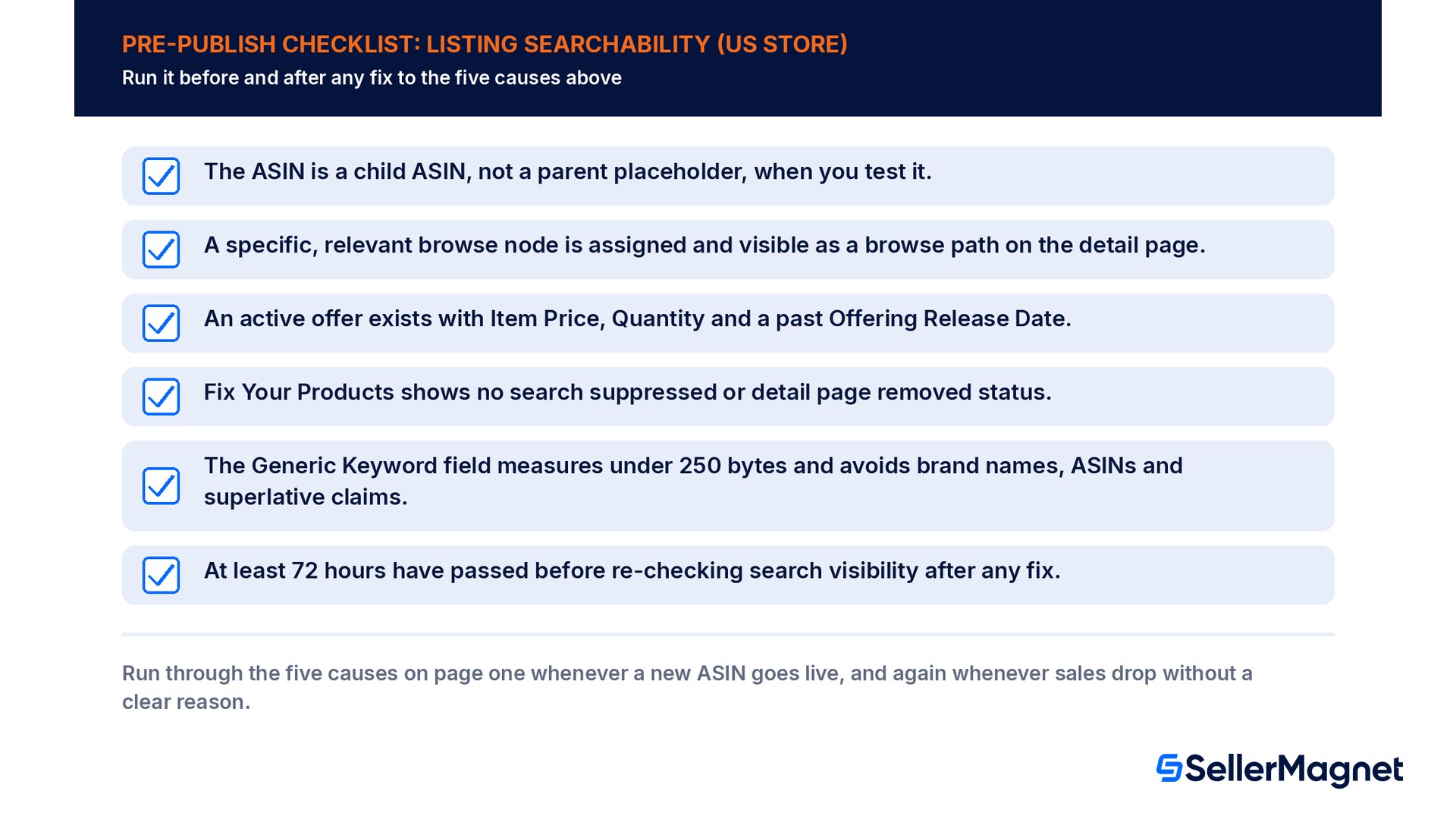
The ASIN is a child ASIN, not a parent placeholder, when you test it.
A specific, relevant browse node is assigned and visible as a browse path on the detail page.
An active offer exists with Item Price, Quantity and a past Offering Release Date.
Fix Your Products shows no search suppressed or detail page removed status.
The Generic Keyword field measures under 250 bytes and avoids brand names, ASINs and superlative claims.
At least 72 hours have passed before re-checking search visibility after any fix.
Why is my Amazon listing not showing up when I search for it?
Amazon's US help page names five specific causes: the ASIN is a parent ASIN, which is never searchable by design, it has no browse node assigned, it has no active buyable offer, its launch date is still in the future, or it is search suppressed for a listing quality issue. Test on a child ASIN first.
How long does it take for a fix to show up in Amazon search again?
Up to 72 hours. Amazon's help page states that changes to an ASIN's offer, browse node or launch date can take up to 72 hours to reflect in shopping results, and its search optimization page repeats the same window, so checking minutes after a fix will not show the corrected result yet.
What is the byte limit for Amazon backend search terms?
Amazon limits the Generic Keyword attribute to less than 250 bytes, not characters, since accented letters or certain punctuation can use more than one byte each. Amazon can also eliminate prohibited terms, such as brand names, ASINs or offensive language, from that field regardless of how much of the 250-byte budget remains unused.
Why is my parent ASIN not showing up in search?
That outcome is expected and needs no fix. Amazon's help page states that parent ASINs are placeholders created only to establish relationships with child products, and that they are not searchable or buyable by design. Always run a searchability check on a specific child or non-parent ASIN instead of testing the parent ASIN directly.
Can keyword stuffing get my Amazon listing suppressed?
Yes. Amazon's search optimization page warns that violating its search-term rules, such as repeating keywords, using brand names or ASINs, or adding subjective claims like "best" or "cheapest", may result in the ASIN being suppressed and may put the health of the entire selling account at risk, not just that one listing.
What does a missing browse node actually mean?
It means the ASIN has not been assigned to a specific category shelf in Amazon's browse-tree structure, so Amazon does not index it at all. Amazon compares a browse node to a shelf in a supermarket, and the fix is assigning a specific, relevant node to the ASIN using a Browse Tree Guide or the Product Classifier tool.
Does Amazon have a tool to tell me why a specific ASIN is unsearchable?
Yes. Search "asin is unsearchable" inside Seller Central help to find the "Determine why an ASIN is not searchable" tool. Enter the search URL where the issue shows up and the child, non-parent ASIN, and the tool diagnoses the likely cause directly instead of requiring a manual walk through all five causes yourself.
Why does my searchable ASIN still not show up for a broad search term?
Being searchable only guarantees an ASIN can appear in results, not where. Amazon limits how many ASINs and pages it returns per query, does not guarantee a specific placement, and says position can fluctuate by device and location, so a listing classified too broadly or ranking weakly needs optimization, not one of the five unsearchable fixes.
Stop Juggling Tools. SellerMagnet Combines Everything You Need.