Amazon GTIN Exemption 2026: How to List Without a UPC
R
RenéFreelance Amazon Editor
|
19 min read
A GTIN exemption lets you list a product on Amazon without a UPC, EAN, JAN or ISBN. The confusion sellers run into is treating it as one process with one timeline. Amazon's US help page actually describes four scenarios, and all four start the same way, with the "I don't have a product ID" checkbox in Add Products: an automatic approval for a truly generic product, an application decided within 48 hours when the brand also needs brand name approval, the same 48-hour application when you need Match Only approval for the brand, and an automatic decline for a brand that already uses GS1 barcodes. This guide works through those four scenarios, the separate application page, what counts as acceptable photo proof, the top rejection reasons Amazon lists, and how to list once the exemption is approved.
An Amazon GTIN exemption lets a seller list a product without a UPC, EAN, JAN or ISBN. Every case starts with the "I don't have a product ID" checkbox in Add Products, and Amazon then follows one of four scenarios: automatic approval for a truly generic product, an application decided within 48 hours if the brand needs brand name approval or Match Only approval, or an automatic decline for a brand that uses GS1 barcodes. Wait 30 minutes after approval before listing.
What a GTIN exemption actually covers
Amazon's page on listing without a product ID sets the basic requirements up front: "Your product is not in the Amazon catalog. Your product has no product ID or GS1 barcode. You have category approval (if required)." Its eligibility list is longer than most sellers expect: "You can apply for a GTIN exemption if you're selling: Private-label or handmade products. Products you manufacture, brand, or publish without barcodes. Parts without a product ID: GTIN/EAN/UPC/ISBN GTIN (for example, automotive parts, mobile accessories). Bundled products (for example, belt and wallet pack). Generic, unbranded products." The exclusion list has five entries: "You cannot apply for GTIN exemption if your product: Has an existing GS1-approved barcode. Has an existing GTIN/EAN/UPC/ISBN. Is from a brand requiring mandatory UPC (resulting in 'Your account does not qualify'). If your product is a book and you try to list the publisher (brand or manufacturer) as 'generic'. If your product is available in the Amazon catalog."
Check for a barcode before applying, not after
Amazon's before-you-apply page reinforces this as a hard rule, not a preference: "Products should not have a GS1-approved barcode available on the product or packaging of the product. If a GS1-approved barcode is available, you can use it to list products instead of applying for a GTIN exemption." Photograph the packaging closely first; a barcode printed small on a side panel still disqualifies the exemption.
If a supplier sends you codes and you are not sure what they are, check them before you apply: SellerMagnet's free ASIN, UPC, EAN and ISBN converter maps existing identifiers to each other (it does not create or sell barcodes). One more detail saves a pointless application: "You can list your product without applying for a new GTIN exemption if you already have an approved exemption for the product type." Amazon adds that exemptions "are granted at the parent product type level and automatically cover all child product types. For example, a 'Party_Supplies' exemption automatically covers 'Balloon.'"
The four scenarios behind the "I don't have a product ID" checkbox
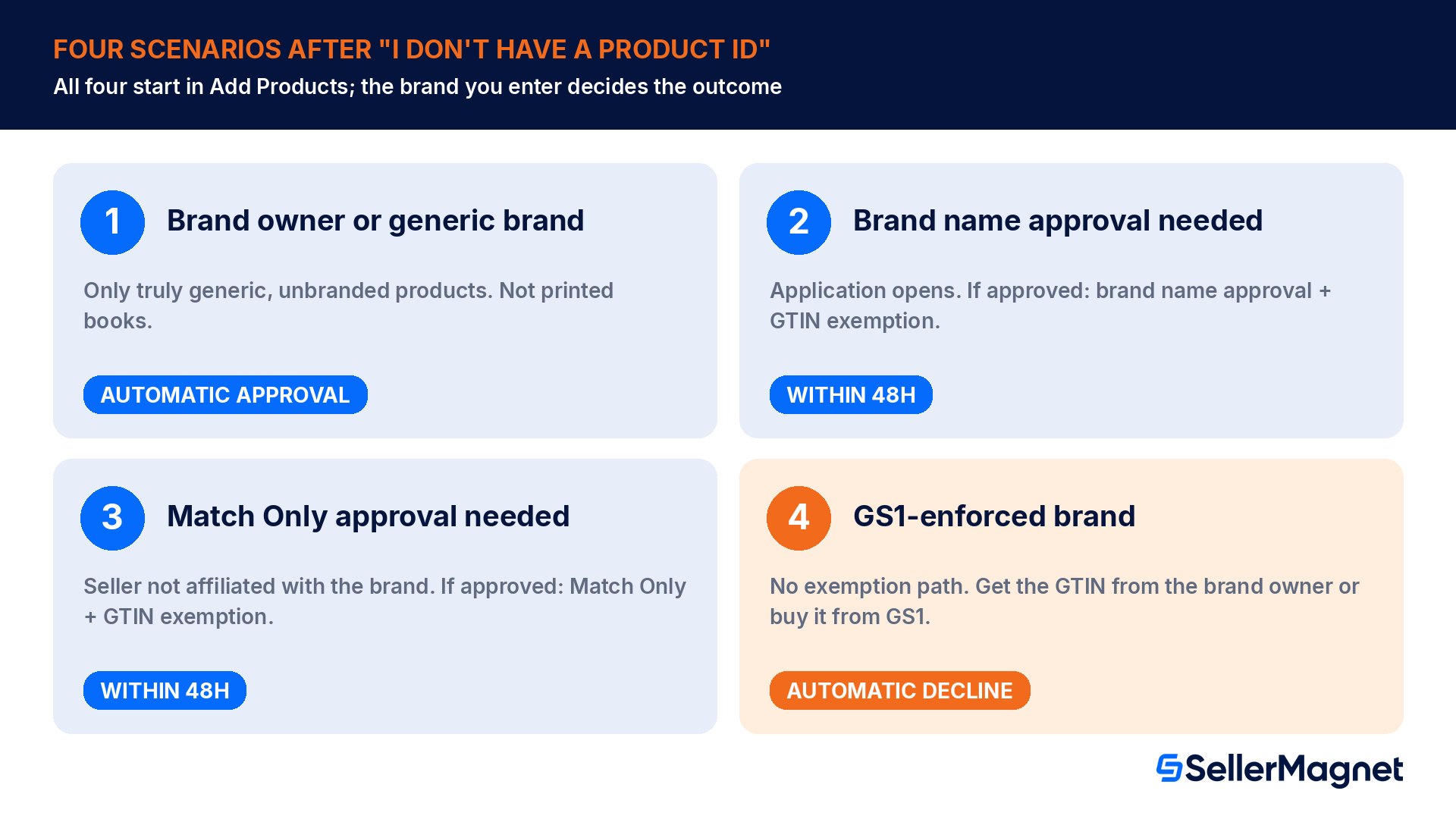
Amazon's "Application process and possible scenarios" section has four tables, and every one of them starts in the same place: go to the Add Products tool, search your product title, click Create a new listing, enter the brand and check "I don't have a product ID". The first scenario covers a brand owner without a product ID or a seller listing a generic brand: Amazon approves the exemption automatically, although its own note limits this to 'truly generic, unbranded products' and excludes printed books. Two further scenarios, where you also need brand name approval or Match Only approval for the brand, start with the same checkbox but open an application that Amazon decides within 48 hours. The fourth, a brand that already uses GS1 barcodes, has no exemption path at all.
Scenario
Who it applies to
What happens after the checkbox
Decision time
1. Brand owner or generic brand
A brand owner without a product ID, or a generic brand (Amazon's note: only truly generic, unbranded products, not printed books)
Auto-approval for the GTIN exemption
Automatic approval
2. Brand on Amazon, brand name approval (BNA) needed
A brand that is not UPC or GTIN mandatory, where you also need brand name approval
An application window opens; if approved, you receive both BNA and the GTIN exemption
Within 48 hours, status in the case log
3. Brand on Amazon, Match Only approval needed
A brand that is not UPC or GTIN mandatory, sold by a seller not previously affiliated with the brand
An application window opens; if approved, you receive both Match Only approval and the GTIN exemption
Within 48 hours, status in the case log
4. UPC-mandatory brand (GS1-enforced)
A brand that Amazon has identified as using GS1 barcodes
A notification that a GTIN is required; no exemption path
Automatic decline
The first scenario, per Amazon's own steps: "Go to the Add Products tool, enter your product title into the search bar and click Search. Click Create a new listing. Fill in product details and select the appropriate product type/category. Enter brand name (or select 'This product does not have a brand name' for generic items). Check 'I don't have a product ID' and click Next. You will receive an auto-approval for GTIN exemption." For the second and third scenarios Amazon says you "will then be directed to a new window for an application", and if that link does not appear, to check the Seller Application dashboard for pending drafts. In the fourth scenario Amazon is explicit: "To list, you must either obtain GTIN or UPC from the brand owner or purchase from GS1." You do not pick the scenario yourself; the brand you enter decides which one applies.
How to prepare the photo evidence
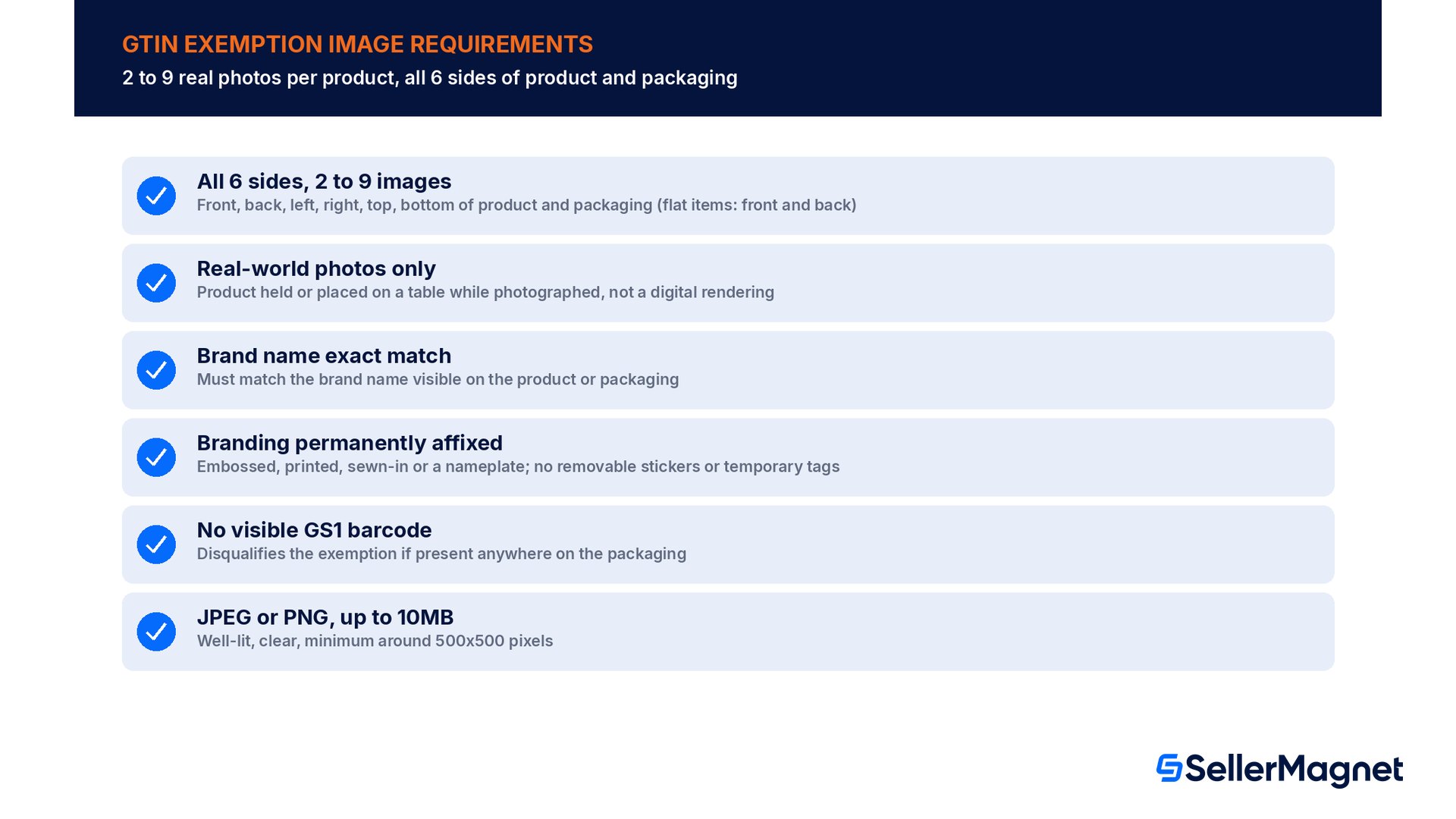
Whenever an application opens, it is only as strong as the photos behind it. Amazon's before-you-apply page states the core requirement directly: "Product name and a minimum of two (and maximum of nine) images showing all sides of your product and the packaging of the product." The no-product-ID page spells out what all sides means: "All product and packaging sides (front, back, left, right, top, bottom)." For a three-dimensional product that is six images, one per side, which still fits inside the limit of nine.
Image rule
What it checks
All 6 sides
Front, back, left, right, top and bottom of the product and its packaging (flat items: front and back)
Brand name exact match
The brand name entered during the application must exactly match the brand name visible on the product or packaging
Real-world photos only
The product and packaging must actually be held or placed on a table while the photo is taken, not a digital rendering
Branding permanently affixed
Embossed or debossed logo, printed or screened brand name, sewn-in label, permanent sticker or tag, or a metal or plastic nameplate; not removable stickers, temporary tags or digitally added branding
No GS1-approved barcode visible
Confirms the no-barcode eligibility rule above on the actual packaging being photographed
The same page covers the less obvious product types: "For flat items: front and back images of product and packaging. For books: front cover, back cover, inside cover with publisher name, and spine of book. For bundles: each component individually + assembled bundle." File mechanics are specific too: a minimum resolution of around 500x500 pixels, well-lit and clear, JPEG or PNG format, and a maximum file size of 10MB per image.
Bundles need photos of every component, not just the assembled bundle
Amazon's bundle rules are short and strict: each component must either have no existing GTIN or be part of your approved brand, the bundle must follow Amazon's product bundling policy, and "All components must be photographed individually and fully assembled." Amazon also asks you to list all components in the description.
The standalone application page: up to 10 brand/category combinations at once
Besides the scenario flow inside Add Products, Amazon has a separate Apply for a GTIN exemption page, which lets you request exemptions before you create the listing. It is not limited to one brand or one category per submission. Amazon's step-by-step instructions: "On the Apply for a GTIN exemption page, click the Select button and then select the relevant Product category from the pop-up list. Type the brand or publisher name in the Brand/Publisher field. For unbranded items and bundles, type Generic (case sensitive). You can apply for multiple exemptions (up to 10) by clicking + Add more brands/publishers to add brands or publishers under the same category and click + Add more categories to add new categories." A seller launching several private-label lines at once can batch up to 10 brand/category pairs into a single submission rather than filing one request per brand.
After entering the brand and category combinations, Amazon checks eligibility before any photo is uploaded: "Click Check for eligibility. An Eligibility summary will appear. A check mark will appear in the Status column if you are eligible for an exemption. If your product is not eligible for a GTIN exemption, you will not be able to continue." Only combinations that pass this screen move to the photo-upload step, so an application that cannot succeed stops before any evidence work is wasted.
Submission and the decision timeline
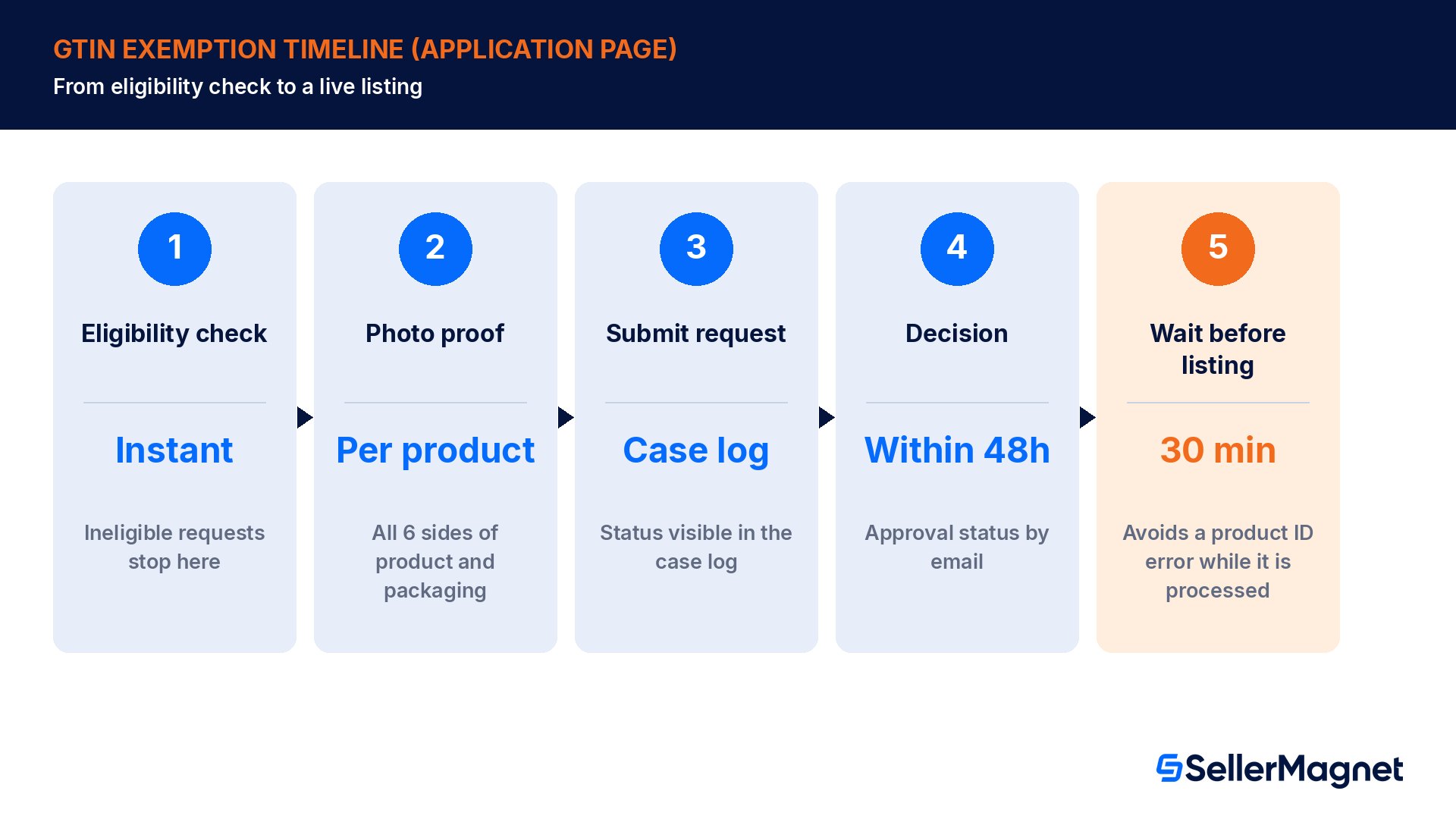
Once eligibility passes, the remaining steps are the evidence upload itself: "If your product is eligible for exemption, click the Continue to submit proof. On the Provide proof page, upload your images: Provide the Product name and upload photos showing all sides of the product. Repeat step 5 for all products in your exemption request. Click Submit request." The decision timeline that follows is explicit: "You will receive an email within 48 hours regarding the approval status of your request. Alternatively, you can check the status of your request in your case log."
Step
What happens
Eligibility check
Instant; a request that fails here cannot continue to proof submission
Photo proof uploaded
Per product: product name plus photos of all 6 sides of product and packaging
Request submitted
Status also trackable in the case log
Decision
Email within 48 hours, approve or reject
Post-approval wait
30 minutes before listing, while the exemption is processed in Amazon's systems
That last step is where sellers lose time unnecessarily. The no-product-ID page states the wait in the first scenario and again in its general "After approval" section: "After approval of the GTIN exemption, wait 30 minutes before listing a product; if you do not wait 30 minutes, you may see a product ID error while exemptions are being processed." An exemption that shows approved in the case log but still throws a product ID error on the listing form is very likely still inside that 30-minute window, not a failed approval.
Listing the product after approval
In the first scenario, approval and listing happen in the same flow, since the "I don't have a product ID" checkbox is part of creating the new listing. After an approval from an application, Amazon's page lists two rules first, "Enter category and brand name exactly as in approval notice" and, for books, "Use exact publisher name in both brand and manufacturer fields", and then the listing step: "Go to the Add Products tool and select the Blank form option. Enter details, check 'I don't have a product ID'. Complete all required fields and submit." For bulk uploads, Amazon says to fill the spreadsheet "by selecting Product ID type as GTIN exempt from the drop-down menu. Leave the Product ID column blank."
Get the category and listing fields right before an exemption is even approved. SellerMagnet's Listing Builder is a 4-step wizard for new listings with a live score, compliance flags and an Amazon preview, so the listing is ready the moment the exemption clears. For private-label sellers building out a whole new line, Bulk Sourcer analyzes a full supplier list and gives each row a BUY, MARGINAL or PASS verdict with ROI, margin and profit at your cost, before you invest the time photographing each product for an exemption request.
Is a GTIN exemption the same as category approval?
No, and conflating the two is a common reason a seller files an exemption request expecting it to unlock a listing that is still blocked afterward. The no-product-ID page lists category approval as a separate requirement: "You have category approval (if required)." The before-you-apply page says the same in plain words: "If the categories you are planning to list in are restricted, you will also need category-level approval in addition to a GTIN exemption to start listing products." A GTIN exemption only removes the need for a UPC, EAN, JAN or ISBN; it does nothing for a gated category that still requires its own approval, which runs through a different Seller Central flow with different evidence.
The practical order that avoids wasted effort is to check category gating status first, since category approval runs on its own timeline and can need invoices or other documents. Filing the GTIN exemption in parallel, once the photo set is ready, rather than waiting for one to clear before starting the other, is usually the faster path to a live listing on a gated category. If the category itself is restricted, work through getting ungated first, since an approved GTIN exemption on a category you cannot sell in yet does not unlock the listing on its own; see How to get ungated on Amazon for that separate process. If the bigger question is brand protection rather than the barcode, Amazon Brand Registry is a separate program with its own requirements.
How do I apply for a GTIN exemption, step by step?
Apply for a GTIN exemption (standalone application page)
Confirm there is no barcode - Check the product and packaging closely for any GS1-approved barcode or existing GTIN/EAN/UPC/ISBN; if one exists, use it to list instead of applying for an exemption.
Select category and brand - On the Apply for a GTIN exemption page, click Select and choose the Product category, then type the brand or publisher name (use Generic, case sensitive, for unbranded items and bundles).
Add more combinations if needed - Click + Add more brands/publishers or + Add more categories to batch up to 10 brand/category combinations into one application.
Check for eligibility - Click Check for eligibility; a check mark in the Status column confirms eligibility. An ineligible product cannot continue to the next step.
Submit photo proof - Click Continue to submit proof, then on the Provide proof page enter the product name and upload real-world photos of all 6 sides of product and packaging (front and back for flat items), within Amazon's limit of 2 to 9 images.
Submit and wait for the decision - Click Submit request. A decision arrives by email within 48 hours, or check the case log directly for status.
Wait 30 minutes, then list - After approval, wait 30 minutes, then list through the Add Products tool's Blank form option with the category and brand name exactly as in the approval notice, checking I don't have a product ID.
Worked scenario: launching three private-label SKUs under one brand
A seller is launching a new private-label brand with three SKUs in the same category: a travel mug, a matching lid and a cleaning brush. None of them carries a UPC, because the manufacturer ships them unbranded and the seller's own logo is debossed into each piece, one of the permanent brand markings Amazon accepts. Because all three SKUs share the same brand and the same product category, this is a single brand/category combination on the application page, well under the 10-combination limit, not three separate requests. The seller takes six images per item, one per side (front, back, left, right, top, bottom), within Amazon's limit of nine, with the debossed logo clearly visible and matching the brand name typed into the application exactly, and submits all three products' photo sets in that one request.
Starting with the "I don't have a product ID" checkbox in Add Products is not a shortcut around the review for a branded product: depending on the brand, Amazon approves automatically, opens an application for brand name approval or Match Only approval that it decides within 48 hours, or declines. Having the six-sided photo set ready before the first listing attempt means the proof is there whichever scenario opens. And because Amazon grants exemptions per category in each store, a later fourth SKU in the same category under the same brand does not need a new application.
What happens if the application is rejected?
Amazon's no-product-ID page publishes its own list of "Top reasons for application rejection", and it is the best checklist before a second attempt:
For books: front, back and spine images missing, the inside cover missing, or the publisher name missing in the images.
Brand name not permanently affixed, or digitally altered.
Real-world images not provided (digital renderings).
Low-quality images.
Brand name not matching across all images.
GS1 barcode already available.
Six-sided (all sides) images not available.
Before resubmitting, fix the reason and re-photograph the product fresh rather than reusing the rejected set, since the same flawed photos tend to get the same rejection. During the application you may also meet error codes such as 5665 (brand name mismatch) or 5461 (not approved for new ASIN creation), which point to an extra brand approval. If Amazon has ruled your brand ineligible because it treats it as GS1-enforced, there is an exception route: go to Get help and resources, click Add a product, then Product identifier exemption and Contact an associate, explain the brand, product type, country and the "UPC Exemption not approved" error, and attach product images plus a screenshot of that error. Amazon's examples of valid grounds include a letter of authorization (LOA) from the brand or manufacturer, GTINs not being available in the country you list in, and replacement parts that do not have UPCs.
Check the case log, not just email
Amazon's own guidance notes the decision is trackable in the case log as well as by email, which is the more reliable place to look if a decision email does not arrive within the stated 48-hour window or lands in a spam filter.
Does an exemption carry across marketplaces?
No. Amazon's page is direct about it: "You must request a GTIN exemption approval separately for each store and category where you want to list without product IDs." Within one store, the exemption works at category level: Amazon's example is that one approved apparel exemption covers both a shirt and pants and any future apparel items you list without product IDs. A seller expanding the same private-label product into a European store therefore files that store's own request, with its own eligibility check and photo review. The underlying rules (no GS1-approved barcode, real photos of every side, an exact brand name match) tend to repeat, so a photo set built for the US application is usually reusable, but the decision is made separately in each store. For more on how private-label and white-label brands differ, see our private-label guide.
Common GTIN exemption mistakes
Applying for a product that already has a GS1-approved barcode visible on its packaging, which disqualifies the exemption outright.
Submitting stock or rendered product images instead of real-world photos of the actual product and packaging held or placed on a table.
Entering a brand name in the application that does not exactly match the brand name shown on the product or packaging.
Treating the "I don't have a product ID" checkbox as one generic route: for a brand that needs brand name approval or Match Only approval it opens an application, and for a GS1-enforced brand it ends in an automatic decline.
Photographing only the front and back of a three-dimensional product instead of all six sides of product and packaging.
Listing immediately after an approval email instead of waiting the 30 minutes Amazon's systems need to process the exemption.
Missing the per-product-type photo set, such as the spine and inside cover for a book, or individual component shots for a bundle.
Reapplying for a product type that already has an approved exemption on file, instead of checking existing exemptions first.
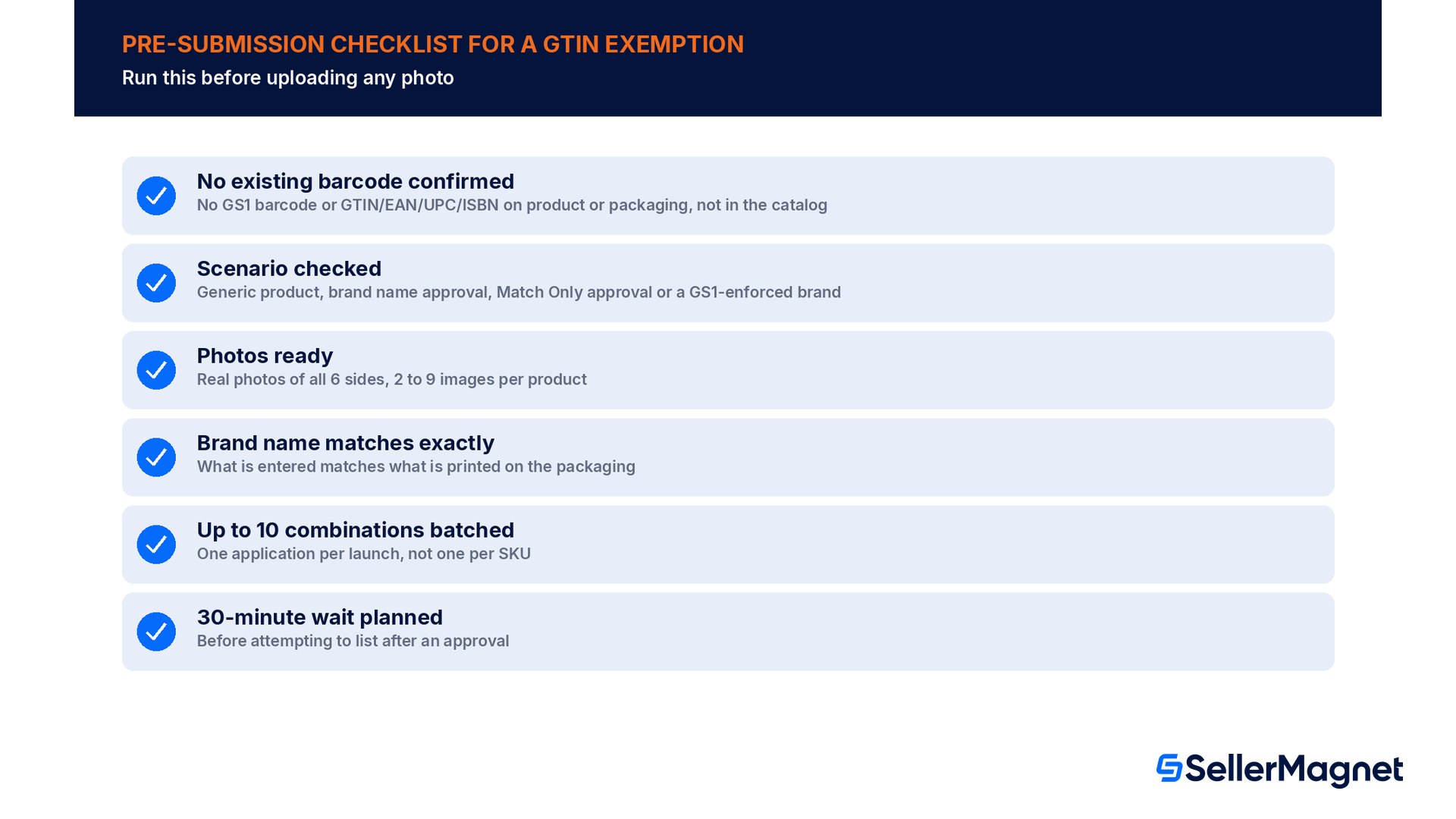
Pre-submission checklist for a GTIN exemption
Confirmed the product has no GS1-approved barcode or existing GTIN/EAN/UPC/ISBN anywhere on it or its packaging, and is not already in the Amazon catalog.
Checked whether an approved exemption already covers this product type before starting a new application.
Checked which of Amazon's four scenarios applies: a truly generic product, a brand that needs brand name approval, a brand that needs Match Only approval, or a GS1-enforced brand with no exemption path.
Gathered real-world photos of all 6 sides of product and packaging per product, within the limit of 2 to 9 images, including category-specific extras (book spine, bundle components).
Verified the brand name entered matches exactly what appears on the product or packaging.
Batched up to 10 brand/category combinations into one application if launching several lines at once.
Planned to wait 30 minutes after approval before attempting to list, to avoid a false product ID error.
What is a GTIN exemption on Amazon?
A GTIN exemption lets a seller list on Amazon without a UPC, EAN, JAN or ISBN. Amazon's list includes private-label or handmade products, products you make, brand or publish without barcodes, parts without a product ID, bundles and generic, unbranded products, if the product has no product ID or GS1-approved barcode and is not already in the Amazon catalog.
Can I get an instant GTIN exemption?
Only in the first of Amazon's four scenarios: checking "I don't have a product ID" in Add Products gives an automatic approval, which Amazon limits to truly generic, unbranded products, not printed books. If the brand needs brand name approval or Match Only approval, the checkbox opens an application decided within 48 hours; a GS1-enforced brand is declined automatically.
How many photos does a GTIN exemption application need?
Between 2 and 9 images per product, showing all sides of product and packaging: front, back, left, right, top and bottom, so 6 for a three-dimensional product (front and back for flat items). Use real-world photos held or placed on a table, plus extras such as a book's spine and inside cover or each bundle component.
Can I apply for multiple brands or categories at once?
Yes, up to 10 brand/category combinations in a single application, using the + Add more brands/publishers and + Add more categories options on the Apply for a GTIN exemption page, which is useful for a seller launching several private-label lines at the same time.
Why am I getting a product ID error right after my exemption was approved?
Amazon asks you to wait 30 minutes after approval before listing, because the exemption is still being processed in its systems. Listing before that window passes can show a product ID error even though the exemption was approved correctly, so wait the full 30 minutes and enter the category and brand name exactly as in the approval notice.
Can a product with an existing barcode get a GTIN exemption?
No. A product with a GS1-approved barcode or an existing GTIN, EAN, UPC or ISBN cannot get one; list it with that product ID. The same goes for a mandatory-UPC brand, a book listed with "generic" as publisher and a product already in the catalog. An ineligible brand can only request an exception from Selling Partner Support.
Do I need to reapply for every new product of the same type?
No. Amazon grants exemptions at the parent product type level and they cover all child product types, so a "Party_Supplies" exemption also covers "Balloon". If you already have an approved exemption for the product type, you can list a new product of that type without a new application, though you still need a separate exemption in each store.
Does a GTIN exemption also clear a gated category restriction?
No. A GTIN exemption and category approval are separate requirements that run through different Seller Central flows. Amazon says a restricted category needs category-level approval in addition to a GTIN exemption, regardless of whether the exemption has already been approved.
Stop Juggling Tools. SellerMagnet Combines Everything You Need.