Amazon Catalog Hygiene: 6 Listing Errors That Cost Sales
R
RenéFreelance Amazon Editor
|
16 min read
A catalog does not break all at once. One ASIN quietly loses its browse node during a bulk upload, a child variation gets orphaned from its parent after a flat-file edit, a main image fails a background check nobody re-reads, and three months later a seller opens Manage All Inventory and finds a wall of Search Suppressed tags with no idea when most of them appeared. None of these failures show up on a sales chart until the lost traffic is already gone. This guide is a working catalog-hygiene audit: the six places a listing actually breaks, how Seller Central itself exposes each one, and the order to fix them in so a revenue-significant ASIN never sits broken for a reporting cycle before anyone notices.
Amazon catalog hygiene means regularly auditing your live ASINs for six failure types: search-suppressed or at-risk listings (Manage All Inventory's quick filters and the Fix Your Products tool), browse node drift (wrong or outdated category assignment), orphaned child variations (detached from their parent ASIN), image policy violations (background, pixel size, embedded text), duplicate or merged-ASIN damage, and wasted backend search terms. Amazon's help page on keeping listings discoverable confirms changes take 24 to 72 hours to reflect, and recommends checking the Listing Quality Dashboard weekly rather than waiting for a suppression to notice a problem.
Why a clean catalog decays on its own
A catalog does not stay clean by default because almost every process that touches it is allowed to make it worse: a bulk flat-file upload can silently overwrite a browse node or a bullet point on fields the uploader did not intend to change; a brand-registry content edit by someone else on the account can detach a variation relationship; an image swap meant to update one marketplace can fail a background check on another; and a product that was perfectly compliant on the day it was created can fall out of compliance when Amazon tightens an attribute requirement for that category later. None of these are rare edge cases. They are the normal failure modes of a catalog that has more than a handful of SKUs and more than one person or process touching it.
Failure class 1: search suppression and the at-risk window
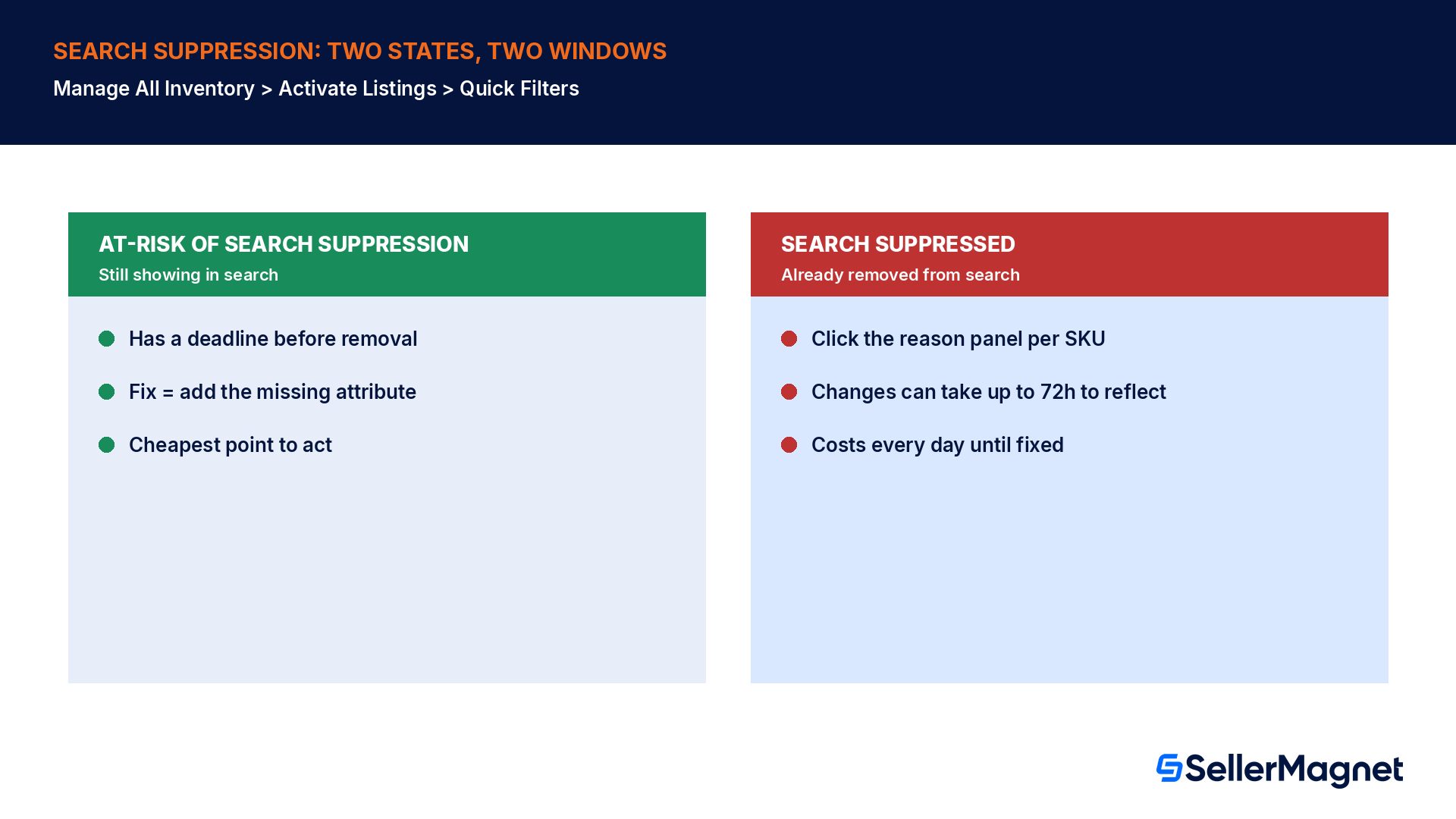
Seller Central's own guidance on keeping listings discoverable is specific about the mechanics: "To prevent your listing from becoming search suppressed, Amazon may require you to take action before a certain date. If you do not take action, such as by adding the required attributes, your ASIN may be removed from search." The key operational detail most sellers miss is that there are two separate states, not one. Go to the Inventory menu, select Manage All Inventory, open the Activate Listings category, and the Quick Filters panel exposes both: "At-risk of search suppression" for listings with a deadline that have not been removed yet, and "Search Suppressed" for listings already pulled from search. Clicking an issue on either list opens a right-side panel naming the exact reason and the fix, SKU by SKU.
The at-risk filter is the cheap fix, not the suppressed one
Fixing an ASIN while it still shows as 'at-risk' costs nothing but the time to add the missing attribute. Fixing it after it is already search suppressed costs every day of lost search visibility between the suppression date and the fix, plus up to 72 hours more for the fix itself to propagate. Checking the at-risk filter weekly, before the deadline Amazon names on each SKU, is the entire difference between the two outcomes.
Seller Central's guidance also sets expectations correctly on timing: "Changes will take up to 48 hours to reflect" for the at-risk and suppressed views themselves updating after you act, separate from the content change itself needing to propagate through the catalog system first. A seller who fixes a missing attribute and checks back ten minutes later, sees the tag unchanged, and assumes the fix failed is reacting to a system that has not finished processing yet, not to a real failure. The safe pattern is: fix the attribute, wait at least 48 hours, then re-check the specific SKU before escalating to Seller Support.
Failure class 2: browse node drift
A browse node is the category and sub-category tree a product is filed under, and it drives both the left-hand search filters customers use and which category bestseller rank the ASIN earns. Browse nodes drift for three ordinary reasons: a bulk flat-file upload that left the node field blank, overwrote it with a template default, or targeted the wrong template entirely; a catalog merge that pulled in a listing's old node from before it was reclassified; or Amazon itself splitting or renaming a node and never migrating existing listings into the new one. None of these show up as an error anywhere in your own dashboards, because the ASIN still has an active offer and still sells. The only way to catch node drift is to open the live product page and read the breadcrumb trail, or to check the category field directly in Manage Inventory's Edit view, against what a close competitor's equivalent product is filed under.
Symptom
Likely cause
Where to check
ASIN ranks well on exact-title search but never appears when a shopper browses the category
Wrong or overly broad browse node
Live product page breadcrumb trail; Manage Inventory Edit > Category
Bestseller rank looks unusually high (bad) for a product that actually sells well
Node too broad, diluting the rank against a much larger competing set
Compare the node against a close competitor's listing in the same sub-category
Category-specific search filters (size, material, use case) do not appear on the listing
Node does not carry the attribute set those filters depend on
Live product page left-hand filter panel
A recently bulk-uploaded ASIN has a visibly generic or default category
Flat-file template left the node field blank or used a template default
Manage Inventory Edit > Category, compared against the upload template
There is no single Seller Central report that lists every ASIN with a drifted node, which is exactly why this failure class survives longest in a catalog: nobody is actively looking for it because there is no red flag to click on. A practical rotation is to re-check the browse node on your top revenue ASINs once a quarter, and on any ASIN immediately after it goes through a bulk upload or a catalog merge, since that is when drift is introduced.
Failure class 3: orphaned child variations
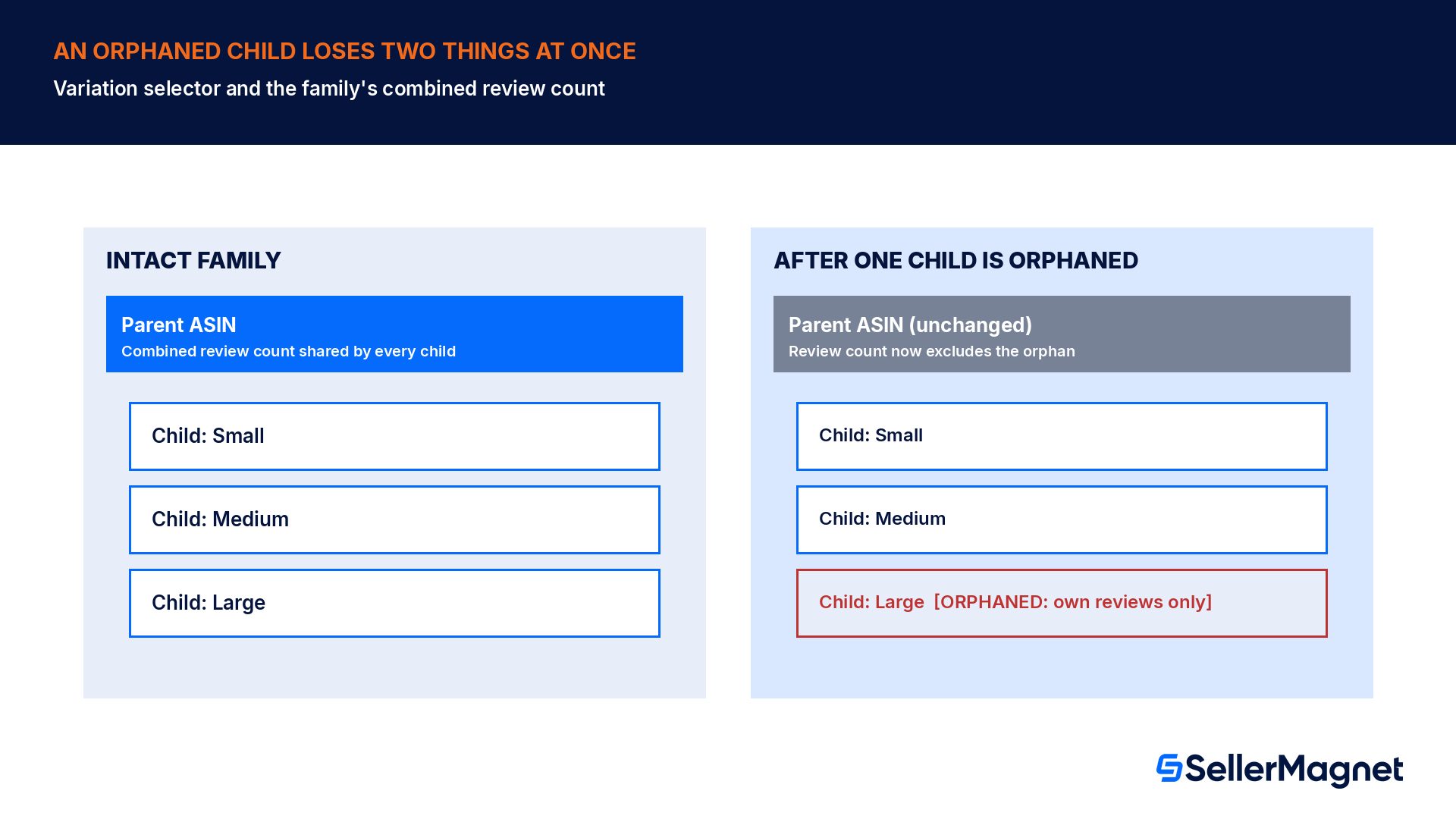
A variation family lets a shopper switch between a product's size or color options on one detail page while staying within the same combined review count and the same Buy Box eligibility pool. A child ASIN becomes orphaned when a flat-file edit, a brand-registry content update, or a catalog error detaches its parentage relationship, usually without any visible error at the moment it happens. The orphaned child still has an active offer and can still sell normally through direct search, but it loses three things at once: the size/color selector that used to show the sibling options, the combined review count the family carries (an orphan reverts to only its own individual reviews), and in some cases its place in a previously-won Buy Box rotation if the detachment coincides with a listing refresh.
The fastest way to spot an orphan is comparing the live detail page of each child against its parent: an attached child shows the full variation selector with every sibling size or color listed; an orphan shows only itself, often with a visibly thinner review count than you remember the family having. A second, more reliable check is the variation relationships report available from Manage Inventory's Add Products via Upload tool, which lists every parent-child pairing currently on file, so a missing pairing shows up as a gap in the report rather than something you have to notice visually across dozens of child ASINs.
Reattaching a child is not always a self-service fix
Some orphaned children can be reattached through a corrective flat-file upload that restates the parent-child relationship; others, particularly on brand-registered catalogs where the detachment originated from someone else's content edit, need a Seller Support case with the parent ASIN, the child ASIN, and the date the family was last known to be intact. Submitting the case with that exact information up front avoids the multi-round back-and-forth that happens when the first reply only contains "please confirm the ASIN".
Failure class 4: image policy violations
Amazon's main-image requirements (pure white background, no added text, graphics, watermarks or inset images, the product filling most of the frame, meeting a minimum pixel dimension for zoom) are published and well known, but enforcement is not always immediate, which is exactly why violations survive in a live catalog instead of being blocked at upload. A main image can pass automated checks on the day it is uploaded and still be flagged later by a manual review, a policy tightening, or a competitor report, usually surfacing as a quieter penalty first: throttled visibility in mobile image carousels or a flag inside the Listing Quality Dashboard, rather than an immediate suppression. Secondary (non-main) images have more latitude for lifestyle shots and infographics, but the same background and text rules apply to the main image specifically, and a secondary image doing the job the main image is supposed to do (clear single-item framing) is itself a lost-conversion issue even when no policy is violated.
Main image on a pure white or near-white background with no added text, logos, badges or watermarks baked into the frame itself.
Product fills most of the image frame; it is not a small object floating in empty white space.
No inset or secondary product shown inside the main image (a two-pack of a single product's main image should show the actual package, not a composite).
Image resolution meets the zoom-enabled minimum for the category; a main image too small to zoom is itself a conversion loss even if it is not flagged for policy.
No mannequin, prop stand or disembodied body part showing where the category's guidelines call for the product shown alone or worn on a visible model.
The practical audit here is simple and fast: open the main image of your top 20 ASINs by revenue at full resolution, not the thumbnail, once a quarter. A violation on a hero ASIN is worth fixing immediately; a violation on a slow-moving SKU can wait for the next quarterly pass, since the cost of leaving it is proportional to how much traffic the ASIN is actually getting.
Failure class 5: duplicate detection and bad ASIN merges
Amazon automatically detects and, in some cases, auto-merges listings it believes represent the same product, usually triggered by a matching UPC, EAN or other external identifier submitted on a new listing attempt. When the match is correct, a merge is harmless. When it is wrong, for example a generic product identifier shared across genuinely different items, or a listing created with a recycled barcode, the result is a single detail page carrying reviews, images or a title that belong to the wrong product, with your own inventory now attached to content you did not write and may not even accurately describe what you sell. This failure class is the hardest to catch proactively because the merged page can look completely normal to a shopper; the giveaway is almost always a seller noticing their own product photos, bullet points or reviews do not match what is now showing on their own ASIN's detail page.
The fix path is a Seller Support case citing the specific ASIN, the correct product identifier your inventory should be matched to, and evidence (your own product photos, the original listing's creation date, a packaging photo showing the real UPC) that the merge is wrong rather than a case of two sellers genuinely selling the identical item. Catching it early matters because the longer a bad merge sits live, the more review and sales history accumulates on the wrong page, and untangling two products' history after months of co-mingled data is a materially harder support case than catching it in the first week.
Failure class 6: backend search term waste
Backend search terms (the keywords tab on a listing's Edit page, invisible to shoppers) are the cheapest field in the whole catalog to audit and the one most sellers never revisit after the listing was first created. Terms that no longer match current search behavior, that repeat a word already in the visible title or bullets (where it is already indexed and does not need to be duplicated in the backend field), or that reference a discontinued variant, promotion or season, are not actively harmful on their own, but every character spent on a dead term is a character not spent on a term that could actually be driving discovery today. A quarterly pass that drops dead terms and adds current ones, cross-checked against what your actual converting search terms report shows this product ranking for, is low-risk, low-cost and easy to defer indefinitely, which is exactly why it is worth putting on the same fixed cadence as the other five checks instead of relying on remembering to do it.
Catching these six failure classes needs a standing watch, not a quarterly memory jog.Listing Optimizer checks title, bullet, image and backend-keyword fields against current category requirements so a drifted attribute or a stale search term surfaces without a manual pass. Alerts flags a listing the moment it moves to search-suppressed or at-risk, so the fix happens inside the cheap at-risk window instead of after the suppression has already cost a week of traffic. For a deep dive on suppression causes specifically, see Amazon Listing Suppressed 2026.
Worked example: a 40-SKU catalog's first quarterly audit
A seller with 40 live ASINs runs the six-check audit for the first time. The at-risk and suppressed quick filters in Manage All Inventory return 3 SKUs at risk (missing a now-required attribute on an older listing type) and 1 already search suppressed for a missing product description, which per Seller Central's own guidance needs a brand-registry contribution since the seller is a reseller, not the brand owner, so that case goes to Seller Support with the brand's authorized-reseller status attached. A browse-node spot check on the top 10 ASINs by revenue finds 1 filed under an overly broad default category from a bulk upload eight months earlier, quietly diluting its bestseller rank against a much larger competing set than it should be ranked in. The variation relationships report turns up 2 orphaned children, both traced to the same flat-file batch from a price update three months prior that unintentionally cleared the parentage field. A full-resolution image check on the top 20 ASINs finds 1 main image with a small added badge graphic baked into the frame, uploaded before the seller's team learned the current main-image rule. No bad ASIN merges turn up this round. The backend search terms pass drops 6 dead seasonal terms across 4 listings and adds 9 current ones pulled from the search terms report. Total: 3 at-risk fixes (same-day, cheap), 1 suppression case (Seller Support, days to resolve), 1 browse node correction, 2 variation reattachments, 1 image replacement, and one keyword cleanup pass, found in a single afternoon instead of discovered one at a time over the following year as each quietly costs traffic.
Common mistakes running a catalog hygiene audit
Checking only the Search Suppressed filter and skipping At-risk, which means every fix happens after the traffic loss has already started instead of before it.
Re-checking a fix 10 minutes after submitting it and concluding it failed, when Amazon's own guidance states changes can take up to 72 hours to reflect.
Assuming an ASIN that still sells has no browse node problem, when node drift dilutes bestseller rank and hides the product from category browsing without reducing direct-search sales at all.
Treating an orphaned variation as a cosmetic issue, when it also strips the combined review count the family carries and can affect Buy Box eligibility.
Auditing main images from the thumbnail view in Manage Inventory instead of the full-resolution live page, which hides small added text or badge graphics baked into the corner of an image.
Submitting a bad-merge Seller Support case without the evidence (original listing date, product photos, correct identifier) attached up front, which turns a one-round fix into a multi-week back-and-forth.
How to run the quarterly audit
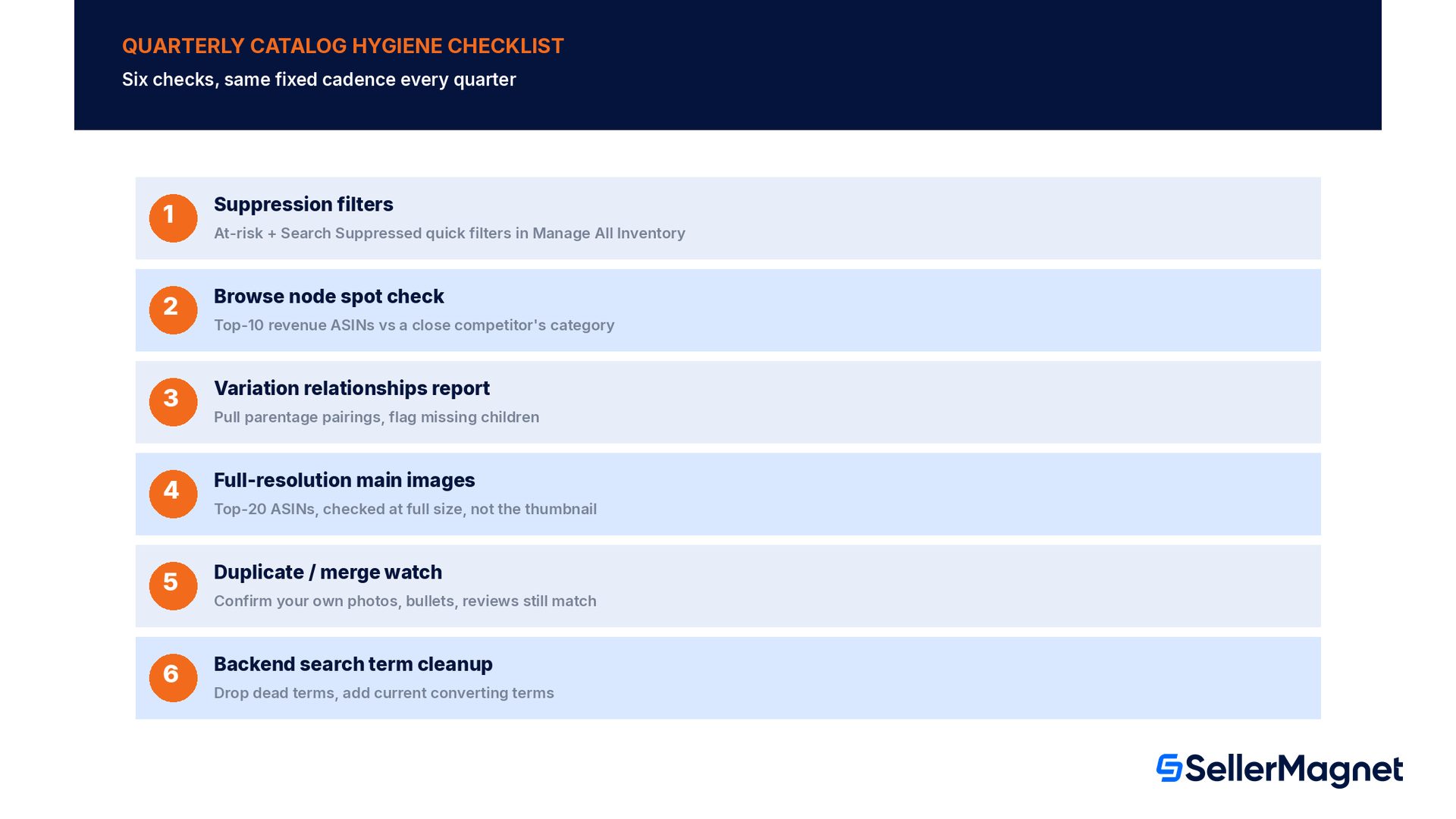
Run a six-point Amazon catalog hygiene audit
Pull both suppression filters - In Manage All Inventory, open Activate Listings and check both the At-risk of search suppression and Search Suppressed quick filters; fix every revenue-significant SKU's named reason before moving on.
Spot-check browse nodes on top revenue ASINs - Open each top-10 ASIN's live product page, read the breadcrumb trail, and compare it against a close competitor's equivalent listing; reclassify anything that looks too broad or outdated.
Pull the variation relationships report - From Manage Inventory's upload tool, pull the current parent-child pairings and flag any child missing from a family it should belong to.
Check full-resolution main images - Open the live main image (not the thumbnail) on your top 20 ASINs by revenue and check it against the white-background, no-added-text, full-frame rules.
Watch for unexpected merges - Spot-check that your own listing's images, bullets and review count still match what you created; file a Seller Support case with evidence immediately on anything that does not.
Clean backend search terms - Pull the search terms report for each listing, drop dead or duplicated terms, and add current terms the product is actually being found for.
What is the difference between an inactive listing and a search-suppressed listing?
An inactive listing typically has no stock and simply has nothing to sell; a search-suppressed listing has an active offer but has been removed from search results because it failed a content or compliance requirement. Manage All Inventory's Listing Status filter and the Fix Your Products tool separate the two by reason code.
How long does a listing fix take to show up after I submit it?
Seller Central's own guidance on keeping listings discoverable states changes can take up to 72 hours to reflect, and the at-risk/suppressed status views themselves can take up to 48 hours to update after you act. Re-checking within the first hour and assuming a fix failed is premature.
Can I fix a browse node myself, or does it need Seller Support?
A browse node is usually editable directly through Manage Inventory's Edit view or a corrective flat-file upload. Seller Support is typically only needed when the category requires a restricted-category approval you do not yet hold, or when the node is locked by a brand-registry content conflict.
Why did my child ASIN lose its review count?
If the child was detached from its parent variation family (an orphan), it reverts to showing only its own individual reviews instead of the combined family review count the parentage relationship carries.
Does a secondary (non-main) product image follow the same white-background rule as the main image?
No. The strict white-background, no-added-text rule applies specifically to the main image. Secondary images have more latitude for lifestyle shots, infographics and in-use photos, though they should still clearly represent the actual product.
What should I include in a Seller Support case for a bad ASIN merge?
The ASIN affected, the correct product identifier your inventory should be matched to, and evidence such as your own product photos, your original listing creation date, or a packaging photo showing the real identifier, submitted together in the first message rather than waiting for a follow-up request.
How often should I check the Listing Quality Dashboard?
Amazon's own seller forum guidance recommends checking it weekly, since it surfaces missing attributes and time-sensitive actions before they become a suppression deadline, not after.
Is a catalog hygiene audit a one-time project or an ongoing task?
Ongoing. A catalog decays continuously through bulk uploads, brand-registry edits, policy changes and automated merges, so the six checks in this guide work best run on a fixed quarterly cadence rather than as a single cleanup project.
Stop Juggling Tools. SellerMagnet Combines Everything You Need.