Amazon Backend Search Terms 2026: The 250-Byte Limit
R
RenéFreelance Amazon Editor
|
15 min read
Type one word too many into the Generic Keyword field and Seller Central simply stops taking input, because Amazon caps that field at less than 250 bytes, not 250 characters. The difference matters the moment a word has an accented letter, a curly apostrophe or any non-English character, because those can cost two or more bytes each while every plain English letter costs exactly one. This guide works from Amazon's own US help pages on search terms: what the 250-byte limit really measures, which words help your listing get found, which words Amazon ignores or treats as a violation, and a worked example of a search-terms string that looks fine at a glance but is one word over the line. Backend search terms work alongside your title and the rest of your on-page listing SEO, so treat all three as one system rather than three separate fields.
Amazon's backend search terms, the Generic Keyword field, are limited to less than 250 bytes, which Seller Central enforces by refusing further input once the limit is hit. A byte is not the same as a character: plain English letters cost one byte each, but accented letters and other non-English characters can cost two or more bytes, so a string that looks short can still be too long. Amazon recommends filling the field with synonyms, spelling variations and abbreviations in lowercase, separated by spaces, while leaving out brand names, ASINs, temporary words and subjective claims, which can get the listing suppressed.
What is the Generic Keyword field, and why does it exist?
Amazon's help page defines search terms as "keywords that are used by the search engine for lexical matching between an ASIN and a query." In practice that means the words you type into the Generic Keyword field when you list or update an ASIN, which get indexed for matching customer searches, separately from your title, bullet points and description. The field used to be five separate search-term fields; Amazon combined them into one specifically "to improve the quality of Amazon search results and reduce the amount of superfluous search terms," and says the reduced quota "helps you focus on only using relevant words to describe your products."
Fact
What Amazon's help pages say
Source
Length limit
"We limit the length of the Generic Keyword attribute to less than 250 bytes"
Search optimization
What is counted
Bytes, not characters; spaces and punctuation are not counted toward the length
Use search terms effectively
What happens over the limit
The Generic keyword field in Seller Central "stops accepting inputs when the byte limit is reached"
Use search terms effectively
Field history
Reduced from five search-term fields to one to cut superfluous terms
Use search terms effectively
Visibility
Search terms are not shown on the product detail page
Search optimization
Sources: Use search terms effectively and Search optimization, Amazon Seller Central help for the US store (amazon.com). Where you enter the field also matters for how a check runs against it: in Seller Central, open Manage Products, pick the product, choose Edit from the Fix menu, then enter the keywords on the Product details tab.
Why are bytes different from characters in the 250-byte limit?
A byte is a unit of digital storage; a character is a letter, digit or symbol you type. For "alphanumeric characters used in the English language (for example a to z, A to Z, 0 to 9), one byte corresponds to one character," Amazon's FAQ says. "However, more complex characters, such as umlauts in German (for example, ä), can correspond to two or more bytes per character." That is why Amazon tells sellers that "estimating the character count can be more complex than estimating the bytes count," and why the Generic keyword field in Seller Central enforces the limit in bytes directly: once you hit less than 250 bytes, the field stops taking more input.
Amazon's own example fits comfortably under the limit
Amazon's help page shows this as an example of effective search terms for a cutting board: "cutting chopping board butcher block bamboo wood wooden large hybrid polypropylene food grade plastic non slip kitchen dual sided surface natural bpa stain scar resistant eco friendly drip groove". Counted with Python's len(s.encode('utf-8')), that string is 195 bytes, well inside the 249-byte ceiling, which leaves room to see exactly how little slack a word with an accented letter leaves.
Worked example: a search-terms string that is fine, then one word over
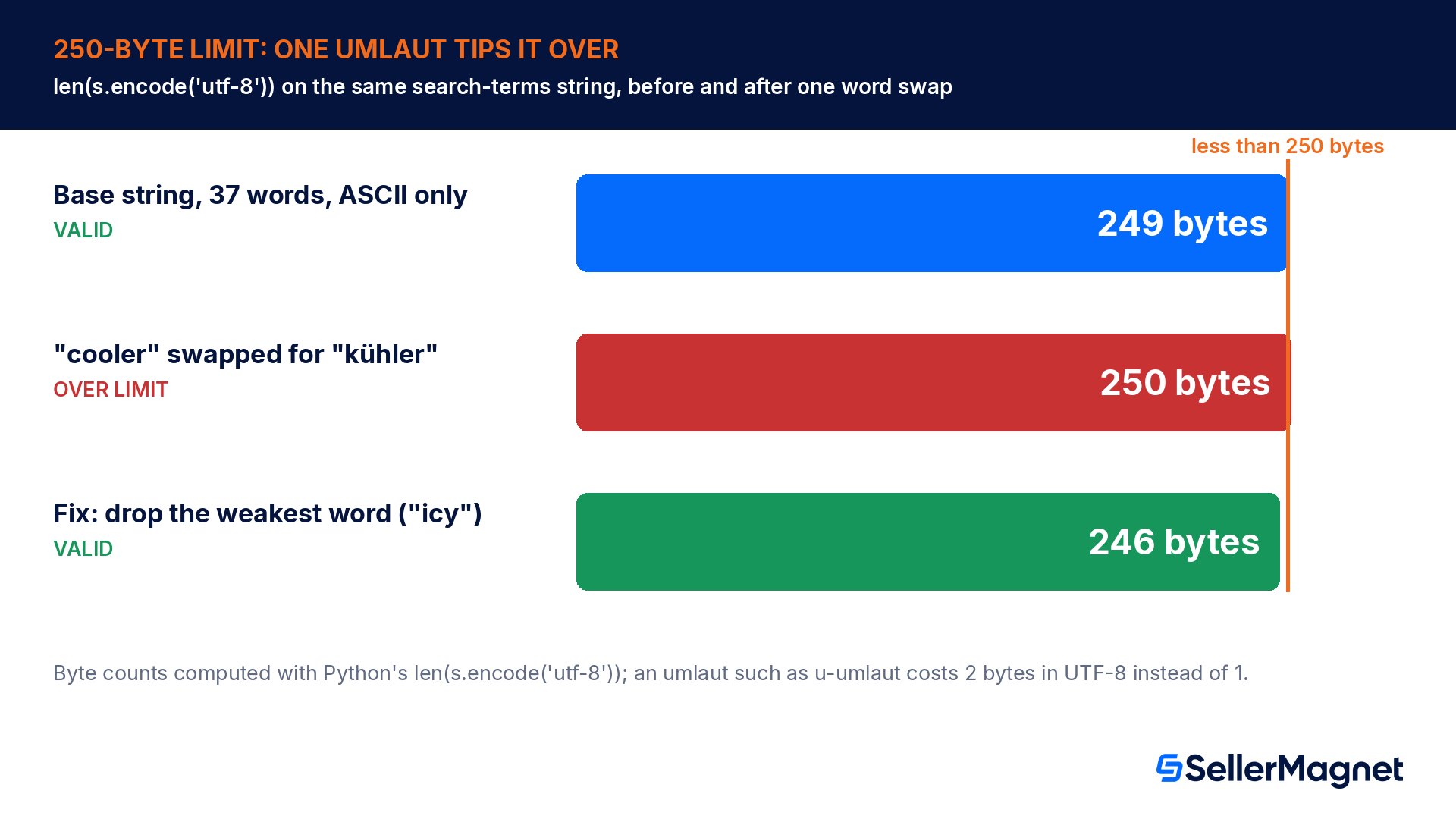
Take a seller listing a vacuum-insulated steel water bottle who writes this Generic Keyword string, built from synonyms and related terms with no brand names, no punctuation and no repeated plural/singular pairs: "vacuum insulated water bottle metal flask sports leakproof wide mouth lid double wall stainless steel reusable drink container hot cold beverage hiking camping gym office school kids tumbler canteen thermal travel mug cooler bag portable outdoor icy". Counted the same way, len(s.encode('utf-8')) returns exactly 249 bytes, the highest value that still satisfies "less than 250 bytes."
Now the seller swaps the generic word "cooler" for a regional synonym many German-speaking shoppers search with, "kühler" (cooler box). Both words are six characters long, but "cooler" is six ASCII letters at one byte each, while "kühler" has a u-umlaut that costs two bytes instead of one. The new string, "vacuum insulated water bottle metal flask sports leakproof wide mouth lid double wall stainless steel reusable drink container hot cold beverage hiking camping gym office school kids tumbler canteen thermal travel mug kühler bag portable outdoor icy", comes out to 250 bytes: one byte over the limit, and Seller Central will not save the rest of it.
Version
Byte count (len(s.encode('utf-8')))
Valid under less than 250 bytes?
Base string (37 words, ASCII only)
249 bytes
Yes, right at the maximum
"cooler" swapped for "kühler" (1 multi-byte character)
250 bytes
No, 1 byte over
Fix: drop the weakest word ("icy") to make room
246 bytes
Yes, 3 bytes of margin left
The fix is not to drop the useful regional synonym; it is to cut the lowest-value word first. "icy" is the most generic, least specific word in the string, so removing it brings the keyword string back to 246 bytes, leaving room for the more distinctive "kühler" while staying under the limit. The lesson generalizes: every accented letter, curly quote or non-Latin character in your search terms eats two or more bytes instead of one, so count bytes before you add a localized or special-character word, not characters.
Spaces and punctuation do not count, but Amazon still recommends them
Amazon's FAQ is explicit: "For the purpose of calculating the length of search terms, Amazon search does not count spaces or punctuation." That does not mean punctuation is a free way to pack in more words. The effective-search-terms guidance still says to avoid semicolons, colons and dashes and to separate words with spaces for readability.
What to put into backend search terms
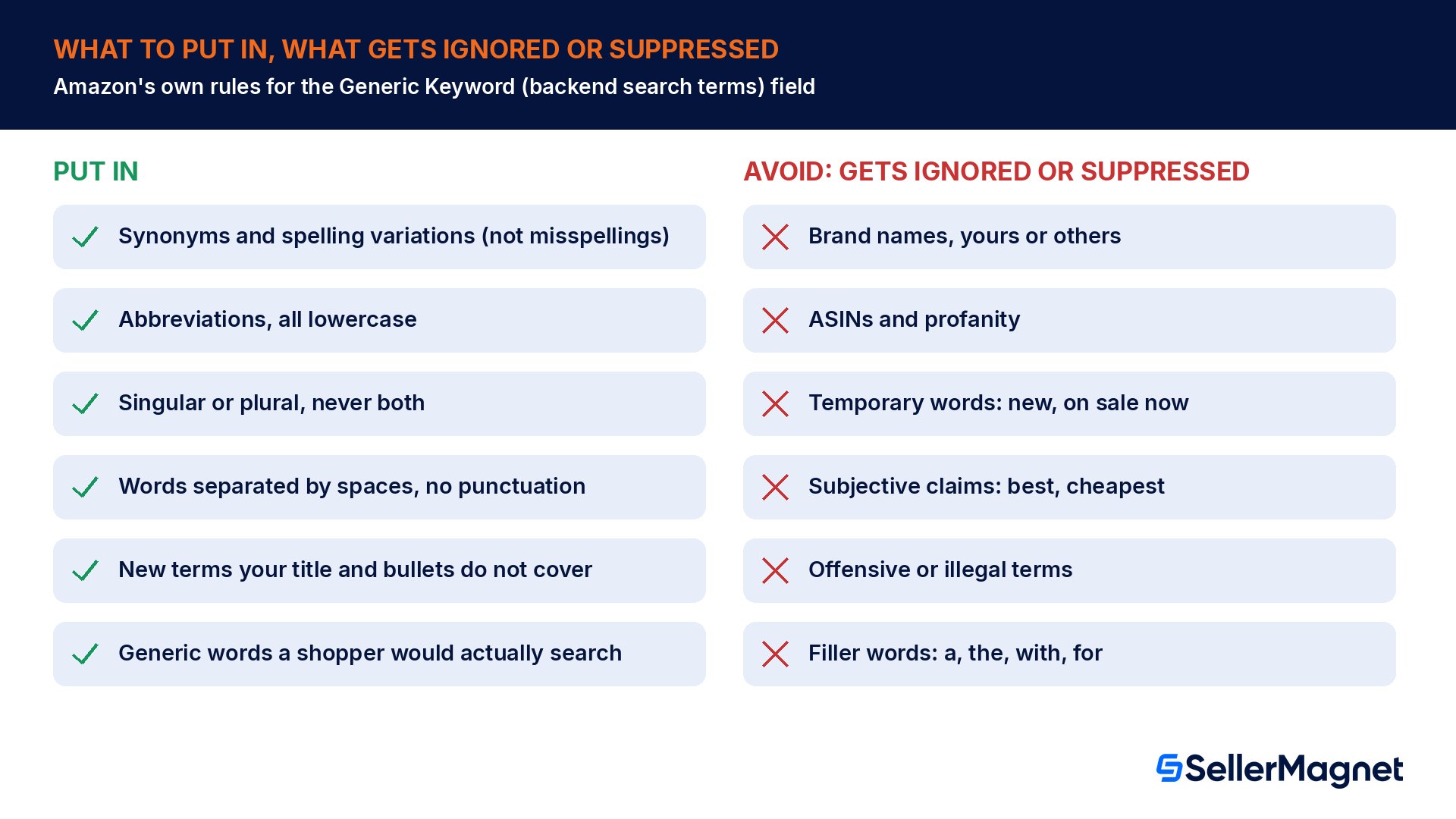
Amazon's tips for drafting search terms are short and specific. Treat every byte as a word slot, not a sentence, and fill it with terms a real shopper might type that your title and bullets do not already cover.
Do this
Why
Example
Use synonyms
Catches shoppers who search with a different word for the same product
headphones listing adds "earphones" and "earbuds"
Use spelling variations, not misspellings
Covers legitimate alternate spellings without wasting bytes on typos
British vs American spelling of the same word
Include abbreviations
Shoppers search short forms too
an accepted abbreviation of a measurement or model term
Use all lowercase letters
Matches Amazon's own example and avoids wasted formatting
"stainless steel" not "Stainless Steel"
Use singular or plural, never both
Saves bytes; Amazon's search already matches both forms
"bottle", not "bottle" and "bottles"
Separate words with spaces
Readable and consistent with Amazon's own example
word word word, no commas
Avoid punctuation (semicolons, colons, dashes)
Not needed for matching and wastes bytes Amazon does not count toward relevance anyway
no "wood; bamboo: eco-friendly"
Avoid articles, prepositions and short filler words
"a," "an," "and," "by," "for," "of," "the," "with" add bytes without adding search value
drop "for the" from a phrase
Avoid repeating a word already in your title or bullets
Repetition does not add discoverability, and Amazon's own guidance lists "Avoid repetitions"
do not repeat your brand's core product word five times
Source: Use search terms effectively. The same page gives a worked product example for a stainless steel refrigerator in the related Search optimization guide: terms like fridge, freezer, icebox, cooler, energy-efficient, frost-free, adjustable shelves, temperature control, stainless steel, kitchen, household, French door and ice maker, all generic words that widen how a shopper can find the exact same product.
What gets ignored, and what gets your ASIN suppressed?
Amazon draws a hard line between words it will simply skip and words that put the whole listing at risk. The help page is direct about the second group: "Violating the rules below may result in your ASIN being suppressed and may put the health of your selling account at risk."
Prohibited category
Examples Amazon lists
Risk
Brand names
your own brand, or other brands such as Apple, Nike, Amazon
ASIN suppression risk
ASINs
any Amazon ASIN
ASIN suppression risk
Profanity
any profane term
ASIN suppression risk
Temporary statements
available now, brand new, current, discounted, just launched, last chance, last minute, latest, limited time, new, on sale, this week, today
terms that promote illegal activity or glorify hatred, violence, or racial, sexual or religious intolerance
ASIN suppression and account health risk
Below that risk tier is a separate, quieter category: words Amazon simply chooses not to use. "Amazon may not use the search terms that you supply for any reason including, but not limited to, failing to follow the guidelines above," the help page notes, and the related Search optimization guide adds that Amazon reserves the right not to use all supplied content, citing "search computational efficiency, potential manipulation of shopping results, irrelevant search terms, and offensive or illegal terms" as example reasons. In other words, a forbidden word can cost you a suppressed ASIN, while a merely weak or irrelevant word just gets quietly dropped from indexing, with no visible penalty but no benefit either. This is one more reason ranking work has to look at the whole listing, not one field: see our guide to Amazon ranking strategies for how search terms, title and conversion signals interact.
A prohibited word is not an input error, it is a compliance risk
Typing your own brand name into backend search terms feels harmless, since customers never see the field. Amazon's own wording treats it the same as any other prohibited term: it can get the ASIN suppressed. Keep brand names, ASINs, profanity, temporary language and subjective claims out of this field entirely, not just out of the title.
Is the Generic keyword field required for your product type?
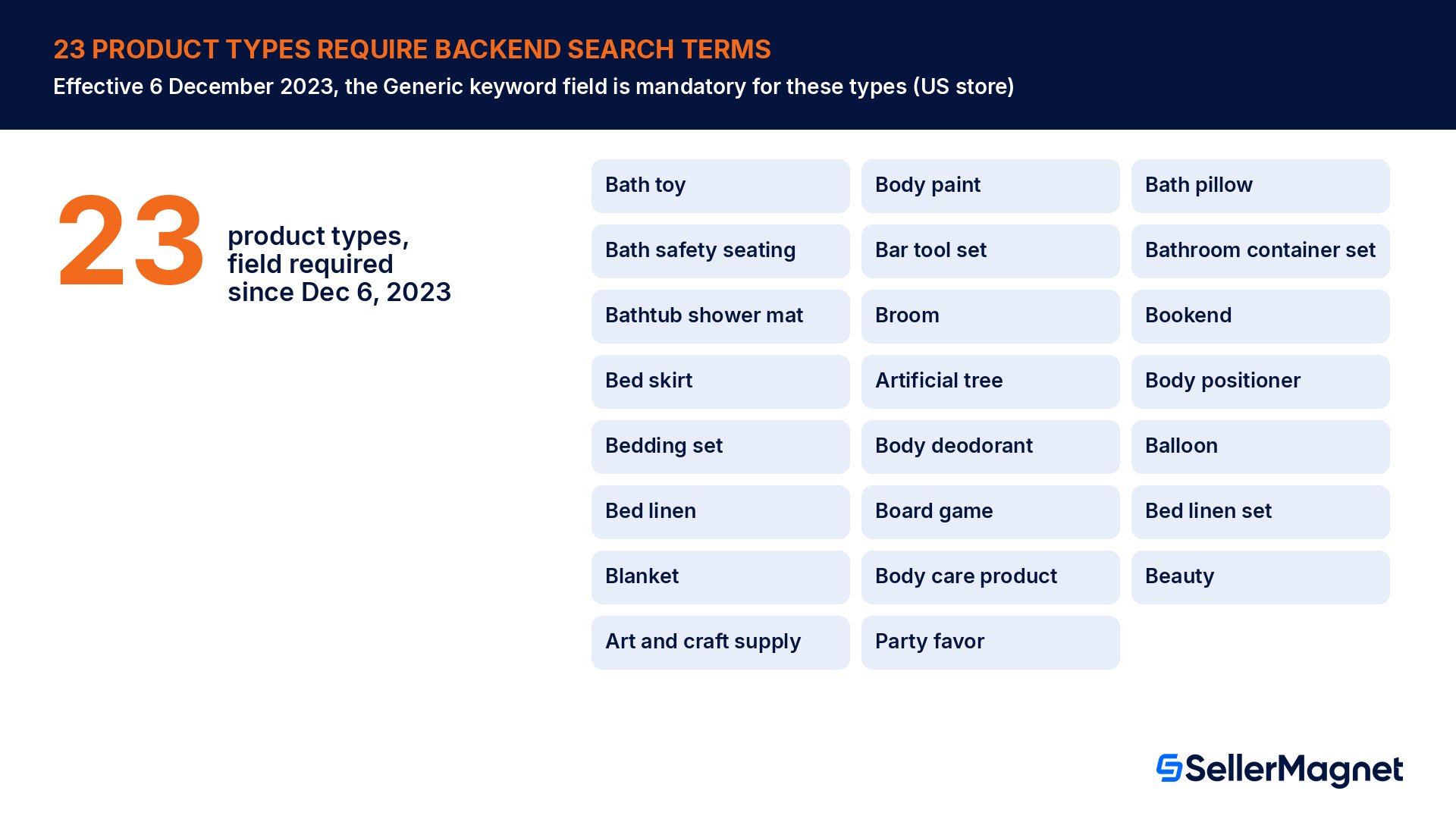
For most product types, the Generic keyword attribute is optional but recommended. Amazon's help page lists an exception: "Effective December 6, 2023, the Generic keyword field is required for the following 23 product types," mostly household, decor and personal-care items where titles and bullets alone may not surface every way a shopper searches.
Bath toy
Body paint
Bath pillow
Bath safety seating
Bar tool set
Bathroom container set
Bathtub shower mat
Broom
Bookend
Bed skirt
Artificial tree
Body positioner
Bedding set
Body deodorant
Balloon
Bed linen
Board game
Bed linen set
Blanket
Body care product
Beauty
Art and craft supply
Party favor
Source: Use search terms effectively. If you sell in one of these 23 product types, missing or empty backend search terms is a compliance gap worth checking directly, not just a missed optimization.
How do you update search terms, one listing or in bulk?
Amazon documents two ways to update the Generic keyword field: by hand for a single ASIN, or through a bulk file for a whole catalog.
Update Amazon backend search terms
Open the listing - In Seller Central, go to Manage Products, select the product, and from the Fix menu choose Edit.
Enter the keyword field - Click the Product details tab and type your search terms into the Generic keyword field, in lowercase, separated by spaces.
Watch the byte limit, not the character count - Count bytes with len(s.encode('utf-8')) before you paste in any accented or non-English word; the field itself stops accepting input at less than 250 bytes.
Remove anything prohibited - Strip brand names, ASINs, profanity, temporary words and subjective claims before saving, since Amazon says violating this may suppress the ASIN.
For bulk updates, use the Category Listing report - If the Category Listing report option is enabled under the Inventory menu, download the spreadsheet of existing listings and use an inventory file template with the partial update function; if the option is not enabled, ask Selling Partner Support to turn it on.
Check title and bullet wording before it goes live, not after. SellerMagnet's pre-flight check blocks wording Amazon is known to reject before you submit a listing change, and Listing Quality scores every listing against 37 checks, 25 on the title and 12 on bullet points, with fixes you can push back to Amazon only once you approve them. Building a brand-new listing instead? The Listing Builder is a 4-step wizard with a live score, compliance flags and an Amazon preview as you write. For a quick, free check of a title on its own, the Title Checker runs 22 checks and gives it a 0 to 100 score, no signup needed.
Common backend search terms mistakes
Counting characters instead of bytes, so an accented, curly-quote or non-English word silently eats the byte budget faster than expected.
Putting the brand name, a competitor's name or an ASIN into search terms, which Amazon's rules may treat as grounds for ASIN suppression.
Using both the singular and plural of the same word, which Amazon's own guidance says to avoid since it wastes bytes without adding reach.
Writing temporary or subjective words such as "new," "best" or "on sale now," which are explicitly on Amazon's prohibited list.
Padding the field with filler words such as "a," "the" or "with" instead of extra synonyms a shopper might actually search.
Repeating a word that already appears in the title or bullet points instead of adding a genuinely new synonym.
Assuming every word submitted gets indexed: Amazon states it may not use all supplied search terms for relevance or policy reasons.
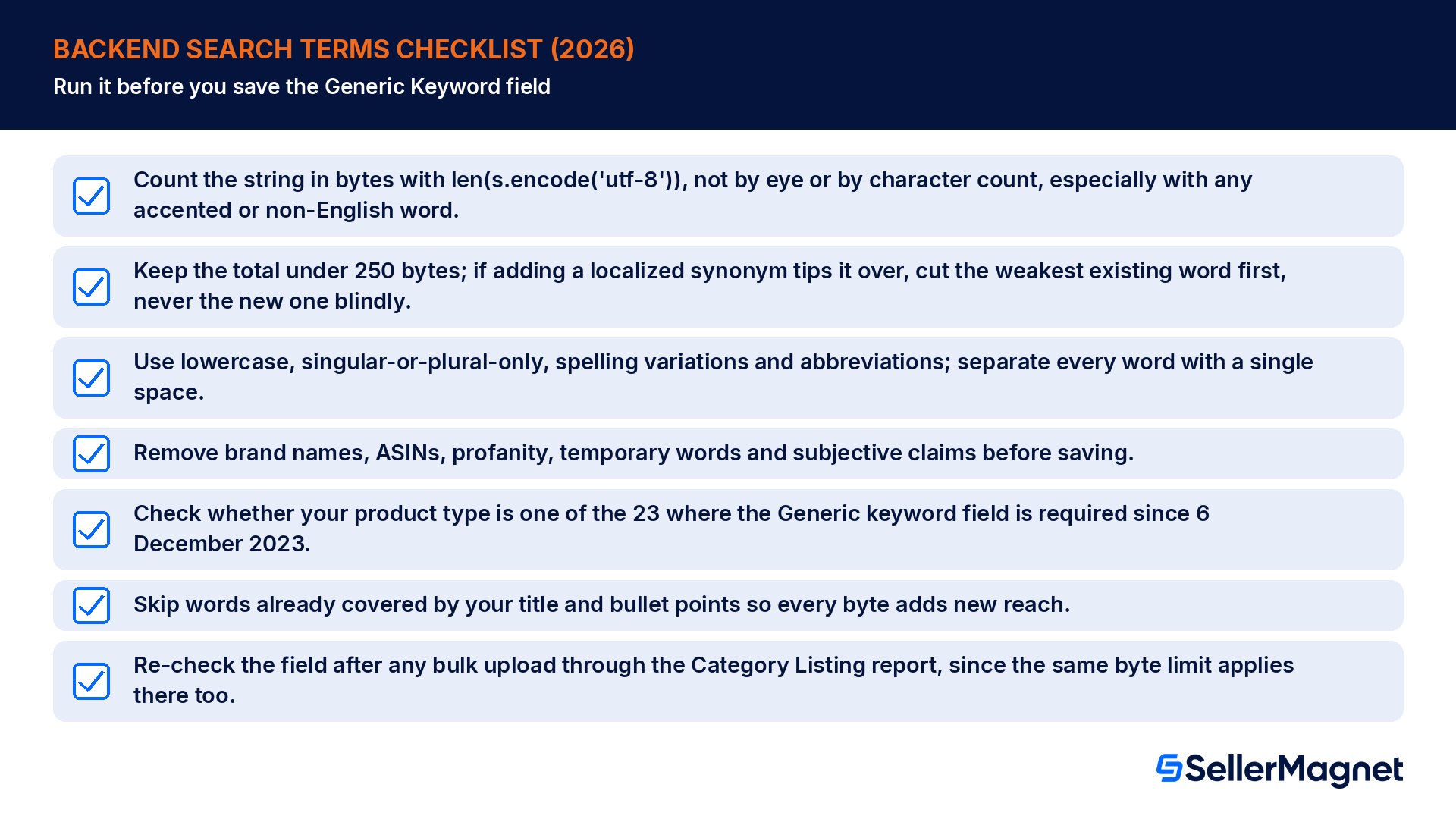
A practical backend search terms checklist
Keep this next to your title and bullet checklist, not separate from it: search terms only pay off once the rest of the listing, including conversion-focused copy, is already solid.
Count the string in bytes with len(s.encode('utf-8')), not by eye or by character count, especially with any accented or non-English word.
Keep the total under 250 bytes; if adding a localized synonym tips it over, cut the weakest existing word first, never the new one blindly.
Use lowercase, singular-or-plural-only, spelling variations and abbreviations; separate every word with a single space.
Remove brand names, ASINs, profanity, temporary words and subjective claims before saving.
Check whether your product type is one of the 23 where the Generic keyword field is required since 6 December 2023.
Skip words already covered by your title and bullet points so every byte adds new reach.
Re-check the field after any bulk upload through the Category Listing report, since the same byte limit applies there too.
What is the exact Amazon backend search terms byte limit?
Amazon's Search optimization help page states it limits the length of the Generic Keyword attribute to less than 250 bytes, which means the highest valid length is 249 bytes. The Seller Central field enforces this directly: once you reach that limit, it stops accepting further input, so you cannot save more than that from the UI.
Are backend search terms measured in bytes or characters?
Bytes. For plain English letters and digits, one byte equals one character, but Amazon's own FAQ notes that more complex characters, such as German umlauts, can take two or more bytes each. A string that looks short in characters can already be at or over the byte limit if it has even one accented or non-English character.
Do spaces and punctuation count toward the 250-byte limit?
No. Amazon's FAQ says spaces and punctuation are not counted when calculating the length of search terms. Amazon still recommends separating words with spaces for readability and avoiding punctuation such as semicolons, colons and dashes, since punctuation adds no matching value even though it is free in byte terms.
Can I put my brand name or an ASIN in backend search terms?
No. Amazon's prohibited list explicitly includes your brand or other brand names and ASINs, alongside profanity, temporary statements like "new" and subjective claims like "best." Amazon states that violating these rules may result in the ASIN being suppressed and may put the health of the selling account at risk.
Should I use both the singular and plural form of a keyword?
No. Amazon's guidance says to use either singular or plural words, not both, because it wastes bytes without adding search reach. The same applies to common spelling variations: include a genuine alternate spelling, but not a misspelling, and never repeat a word that is already covered elsewhere in the field or the listing.
Is the Generic keyword field required for every product?
Not for most products, where it is optional but recommended. Since 6 December 2023, Amazon requires the Generic keyword field for 23 specific product types, mostly household, decor and personal-care categories such as bedding sets, blankets, board games and beauty products, where titles and bullets alone may not cover how shoppers search.
Does Amazon use every search term I submit?
Not necessarily. Amazon's help pages state that it may not use all supplied search terms for any reason, including failing to follow its own guidelines, and that relevance is determined automatically and can change as Amazon gathers more data. Terms using prohibited words can also be eliminated outright rather than simply ranked lower.
How do I update backend search terms for many ASINs at once?
Through the Category Listing report. If that option is enabled under the Inventory menu in Seller Central, download the spreadsheet of existing listings and update it using an inventory file template with the partial update function. If the option is not enabled, Amazon says you can ask Selling Partner Support to turn it on for your account.
Stop Juggling Tools. SellerMagnet Combines Everything You Need.