A detail page error, a suppressed buy box, or a confused one-star review ("I only got one, not six") can all trace back to a single mistake that has nothing to do with the product itself: the Item Package Quantity field on a multipack listing was set wrong, or the listing was matched to the wrong product detail page entirely. Amazon treats a multipack, several units of the exact same item sold and barcoded together as one purchasable unit, very differently from a bundle of different products, and it enforces a specific set of rules about which UPC a multipack is allowed to use, what Item Package Quantity (IPQ) actually counts, and how the main image and title have to describe what the customer is really getting. Most sellers only discover these rules the hard way, after a catalog error email, a removed image, or a support case that keeps getting closed with a copy-paste answer. This guide works through Amazon's own UPC and IPQ documentation, its multipack imaging standards, and its product-detail-page rules to explain what IPQ and Number of Items actually measure, when a multipack needs its own new ASIN versus matching an existing one, the imaging and title rules that get a multipack's image removed, and a worked example that walks the exact IPQ math a seller gets wrong most often.
Item Package Quantity (IPQ) is the number of individually-barcoded units sold together as one purchasable item on Amazon; Number of Items is the total count of individual items the customer actually receives, and the two are often different numbers. A multipack listing, several units of the identical product packaged by the manufacturer under its own single UPC, is only valid when that manufacturer-created UPC exists; a seller cannot create a multipack by bundling single-sale units together. The main image must show the full quantity in its packaging and the title must state the pack count, or Amazon's multipack imaging standards treat the mismatch as a listing error that can get the image removed or the listing suppressed.
IPQ versus Number of Items: the two fields sellers mix up constantly
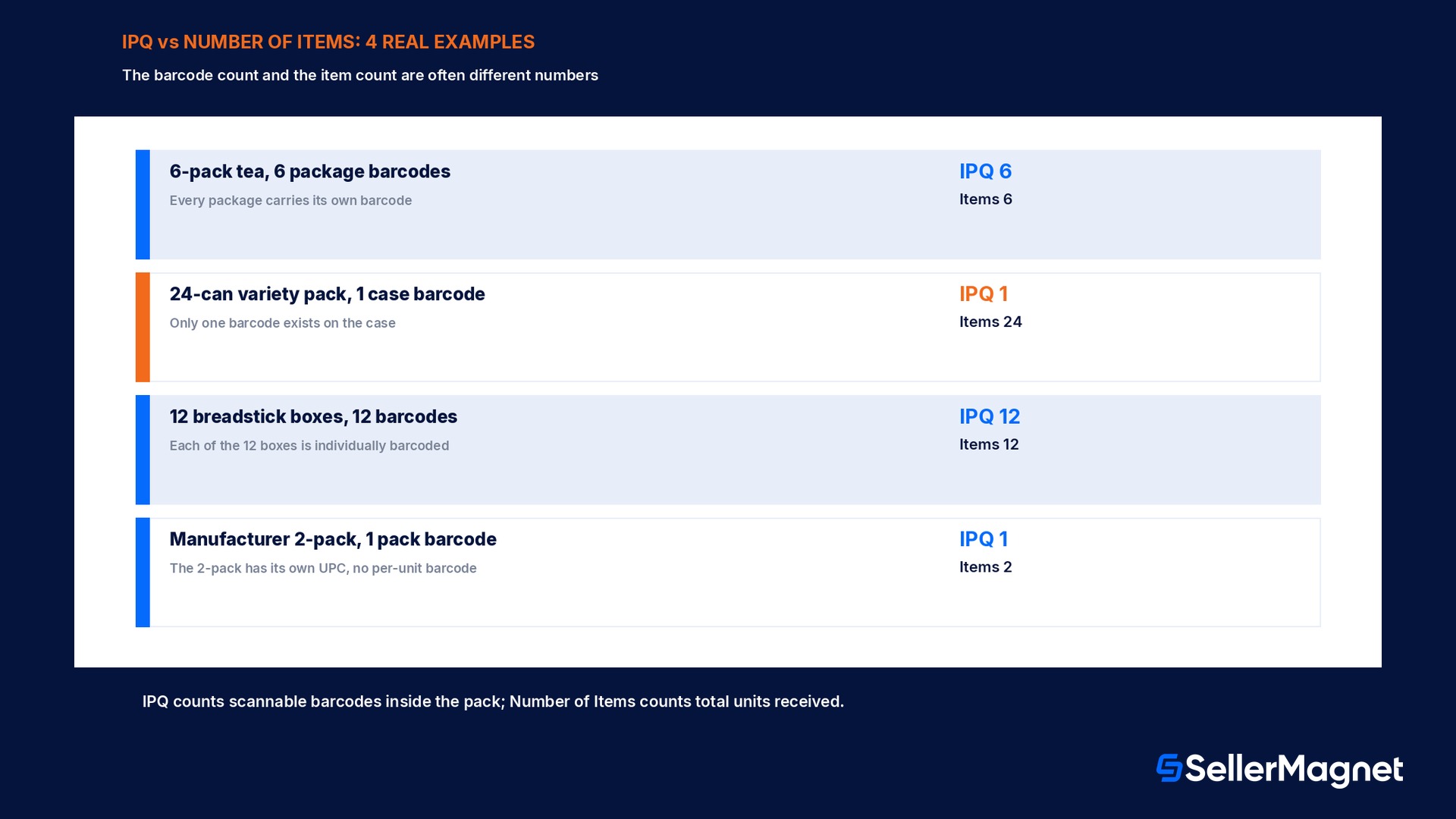
Amazon's own UPC and IPQ documentation defines Item Package Quantity as the count of individually-barcoded units contained in what is being sold as a single purchasable item, and it is a field Amazon uses specifically to match a seller's offer to the correct existing product detail page, not a marketing description. Number of Items, a separate attribute, counts the total quantity of individual items a customer physically receives, regardless of how many of them carry their own scannable barcode. The distinction only becomes visible with real examples: a case of 6 individually-barcoded packages of tea, each package scannable on its own, has an IPQ of 6, because 6 separate barcodes are inside; a 24-can variety pack that ships from the manufacturer as one sealed case with a single barcode on the outside and no barcode on any individual can has an IPQ of 1 and a Number of Items of 24, because only one barcode exists no matter how many cans are inside. Getting IPQ wrong does not just look sloppy to a customer, it actively breaks Amazon's catalog matching: an IPQ entered as 1 for a product that actually ships 6 separately-barcoded packages means Amazon's system expects to scan 1 barcode per unit of inventory received, and a receiving mismatch, a detail page error, or inventory stuck unreceived can follow directly from that single misentered number.
Product
Barcodes present
IPQ
Number of Items
Why
6 individually-barcoded tea packages, sold as a 6-pack case
6 separate scannable barcodes
6
6
Every package inside carries its own barcode
24-can variety pack, one case barcode only
1 barcode on the outer case
1
24
Only one barcode exists no matter how many cans
Single 3-ounce breadstick box, 12 boxes per case
12 separate box barcodes
12
12
Each of the 12 boxes is individually barcoded
Manufacturer 2-pack with its own distinct UPC
1 barcode for the 2-pack as a whole
1
2
The 2-pack has its own UPC separate from the single unit
The multipack listing rule: manufacturer-created, with its own UPC
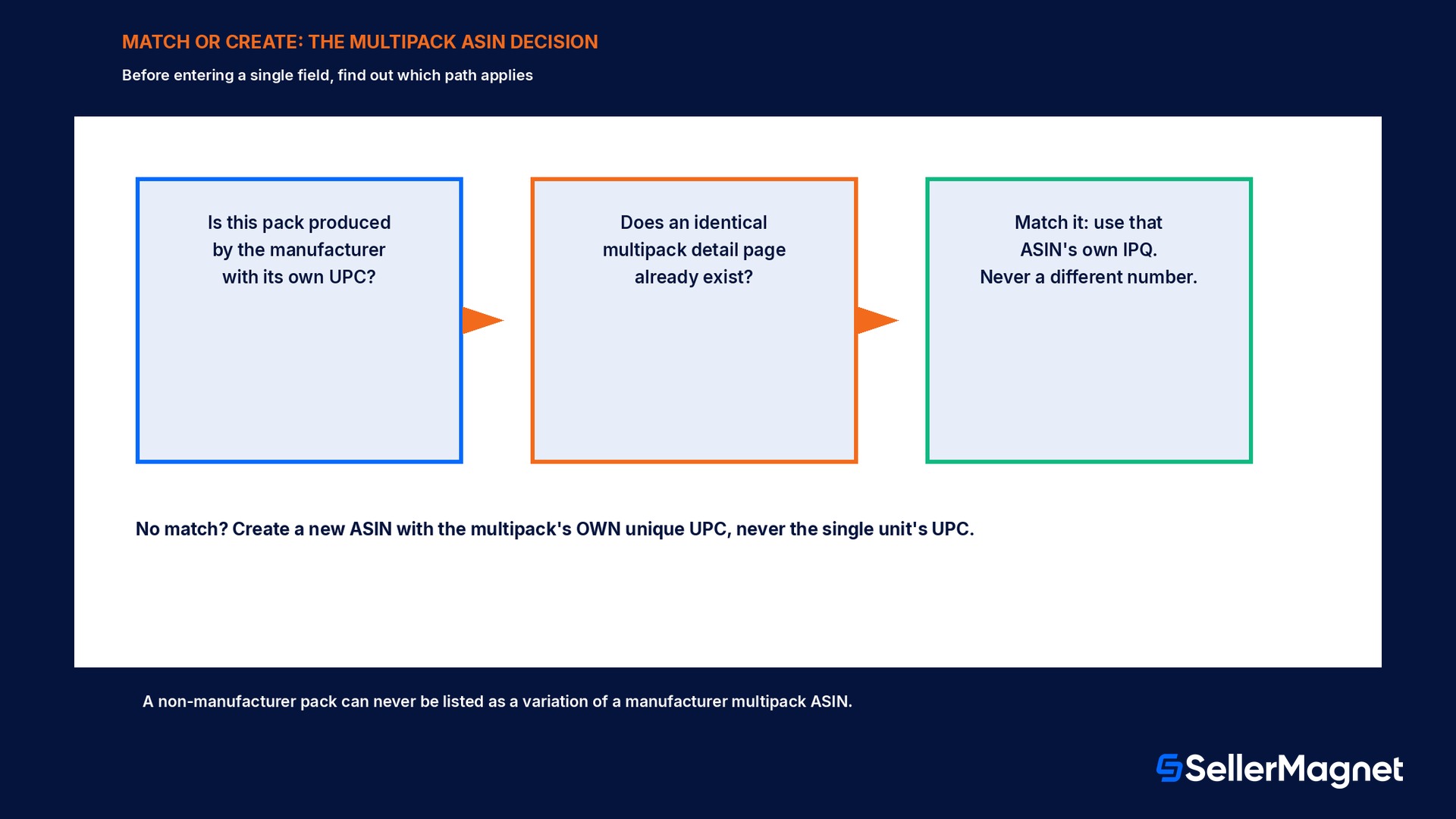
For most products sold on Amazon, a multipack listing is only allowed when the manufacturer itself produces and packages that multipack as a distinct retail unit with its own, separate UPC, different from the UPC on the single-unit version of the same product. A seller cannot manufacture a multipack listing by physically taping, shrink-wrapping, or boxing together individually-sold units that were never barcoded as a pack by anyone upstream; doing so does not create a legitimate new product, it creates a mismatched offer with no valid identifier behind it. Before creating anything, Amazon's guidance is to check whether an identical multipack product detail page already exists in the catalog; if it does, the seller matches their offer to that existing ASIN and enters the IPQ that page already specifies. If no matching multipack detail page exists yet, a seller follows the standard ASIN Creation Policy to create a new one, using the multipack's own unique UPC, never the UPC of the single-unit product, and never an ASIN that is a non-manufacturer-created pack listed as a variation of a manufacturer-created multipack ASIN; Amazon's documentation calls that specific combination out as not permitted.
Multipack imaging standards: what the main image and title must show
Amazon's multipack imaging standards set two requirements that apply together, not separately: the main image must show the total quantity that will actually be delivered to the customer, photographed in its real packaging, and the product title must state that same total quantity using a pack or count format (for example "Pack of 12" or "12 Count"). A variety multipack, several different products packaged together, carries the identical requirement: the image has to show the real total quantity and give enough visual information to identify the different products inside, and the title has to state the total count. Amazon explicitly checks whether the image and the title agree with each other; a title that says one quantity while the image shows a different one, or a single-item image used on a multipack listing, is flagged as an image-and-title inconsistency, and that mismatch is a documented reason a product image can be removed or a listing suppressed from search entirely. A separate, narrower rule covers the optional pack-quantity sticker some categories support on the detail page: it must never be added onto the product image itself, since any sticker resembling Amazon branding or overlaid onto the photograph triggers the same image-removal consequence as an Amazon-logo violation, and the underlying image still has to be of a single item when that sticker feature is used.
Image and title must agree on the exact quantity
If the main image shows one item but the title states a pack count, or the reverse, Amazon's own documentation names this an image-and-title inconsistency: a documented, specific cause of image removal or search suppression, separate from any other listing error.
Matching an existing ASIN versus creating a new one
Before listing any multipack, the practical first step is a catalog search for an identical multipack product detail page: same brand, same pack count, same packaging configuration. A match means the seller lists an offer against that existing ASIN and uses its already-specified IPQ value exactly, never a different number chosen independently. When no identical multipack page exists, creating a new one requires the multipack's own unique UPC obtained for that exact pack configuration, never the UPC already assigned to the single-unit product and never an improvised code. A seller who lists a new multipack using the single unit's UPC is not creating a distinct product in Amazon's catalog, they are creating a duplicate-identifier conflict that risks a suspended listing, a forced merge, or in the worst case a receiving error if the mismatch is only caught once inventory has already shipped to a fulfillment center.
A worked example: a seller gets IPQ wrong in both directions
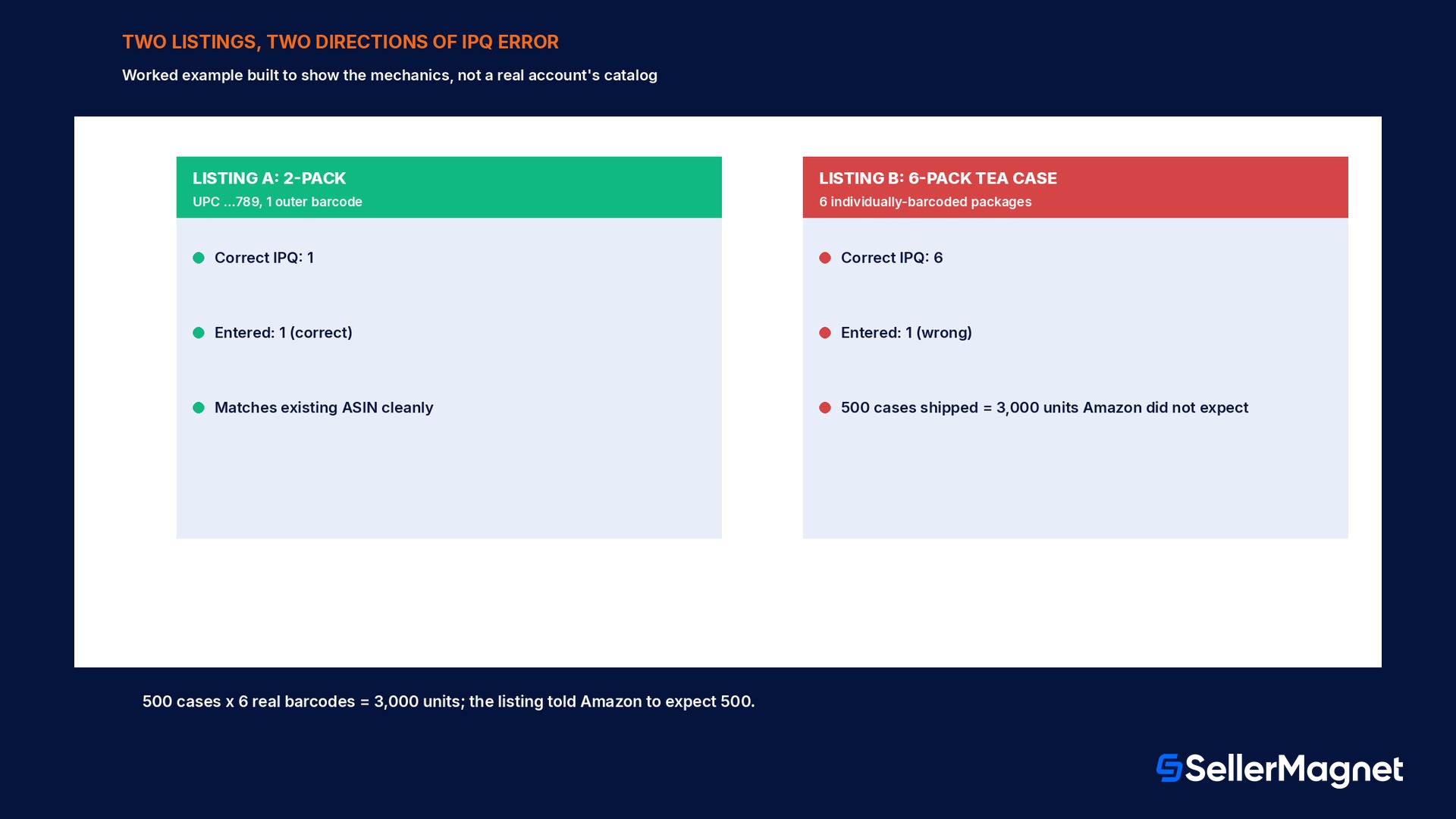
The numbers below are built to make the mechanics concrete, not a real account's catalog. A seller sources a product sold by its manufacturer in two configurations: a single unit with UPC ending in 788, and a manufacturer-created 2-pack with a separate UPC ending in 789, individually priced at $19 and $38. Listing A is set up correctly: it matches the manufacturer's existing 2-pack ASIN, enters IPQ as 1 (one barcode on the outer 2-pack wrapping, since the manufacturer did not put a separate scannable barcode on each of the 2 individual units inside), and sets Number of Items to 2. Listing B, for an unrelated grocery product, gets IPQ wrong the opposite way: the seller receives a case of 6 individually-barcoded 16-bag tea packages (6 separate barcodes, one per package) but enters IPQ as 1, copying the habit from Listing A without checking whether this product's packages were individually barcoded. That single wrong entry tells Amazon's system to expect 1 scannable unit per case for inventory-matching purposes, when 6 actually exist, and the mismatch surfaces at the fulfillment center as a receiving discrepancy against 500 total cases sent in that shipment, the exact kind of IPQ error documented on Amazon's own grocery IPQ examples page.
Listing
Barcode reality
Correct IPQ
What the seller entered
Result
A: manufacturer 2-pack, UPC ...789
1 barcode on the outer 2-pack
1
1 (correct)
Matches the existing multipack ASIN cleanly
B: 6-pack case of tea, 6 package barcodes
6 separate scannable barcodes
6
1 (wrong)
500 cases sent = 3,000 individually-barcoded units Amazon's system did not expect
Mistakes that create detail page errors or get an image pulled
Taping or boxing single-sale units together to invent a multipack. Amazon's rule requires a manufacturer-created pack with its own UPC; a seller-assembled pack has no valid multipack identifier behind it.
Entering IPQ as the Number of Items instead of the barcode count. If a case has one outer barcode and 24 cans inside, IPQ is 1, not 24; confusing the two fields is the single most common error on Amazon's own examples.
Using the single unit's UPC on a new multipack listing. The multipack needs its own separate, manufacturer-assigned UPC; reusing the single-unit code creates a duplicate-identifier conflict instead of a distinct product.
Listing a non-manufacturer-created pack as a variation of a manufacturer-created multipack ASIN. Amazon's documentation calls this combination out directly as not permitted.
A main image that shows one item while the title states a pack count (or the reverse). This exact mismatch is Amazon's own documented image-and-title inconsistency, a cause of image removal or search suppression.
Applying a pack-quantity sticker directly onto the product photo. The sticker is a detail-page feature, never an image overlay; adding it to the photo risks the same removal consequence as an Amazon-logo violation.
Skipping the catalog search for an existing identical multipack page before creating a new ASIN. Creating a duplicate ASIN for a pack configuration that already exists fragments reviews, rankings and inventory across two listings instead of one.
Checklist before publishing a multipack listing
How to list an Amazon multipack correctly the first time
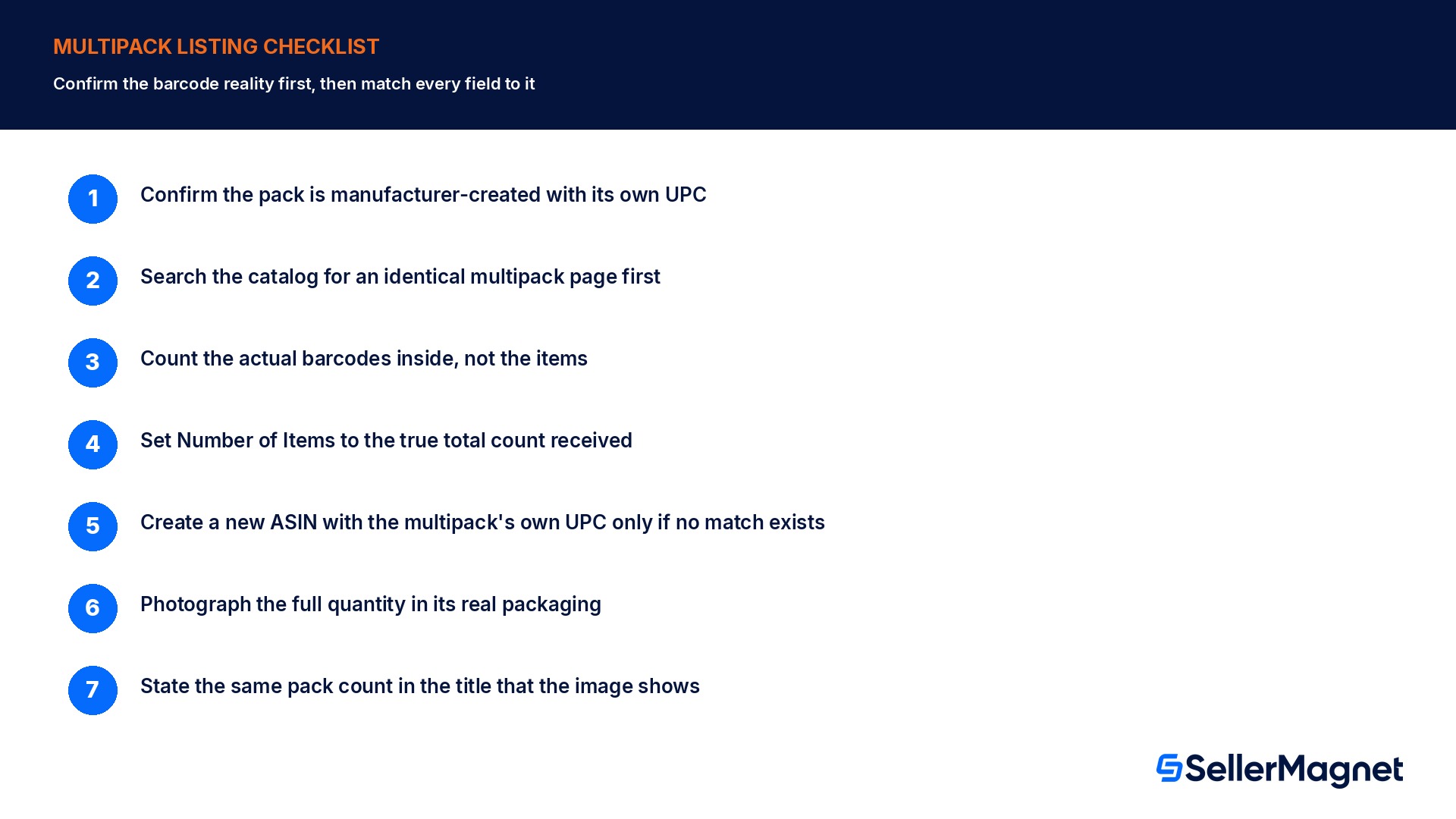
Confirm the pack is manufacturer-created with its own UPC - A seller-assembled pack of single-sale units is never a valid multipack listing.
Search the catalog for an identical multipack detail page first - Match to it and copy its existing IPQ value if one already exists.
Count the actual barcodes inside the package, not the items - IPQ equals the number of individually-barcoded units, which can be lower than the item count.
Set Number of Items to the true total count the customer receives - This is a separate field from IPQ and is frequently a different number.
Create a new ASIN with the multipack's own unique UPC only if no match exists - Never reuse the single unit's UPC or an improvised code.
Photograph the full quantity in its real packaging for the main image - The image must show exactly what ships, not a single representative unit.
State the same pack count in the title that the image shows - An image-and-title quantity mismatch is a documented cause of image removal.
What SellerMagnet can and cannot do about this
Creating a multipack ASIN, obtaining its manufacturer UPC, and matching it to the right existing detail page are catalog decisions Amazon makes directly; no third-party tool, including SellerMagnet, creates or assigns a UPC on a seller's behalf. Where SellerMagnet's Listing Optimizer helps is in catching the mismatch before it causes a problem: flagging a listing whose title states one pack count while its main image shows a different quantity, or where the IPQ value looks inconsistent with the product category's typical packaging, surfaces the exact error class covered above before a fulfillment center receiving mismatch or an image removal happens.
This sits alongside the catalog hygiene covered in the suppressed listings guide and the title-length rules in the 75-character title guide: a multipack listing can pass every other check and still get suppressed purely on an image-and-title quantity mismatch, so treat the IPQ and imaging rules as their own checkpoint. A multipack that also ships to a fulfillment center follows the same box, labeling, and prep rules covered in the FBA box requirements guide, since a multipack with its own UPC is still its own distinct item for packing and labeling purposes, separate from the single-unit version of the same product.
What is the difference between IPQ and Number of Items?
Item Package Quantity (IPQ) counts the number of individually-barcoded units inside what is sold as one purchasable item. Number of Items counts the total individual items a customer receives. A 24-can case with one outer barcode has an IPQ of 1 and a Number of Items of 24.
Can I create a multipack listing by taping together units meant to be sold individually?
No. A multipack listing is only valid for a pack produced and barcoded that way by the manufacturer, with its own separate UPC. A seller-assembled pack of single-sale units has no valid multipack identifier.
Which UPC should I use for a new multipack listing?
The multipack's own unique UPC, assigned to that exact pack configuration by the manufacturer. Never reuse the UPC of the single-unit version of the product; that creates a duplicate-identifier conflict.
What happens if the main image and title disagree on the pack count?
Amazon's own multipack imaging standards name this an image-and-title inconsistency, a documented, specific cause of image removal or search suppression, independent of any other listing issue.
Can I add a pack-quantity sticker to my product photo?
The pack-quantity sticker is a separate detail-page display feature in supported categories, not something to add onto the photo itself. Overlaying it onto the image risks the same removal consequence as an Amazon-logo violation, and the photo must still show a single item when that feature is used.
Should I list a non-manufacturer-created pack as a variation of an existing multipack ASIN?
No. Amazon's documentation states this combination directly is not permitted; a non-manufacturer-created pack needs its own listing path, not a variation slot on a manufacturer-created multipack ASIN.
What if I enter IPQ wrong on an already-live listing?
A wrong IPQ breaks Amazon's catalog matching for that offer and can surface as a detail page error or a receiving mismatch at a fulfillment center; correct the IPQ field to the true barcode count as soon as the error is found.
Stop Juggling Tools. SellerMagnet Combines Everything You Need.